
Salesforce Setup Guide
Follow our setup guide to connect Salesforce to Fivetran.
Prerequisites
To connect Salesforce to Fivetran, you need:
- An active Salesforce account with Administrative privileges to approve Uninstalled Connected Apps. For more information, see our Grant permission to connect to the Fivetran app documentation.
- A Salesforce Enterprise level account plan or higher, or purchased Salesforce API calls
(Optional, Private Preview only) To manage credentials outside of Fivetran, you need an External Secret Manager configured for your account before starting setup.
You can create up to four connections using one set of Salesforce account credentials. That’s because Salesforce limits the number of connections made using OAuth2 to four per account per application.
If you attempt to authenticate more than four connections using one set of Salesforce account credentials, the earliest connection you authenticated with those credentials will lose its authentication.
If you need more than four Salesforce connections, you must use additional Salesforce account credentials to create those connections.
Supported authentication methods
You can use one of the following authentication methods to connect your Salesforce account to Fivetran:
OAuth2.0 (default): This method uses 1-way TLS (Transport Layer Security) with OAuth2.0 (refresh-token flow) authorization.
mTLS: This method adds a layer of security by using mutual TLS (mTLS authentication) with OAuth2.0 (client-credential flow) authorization. See our Mutual Authentication documentation for detailed instructions to enable this option. We do not recommend this mode for most users because it requires additional configuration in your Salesforce account.
Setup instructions
Disable session IP locking
Go to the Session Settings page and uncheck the Lock sessions to the IP address from which they originated box.
It is very rare that this setting needs to be updated (<1% of cases), as it is disabled by default for the majority of users.
You may encounter the INVALID_SESSION_ID error when Session IP Locking is turned on.
Grant permission to connect to the Fivetran app
Do not perform this step if you are using the mTLS authentication method.
To connect to Salesforce using an application that isn't installed in your organization, you must grant users the appropriate permissions to connect to uninstalled apps. To grant user permissions, you must have administrative privileges. You can assign this permission either by adding it to an existing permission set or by enabling it directly on the user's profile that you want to connect to Fivetran. For more information, see the Salesforce documentation.
To grant permission, do the following:
Log in to your Salesforce account.
Click Setup.
Under the Administer tab, expand the Manage Users section.
From the drop-down menu, select Permission Sets. You can either create a new permission set or use an existing one. One user can be assigned multiple permission sets.
Click Edit and enable Approve Uninstalled Connected Apps. Alternatively, enable Use Any API Client if API Access Control for your organization.
Click Save.
Click Manage Assignments > Add Assignments.
Select the user that you want to assign this permission set, and click Assign.
(Optional) After your Fivetran connection is successfully syncing, return to the permission set and disable Approve Uninstalled Connected Apps to remove this permission.
The Approve Uninstalled Connected Apps permission is only required during the initial connection setup. Once the connection is successfully created and is syncing data, you may remove the permission from the account for enhanced security.
Allowlist Fivetran IP addresses
If your Salesforce org enforces IP restrictions at the organization or profile level, you must allowlist the required Fivetran IP addresses before Fivetran can connect to your account.
Obtain required IP addresses
Data replication IP addresses: Fivetran accesses your Salesforce instance from the IP addresses where your destination is deployed. These vary by region. See our IP addresses documentation for the full list of IP addresses you must allowlist based on your region. This applies to our SaaS Deployment model only.
Access token flow IP addresses: Our Connected App uses a fixed set of IP addresses for the OAuth access token flow. Allowlist all of the following:
| IP addresses in CIDR notation | IP address range |
|---|---|
34.85.252.27/32 | 34.85.252.27 |
35.197.105.90/32 | 35.197.105.90 |
136.107.62.136/29 | 136.107.62.136 - 136.107.62.143 |
136.118.115.24/29 | 136.118.115.24 - 136.118.115.31 |
Configure allowlists in Salesforce
Add the IP addresses in Salesforce to your org-level trusted IP ranges and your profile's login IP ranges.
- At the organization level: If your org uses Network Access as part of its authentication policy, navigate to Setup > Network Access and add the required IP addresses to your org-wide trusted IP ranges.
- At the profile level: Navigate to Setup > Profiles > [integration user profile] > Login IP Ranges and add the required IP addresses to the integration user’s login IP ranges. For single IP addresses, enter the same value as both the start and end address. For IP ranges, enter the start and end addresses of the range.
For detailed instructions, see Salesforce's documentation.
If your Salesforce org doesn't have IP restrictions enabled at the org or profile level, you can skip this step.
Advanced configuration
Advanced configuration provides additional setup options that help you get more granular control over the permissions, data access, and security for your Salesforce connection.
Expand for instructions
Enable field history tracking
Read the Salesforce documentation to learn how to enable field history tracking.
Configure Salesforce account
Create new user and profile in Salesforce
Expand for instructions
To set up a Salesforce connection, you can use any Salesforce user within your organization that has permission to read data from Salesforce's APIs. However, we recommend creating a dedicated user and limit data access for this user only to data you want to sync. You can limit data access for a user by creating a profile in Salesforce and assigning it to the user.
To create a new user and profile in Salesforce, do the following:
Log in to Salesforce. You must have administrative privileges to create a user.
Go to Setup in the top right corner of your screen.
Under the Administration tab on the left side of the screen, click on the Profiles tab.
Click New Profile.
Select Read Only from the Existing Profile drop-down menu.
Enter a memorable name in the Profile Name field. For example,
Fivetran User Read Only.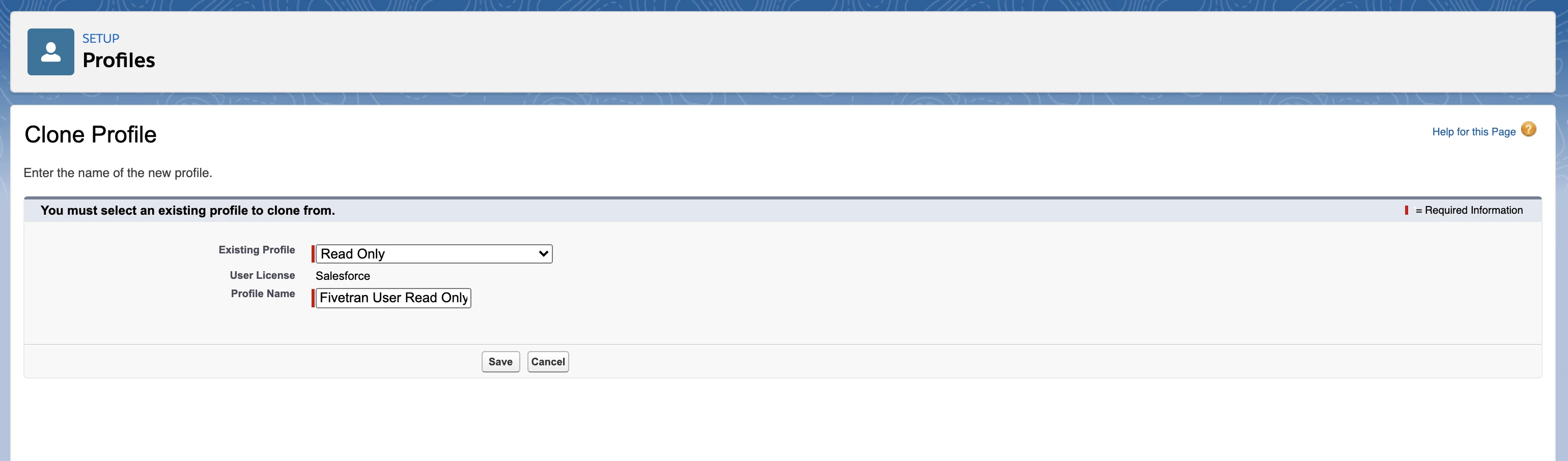
Click Save. The Profile page will open.
Click Edit in the Profile Detail section.
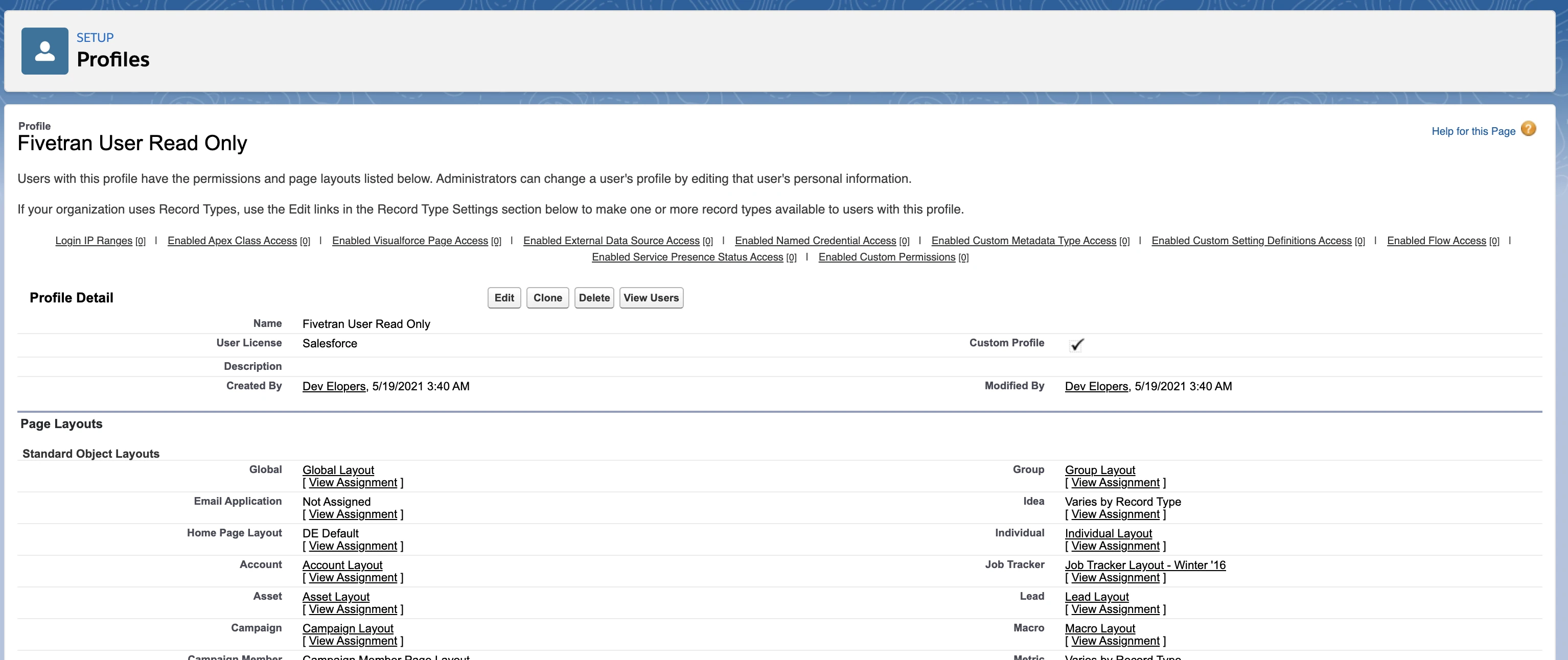
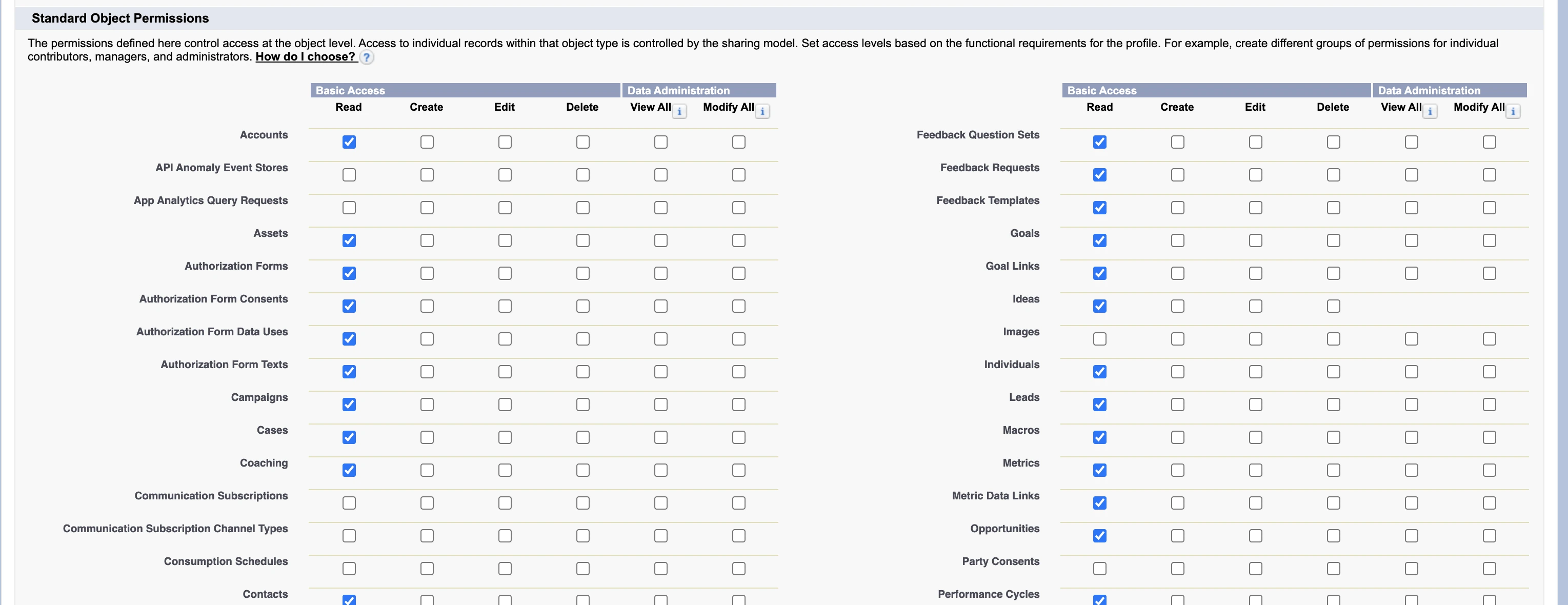
Scroll down to the Standard Object Permissions section and set the Read permission for the objects that you want sync.
Scroll down to the Custom Object Permissions section and grant the Read permission for the objects that you want to sync.
Click Save.
Under the Administration tab on the left side of the screen, click the Users tab.
Click New User.
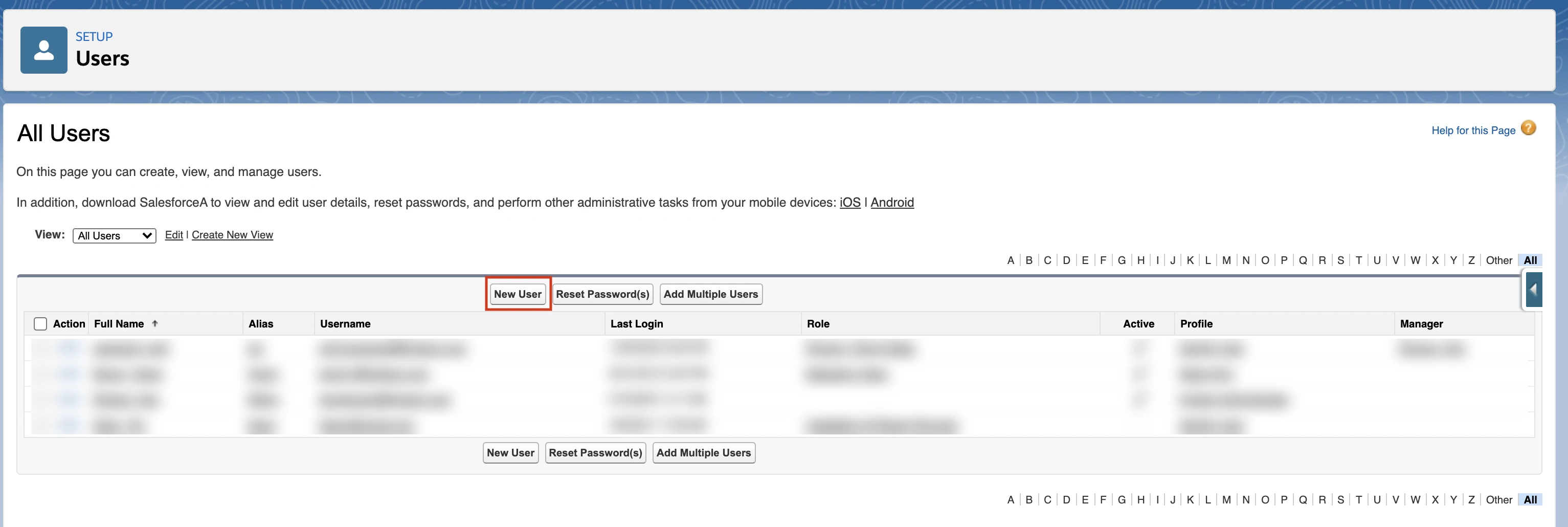
Fill in all the required details.
In Profile, select the user profile you created (Fivetran User Read Only).
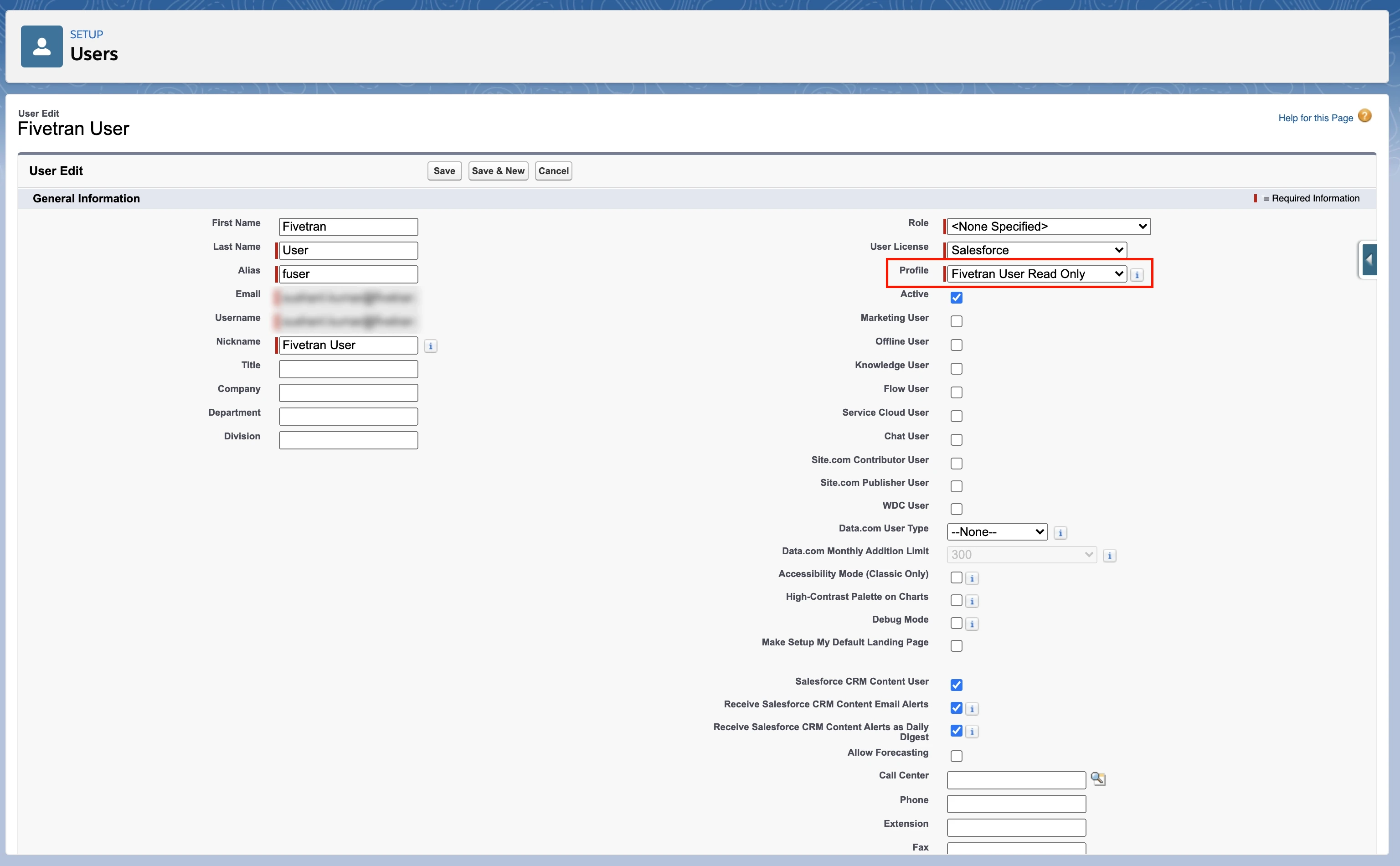
You can follow the steps mentioned in the Option 2. Limit the connecting user in Salesforce documentation section to grant permission on field levels using permission sets.
Limit permissions to tables or columns
Expand for instructions
We sync the data that we have access to based on the viewing permissions of the connected user. If you don't want us to sync a certain type of data to into your destination, limit the permissions of the connecting user.
There are two ways to limit the data that we extract from your Salesforce account:
Disable tables in the Fivetran dashboard
To disable tables:In your Fivetran dashboard, navigate to the Salesforce connection details page.
Go to the Schema tab and exclude the tables and columns that you do not want to sync.
If you are concerned about unintentionally syncing sensitive data to your destination, click the gear icon to open the Schema Change Settings menu, then select Allow columns.
Limit the connecting user in Salesforce
Fivetran connects to your Salesforce instance through the credentials of the connecting user, so to limit our access to the data, limit that user's access. You can do this in Salesforce through Permission Sets.
It's best to limit the connecting user's access before you initially connect the user through our setup form. Otherwise, you may have some dead objects in Salesforce that will no longer be updated after you've restricted the user's permissions.
To limit user access:
Log in to Salesforce. You must have Administrative privileges to set permissions.
Click Setup.
Under the Administer tab, click on the arrow next to Manage Users.
You should see a drop-down menu below the arrow. Select Permission Sets in the drop-down menu.
(Recommended) Create a new set of permissions specifically for the user that you will use to connect to Fivetran. For example, 'Fivetran Permissions'.
Users can have multiple sets of permissions assigned to them. If you'd like to be certain of what data we have access to, assign only one set of permissions to the connecting user.
Press New > Enter in Label > Choose Appropriate User License Type. You'll see the settings for the new permission set (for example, 'Fivetran Permissions').
Select Object Settings.
Select which fields you would like this connecting user, and therefore Fivetran, to have access to. The default setting is No Access.
The only permissions relevant to Fivetran are that we can read the data, though the user themselves may need to be able to do more. Read permission grants access to view records that are created by that user or are shared using rules, roles, or manual sharing. View All permission grants access to all records of that type (for example, the Account type).
To enable the user to access all the files in the org, provide the user with the Query All Files permission. Fivetran can not sync all the records from the ContentNote, ContentDocument, ContentDocumentLink, and ContentVersion objects without the Query All Files permission.
Set the View Setup and Configuration permission to enable the Limits resource, which allows us to access different limits using API to optimize data sync.
Go to Administer > Manage Users > Users and select the user account that you will use to log in through Fivetran.
Scroll down to Permission Set Assignments and click Edit Assignments.
Move Fivetran Permissions from Available Permission Sets to Enabled Permission Sets.
Click Save.
Finish Fivetran configuration
Fivetran has two separate services for Salesforce. Choose the connector for the environment you'd like to use:
- Production environment
- Sandbox environment
In the connection setup form, enter the Destination schema name of your choice.
In the Destination names field, choose the naming convention you want Fivetran to use for the schemas, tables, and columns in your destination:
- Fivetran naming: Standardizes the schema, table, and column names in your destination according to the Fivetran naming conventions.
- Source naming: Preserves the original schema, table, and column names from the source system in your destination.
- The Source naming feature is not compatible with Quickstart transformations. To ensure successful syncs, we automatically disable Quickstart transformations for connections configured with Source naming.
- If you want to modify your selection, make sure you do it before you start the initial sync.
Select your Authentication Method:
(Default) For OAuth2.0 authentication, click Authorize and log in to your Salesforce account.
We recommend logging in while in Incognito mode to ensure authorization of the correct account.
For mTLS authentication, provide credentials, certificate, and private key:
i. Provide credentials:
a. In the Client ID field, enter the consumer key for your configured External Client App.
b. In the Client secret field, enter the consumer secret for your configured External Client App.
ii. In the CA-signed Certificate or Public Key field, upload the CA-signed certificate file you generated.
iii. In the Private key field, upload the private key you generated.
iv. Enter the My Domain URL you found.
If you want to sync Salesforce Files, set the Sync Salesforce Files to your destination's object storage toggle to ON.
- This feature is available only for connections that are set up for destinations supporting unstructured file replication.
- File syncing is not supported for connections using Hybrid Deployment.
(Optional) Set the Show Advanced Options toggle to ON to configure the following advanced settings.
If you want to sync formula fields directly (not recommended), set the Sync formula fields directly toggle to ON.
(Optional) In the Max Salesforce API usage field, enter a percentage value to specify how much of your Salesforce API quota the connection consumes during syncs.
(Optional) To include inactive records in your transformation-based formula models, set the Include inactive records in formula field models toggle to ON. Review the limitations for inactive records before enabling this option.
Click Save & Test. Fivetran will take it from here and sync your data from your Salesforce account.
Fivetran tests and validates the Salesforce connection. On successful completion of the setup tests, you can sync your Salesforce data to your destination.
Setup tests
Fivetran performs the following Salesforce connection tests:
The Verifying the input
My DomainURL test validates that the My Domain URL you entered useshttpsat the beginning and ends withmy.salesforce.comwith no additional path. We perform this test only when you choose the mTLS authentication method for your connection. We skip this test for connections using OAuth2.0 for authentication.The Validating REST API call limit test verifies that the value you entered in the Max Salesforce API usage field is between 50% and 90%.
The Connecting to API test establishes a connection to the Salesforce API and validates your credentials.
For Salesforce Sandbox connections, the test establishes a connection to the Salesforce Sandbox API and validates your credentials.
The tests may take a couple of minutes to finish running.