
Slack Admin Data Setup Guide
Follow our setup guide to connect Slack Admin Data to Fivetran.
Prerequisites
To connect Slack Admin Data to Fivetran, you need access to a Slack account with administrator (Enterprise grid) privileges.
The Slack Admin Data connector uses OAuth2 (without token rotation) for authentication.
Setup instructions
Create API credentials
Go to Slack Applications
Click Create New App.
Click From scratch.
In the Create New App page, do the following:
i. Enter your App name.
ii. Select your Workspace.
iii. Click Create App.
In the OAuth & Permissions section, do the following:
i. Enter
https://fivetran.com/integrations/slack_admin_data/oauth2/returnas the Redirect URI.ii. Bot Token Scopes: Select the
users:readscope.iii. User Token Scopes: Select the
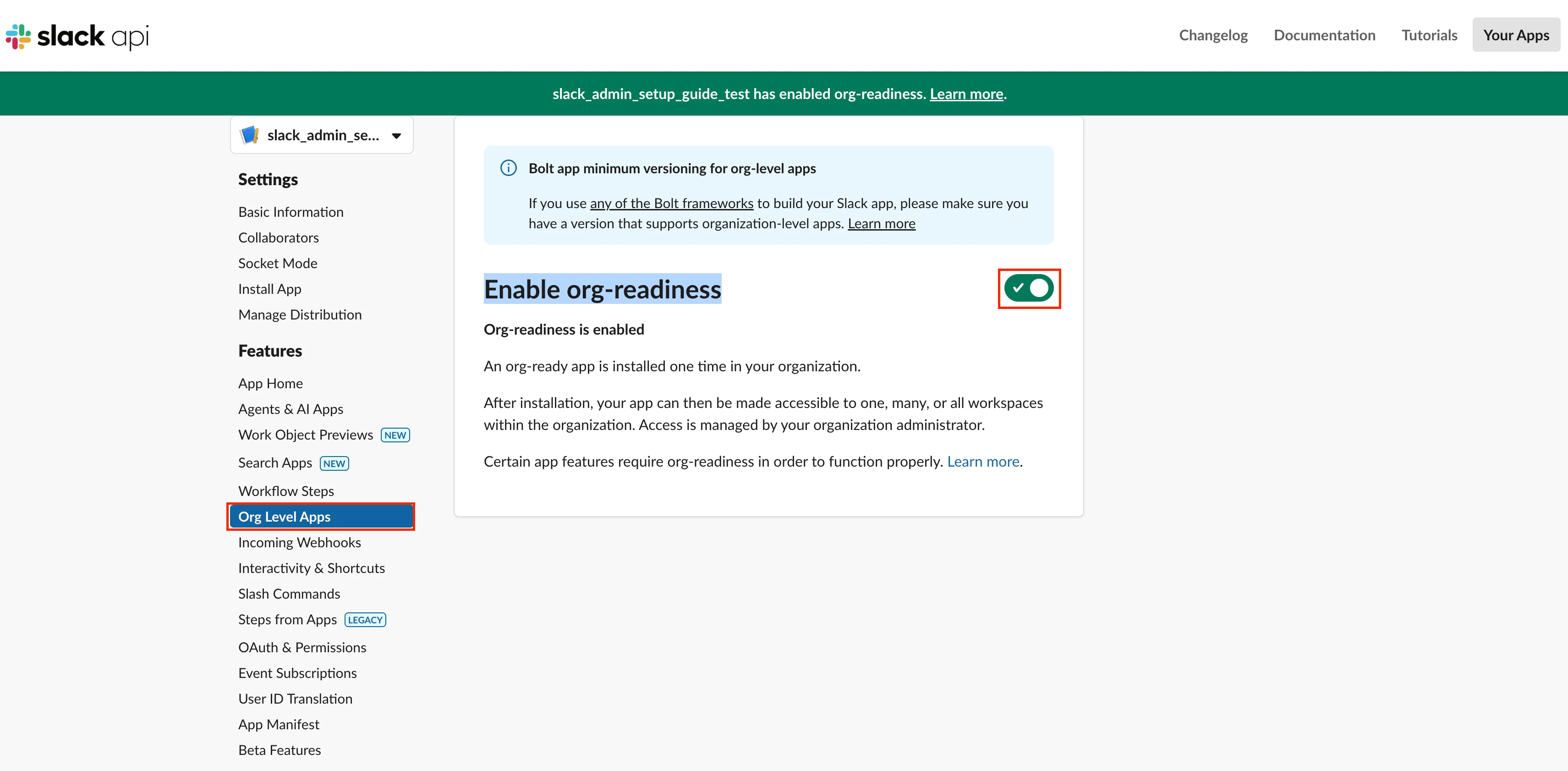
auditlogs:readscope.Select Org Level Apps in the navigation pane and enable the toggle for Enable org-readiness.
Select Install App in the navigation pane and click Install to organization.
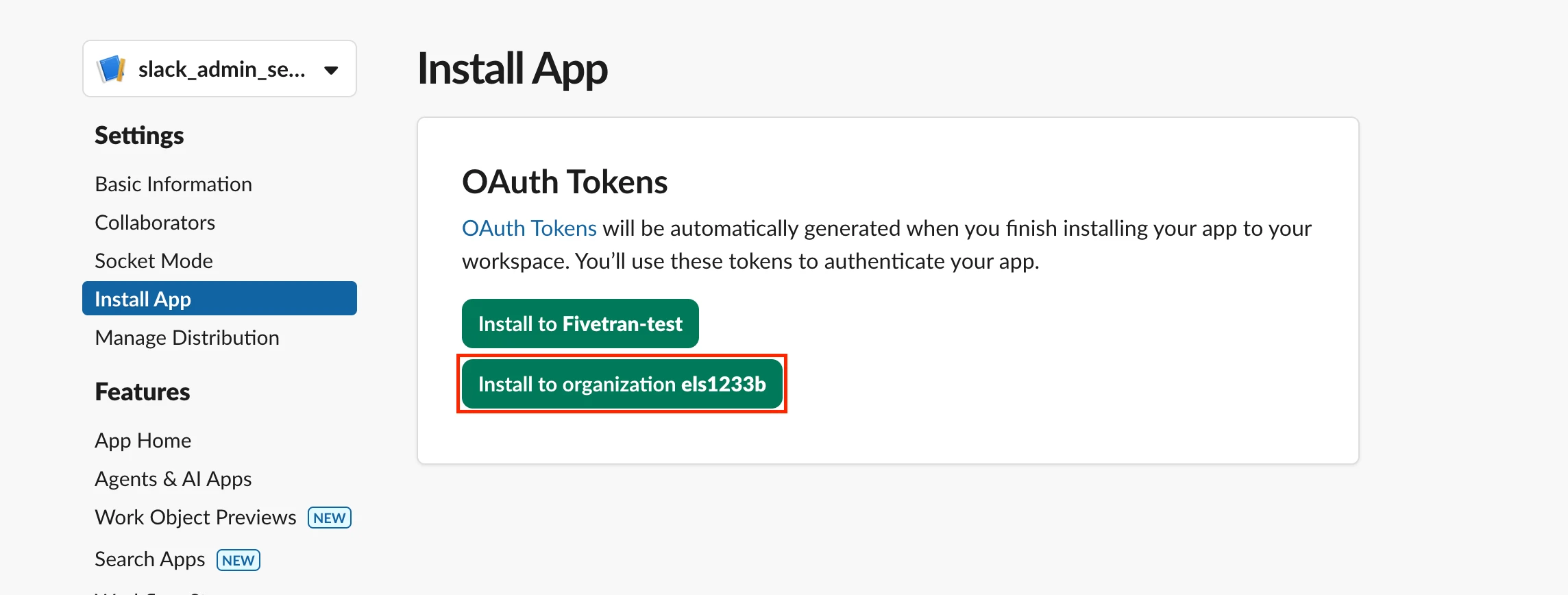
- Your app must be installed on the organization, not just a workspace within the organization.
- Apps requesting the
auditlogs:readscope must be installed by the Owner of an Enterprise organization.
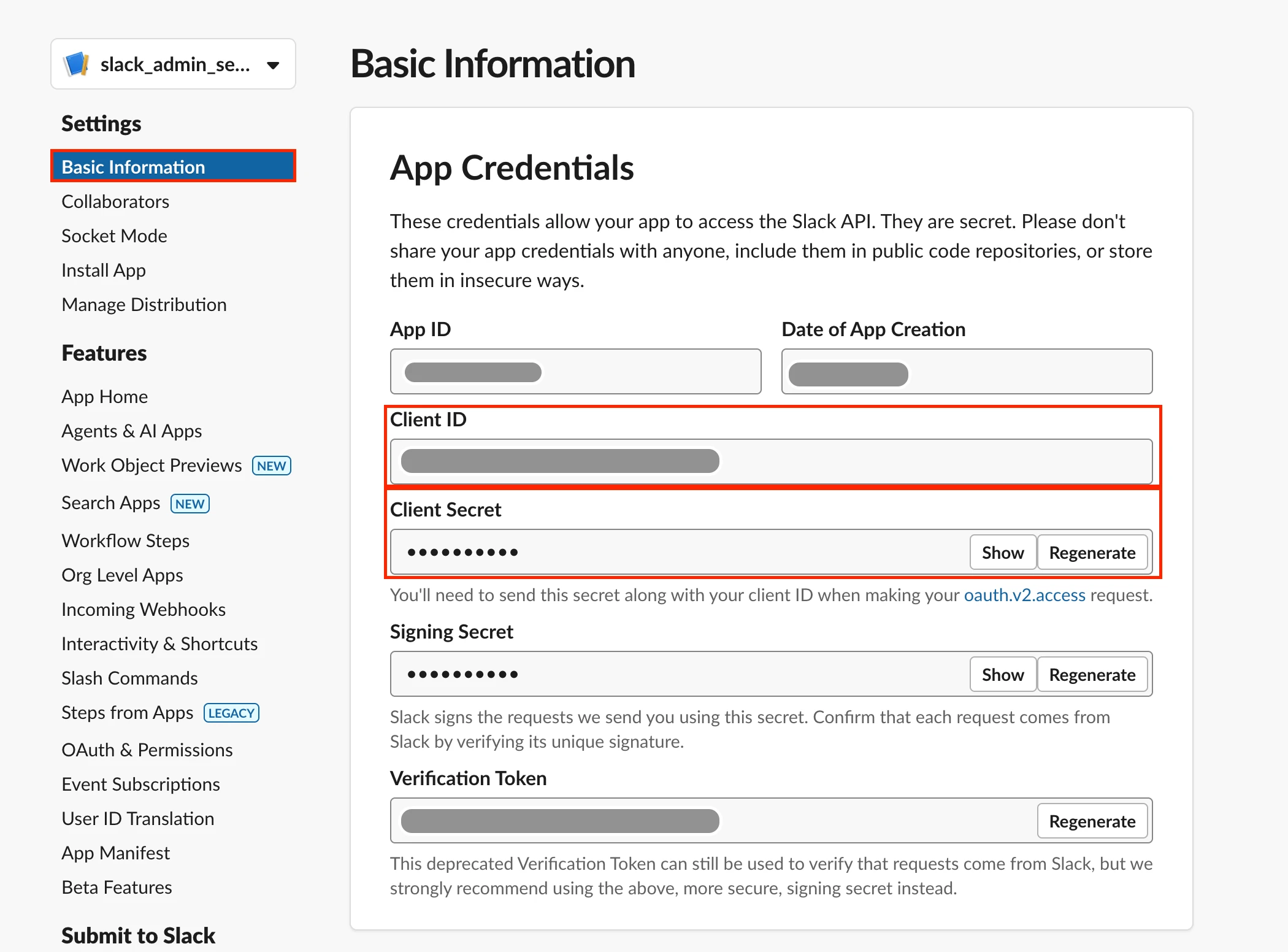
Go to Basic Information and make a note of the Client ID and Client secret. You will need them to configure Fivetran.
Finish Fivetran configuration
- Enter your chosen Destination schema name in the connection setup form.
- Enter the Client ID and Client secret you generated.
- Click Authorize to allow Fivetran to access your Slack Admin account using OAuth. This will redirect you to Slack's login portal.
We recommend logging in while in Incognito mode to ensure authorization of the correct account.
- Log in to your Slack Admin account. Once you have finished, you will be redirected back to Fivetran.
(Hybrid Deployment only) If your destination is configured for Hybrid Deployment, the Hybrid Deployment Agent associated with your destination is pre-selected for the connection. To assign a different agent, click Replace agent, select the agent you want to use, and click Use Agent.
- Click Save & Test. Fivetran will take it from here and sync your Slack Admin data.