
Google Analytics 4 Export Setup Guide
Follow our setup guide to connect Google Analytics 4 Export to Fivetran.
Prerequisites
To connect your Google Analytics 4 Export account to Fivetran, you need:
- A Google Analytics 4 account
- A Google Cloud Platform role with sufficient permissions to provision IAM roles for BigQuery access and Storage Object creation (Bigquery Job User role for Project, BigQuery Data Viewer role for DatasetId, and Storage Object Admin role for BucketName)
Setup instructions
Find Fivetran email
In your connection setup form, make a note of the unique auto-generated email address at the top of the setup form (for example, g-generated-account@fivetran-production.iam.gserviceaccount.com). You will need this email to configure your source system to sync with Fivetran.
The auto-generated email is tied to your account. If you close and re-open the setup form, the email will remain the same. You may wish to keep the tab open in the background while you configure your source for convenience, but closing it is also OK.
Configure BigQuery export for GA4Export
Follow Google's step-by-step instructions to configure BigQuery export for Google Analytics 4 Export.
Select export type
To enable Fivetran to sync your data, you must select the Daily export type. This option exports a single file containing the previous day's data to be loaded into BigQuery each day.
In addition to the Daily export type, if you want to sync intraday records, select one of the following export types:
- Streaming: This option lets you stream events continuously and is available to all Google Analytics users.
- Fresh daily: This option enables the syncing of periodic batches of updates and is exclusively available to Google Analytics 360 users.
Whatever option for syncing intraday records you select for BigQuery, make sure to select the corresponding option in the Intraday Export Type drop-down menu on the connection setup form.
Once configured, your data should start loading into BigQuery within 24 hours. For more information, see Google Analytics 4 Export documentation.
Find BigQuery Project ID and Dataset ID
In your Google Cloud Console, go to your projects list.
Find the Project ID of the project you created in Step 2 and make a note of it. You will need it to configure Fivetran.
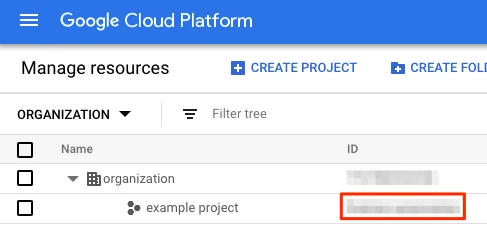
Under the project, find the dataset that you created in Step 2 and make a note of it. Dataset names follow the
analytics_<property_id>pattern.
Grant permissions to Fivetran
Go to your Google Cloud Platform project principals list.
Click + GRANT ACCESS to create a new user. The Add principals form appears.

In the New principals field, enter the auto-generated email address you copied in Step 1.
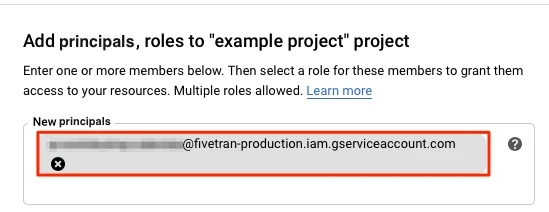
Select the
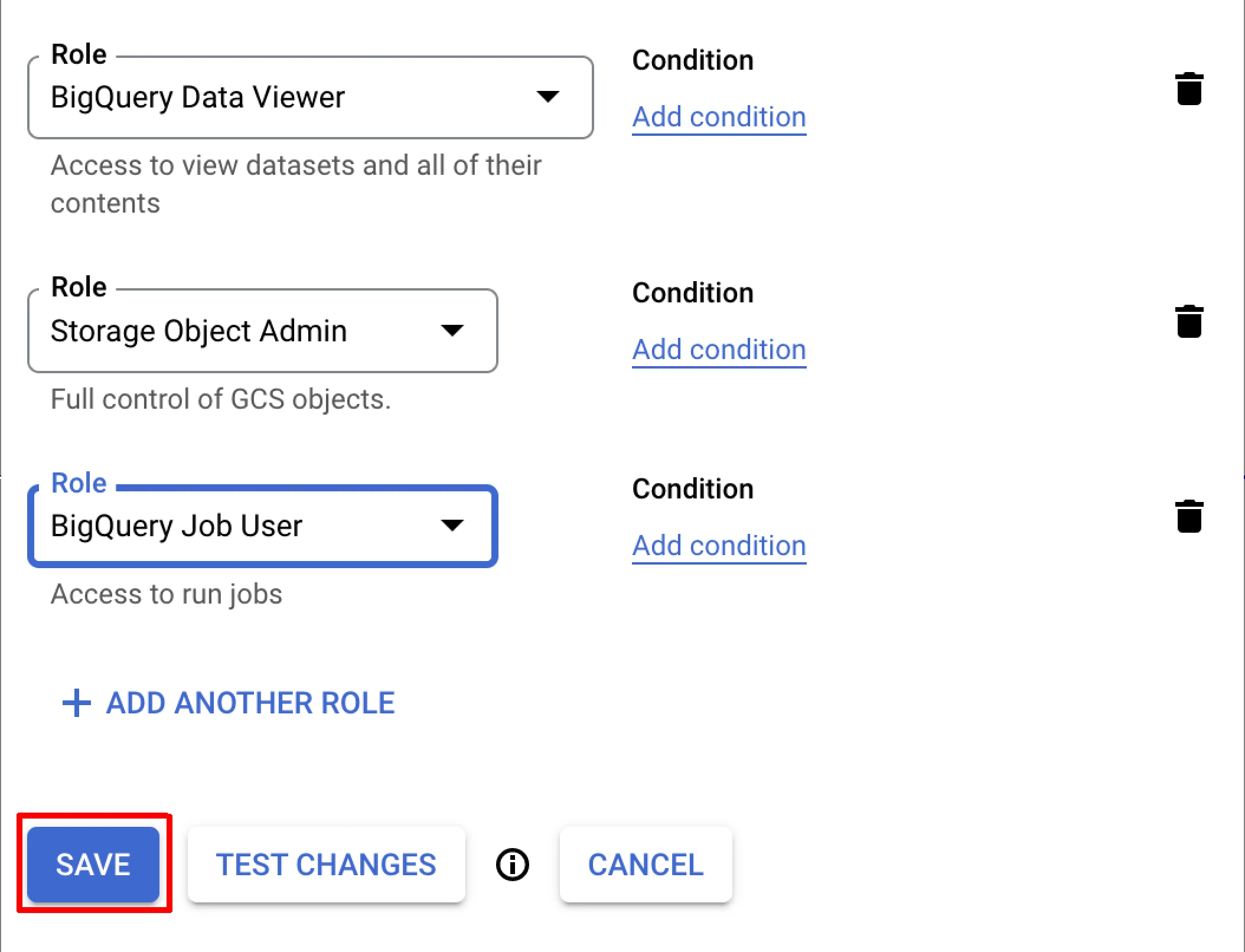
Bigquery Job User,BigQuery Data Viewer, andStorage Object Adminroles for the Fivetran account. These roles provide permissions to:- Run, enumerate, and cancel our own jobs (updates)
- Enumerate the dataset and tables within a project
Fivetran must have these permissions to access Google Analytics 4 Export tables and create the jobs necessary to query the BigQuery tables. Use a separate project for datasets that you do not want Fivetran to be able to query.
Click Save.
Set up a Google Cloud Platform bucket
You must host a Google Cloud Platform bucket that Fivetran can use temporarily as a staging environment while we perform your syncs. Using a GCP bucket reduces sync times for large data sets, which are common in Google Analytics 4 Export connectors.
The GCP bucket must be in the same Google Cloud Project as your Google Analytics 4 Export export destination.
- Go to the Google Cloud Console Storage Overview.
- Click Create bucket.

- Name and configure your bucket. Make a note of your bucket name. You will need it to configure Fivetran.
- (Optional) The Fivetran user you added as a principal should already have the required permissions. To check, click the bucket name and then go to the Permissions tab. If you don't see the Fivetran user in the Permissions section, click Grant access.
- Enter the auto-generated email address you copied in Step 1 as a new principal and assign it the "Storage Object Admin" role, then click Save.
Finish Fivetran configuration
- Enter your chosen destination schema name in your connection setup form.
- Enter the Project ID that you found in Step 3.
- Enter the Dataset ID that you found in Step 3.
- In the Bucket Name field, enter the name of the bucket you set up in Step 5.
- Select your Sync Mode:
- Select Columns to sync event params and user properties into individual columns.
- Select JSON to sync event params and user properties into JSON columns.
- In the Intraday Export Type drop-down menu, select your export type. This must correspond to the export type you selected for BigQuery:
- Choose Streaming if you selected the Daily and Streaming export types for BigQuery.
- Select Fresh Daily if you selected the Daily and Fresh Daily export types for BigQuery.
- Select Daily Only if you only selected the Daily export type for BigQuery.
- Click Save & Test. Fivetran will take it from here and sync your data from Google Analytics 4 Export.