
Activate History Mode
History mode relies on SharePoint's built-in version history to retrieve past item states. If version history is not enabled on a list, Fivetran can only see the current state of each item and history mode is not able to capture historical changes.
Follow the instructions in this page to configure history mode for your lists:
Enable version history
For each list you want to sync in history mode:
- Open the list in Microsoft Lists or SharePoint.
- Click the gear icon and select List settings.
- Go to General Settings -> Versioning settings.
- In the Item Version History section, select Yes for the Create a version each time you edit an item in this list option.
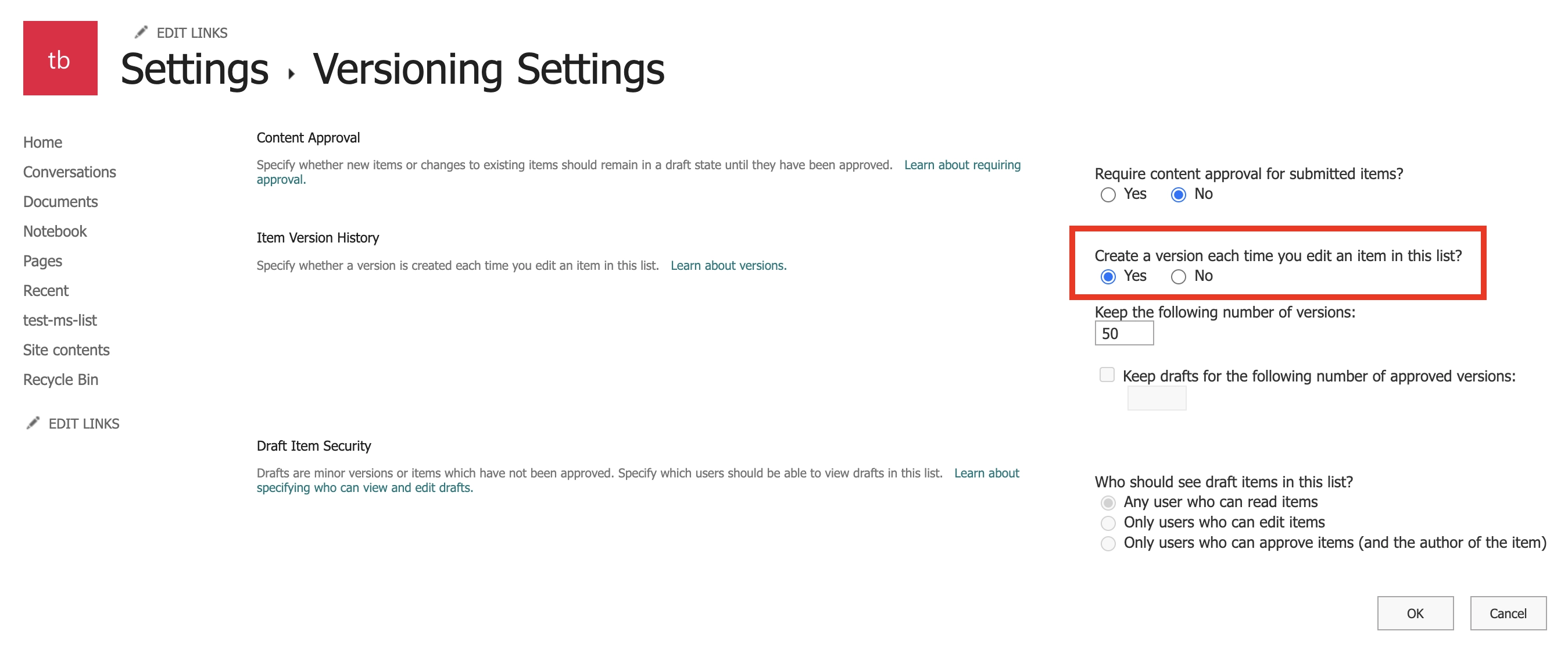
- Click OK.
Select sync mode
- In Fivetran, go to the Schema tab of your connection details page.
- For each list you want to sync in history mode, select History mode in the Sync mode dropdown menu.
- History mode is available for user-created lists only. SharePoint system lists use soft delete mode and the sync mode toggle is not available for them.
- Items that are added and then deleted between two syncs are be captured in history mode.
For more information, see our History Mode Setup Guide.