
Pardot Setup Guide
Follow our setup guide to connect Pardot to Fivetran.
Prerequisites
To connect Pardot to Fivetran, you need:
- A Pardot account with an Administrator role
- Pardot Business Unit ID: There are two Business Unit IDs associated with Account Engagement. You need the ID for the Account Engagement API, which is 18 characters long and starts with
0Uv. It is found in Business Unit Setup in Salesforce Setup or Marketing Setup. To learn more, see the Salesforce Find your Account Engagement Business Unit ID documentation. - Salesforce access token — required only for HTTP Basic authentication
- A Salesforce account with permission to create External Client Apps — required only for External Client App authentication
For more information on the Pardot Business Unit ID and Salesforce access token, see Pardot documentation. For more information on creating an External Client App, see Pardot authentication documentation.
Setup instructions
Find API version and time zone
Log in to your Pardot account.
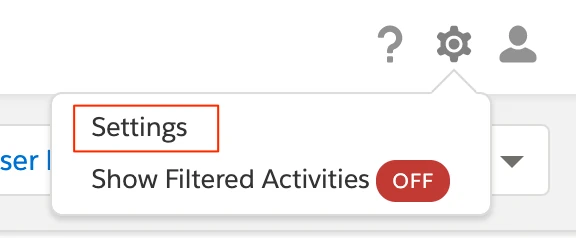
Navigate to the drop-down menu featuring your email. In the drop-down menu, click Settings.
Navigate to Home > Administration > Account, then click My Profile.
Find the Time Zone and make a note of it. You will need it to configure Fivetran.
Find your API Version and make a note of it. If your account has the Allow Multiple Prospects with the Same Email Address (AMPSEA) feature enabled, your API version is V4. Otherwise, your API version is V3.
If you're not sure which version your account uses, see Pardot's API documentation.
Reset Salesforce SSO Account Security Token (For HTTP Basic only)
Log in to your Salesforce account.
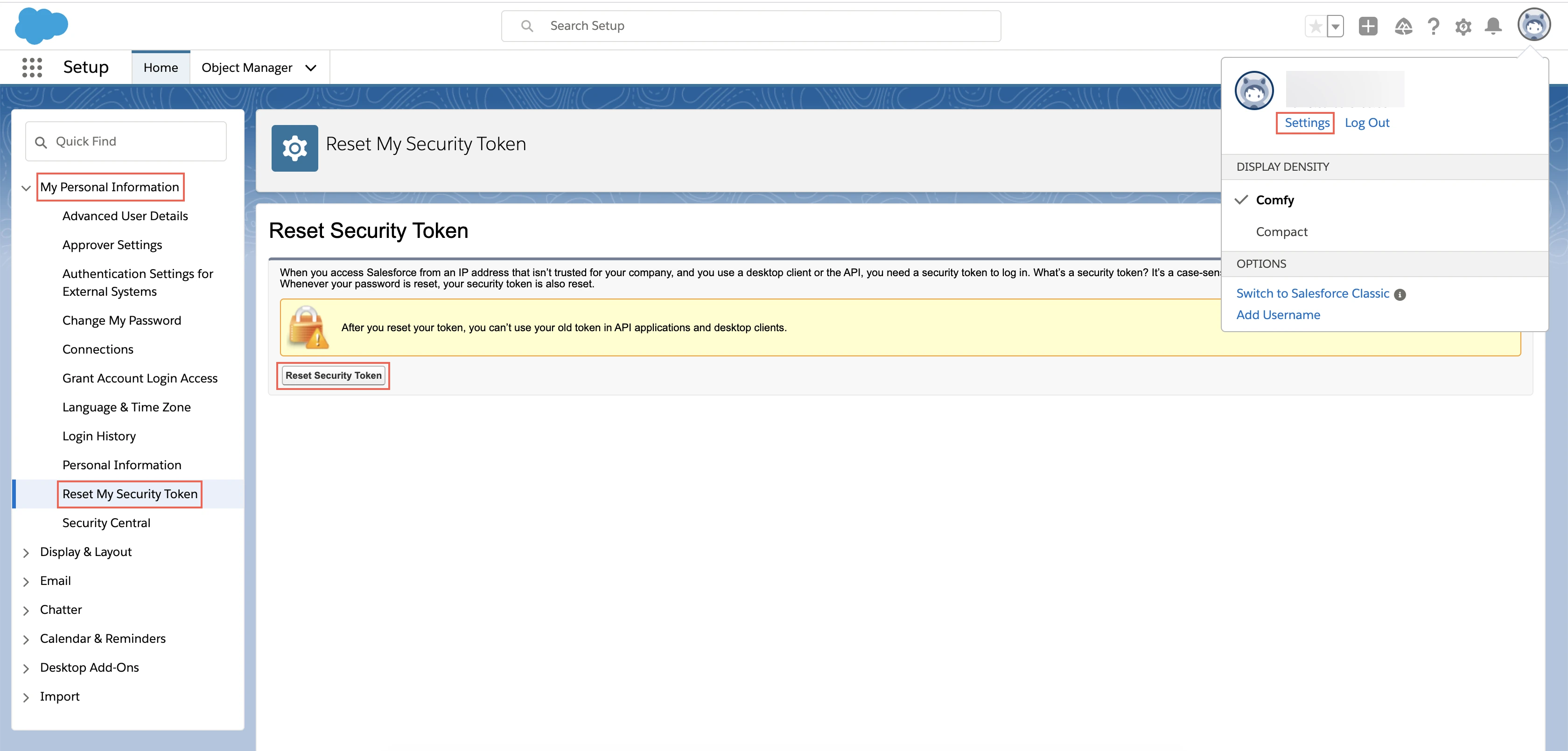
Click Settings.
On the navigation menu, click My Personal Information and select Reset My Security Token.
Click Reset Security Token. Salesforce will send you an email containing your new security token.
Check your email and make a note of the security token. You will need it to configure Fivetran.
Create a Salesforce External Client App (For External Client App only)
To authenticate using an External Client App, create one in your Salesforce account and configure it to use the OAuth Client Credentials Flow.
Log in to your Salesforce account using a user with permission to create External Client Apps.
Click Setup, then use Quick Find to navigate to External Client App Manager.
Click New External Client App, then enter a name and your admin email address. Set Distribution State to Local.
Enable OAuth Settings and add a Callback URL — Salesforce requires a value here, but we don't use it — then add the Manage Pardot services OAuth scope.
Save the app, then enable the Client Credentials Flow and assign a Run As user for the app.
A newly created External Client App can take up to 15 minutes before it's available for authentication.
Make a note of the app's Consumer Key and Consumer Secret. You will need them to configure the connection.
Make a note of your Salesforce My Domain URL (for example,
https://mycompany.my.salesforce.com). You will need it to configure the connection.
See Pardot's authentication documentation for detailed instructions on creating an External Client App.
Grant permission to connect to Fivetran's app (For OAuth only)
To connect to Salesforce using an application that isn't installed in your organization, you must grant users the appropriate permissions to connect to uninstalled apps. To do this, you must have administrative privileges. You can assign this permission either by adding it to an existing permission set or by enabling it directly on the user's profile that you want to connect to Fivetran. These permissions may not be available in all Salesforce orgs since it is being gradually rolled out. For more information, see Salesforce documentation.
The Approve Uninstalled Connected Apps permission is only required during the initial connection setup. Once the connection is successfully established and syncing data, you may remove this permission from the account for enhanced security.
To grant this permission, do the following:
Log in to your Salesforce account. You must have administrative privileges to set permissions.
Click Setup.
Under the Administer tab, expand the Manage Users section.
From the drop-down menu, select Permission Sets. You can either create a new permission set or use an existing one. One user can be assigned multiple Permission Sets.
Click Edit and enable Approve Uninstalled Connected Apps. Alternatively, enable Use Any API Client if API Access Control is enabled for your organization.
Click Save.
Click Manage Assignments > Add Assignments.
Select the user that you want to assign this Permission Set, and click Assign.
(Optional) After your Fivetran connection is successfully syncing, return to the Permission Set and disable Approve Uninstalled Connected Apps to remove this permission.
Finish Fivetran configuration
In the connection setup form, enter your chosen Destination schema name.
In the Auth Type field, select OAuth, HTTP Basic, or External Client App.
- If you selected OAuth, click Authorize.
- If you selected HTTP Basic, enter your SSO account username, SSO account password, and Salesforce SSO Account Security Token you found in Step 2.
- If you selected External Client App, enter your app's Consumer Key as the Client ID, its Consumer Secret as the Client Secret, and your My Domain URL for the External Client App you created.
Enter your Pardot Business Unit ID.
(Optional) In the Prospects and Opportunities API Version drop-down menu, select your Pardot API version. We use this API version only to retrieve your data from the Opportunities, Prospects, TagObject, and Tags endpoints of Pardot's API.
(Optional) In the Historical sync time frame drop-down menu, select the amount of historical data you want to include in your initial sync.
- If you choose Sync data from selected date, enter a date in the Historic Sync Limit Date field.
(Optional) Enter your Daily API Call Limit. The REST API call limit is 150,000 per day by default.
(Optional) Select the Time Zone you found.
(Optional) Enter the Set up API rate limit for External Activities. By default, the daily API call limit for the
/external-activitiesendpoint is 150,000. For more information on the API limits for the endpoint, see Pardot's documentation.Click Save & Test. Fivetran will take it from here and sync your Pardot data.