
Zuora
This page describes how to use Activations with Zuora.
Getting Started
In this guide, we will show you how to connect Zuora to Activations and create your first sync.
Prerequisites
- Have your Fivetran account ready. If you need one, create a Free Trial account now.
- Have the proper credentials to access to your data source. See our docs for each supported data source for further information:
1. Collect your Zuora API Credentials
Activations will need needs the following pieces of information to connect to your Zuora instance:
- Client ID
- Client Secret
- Rest API Endpoint
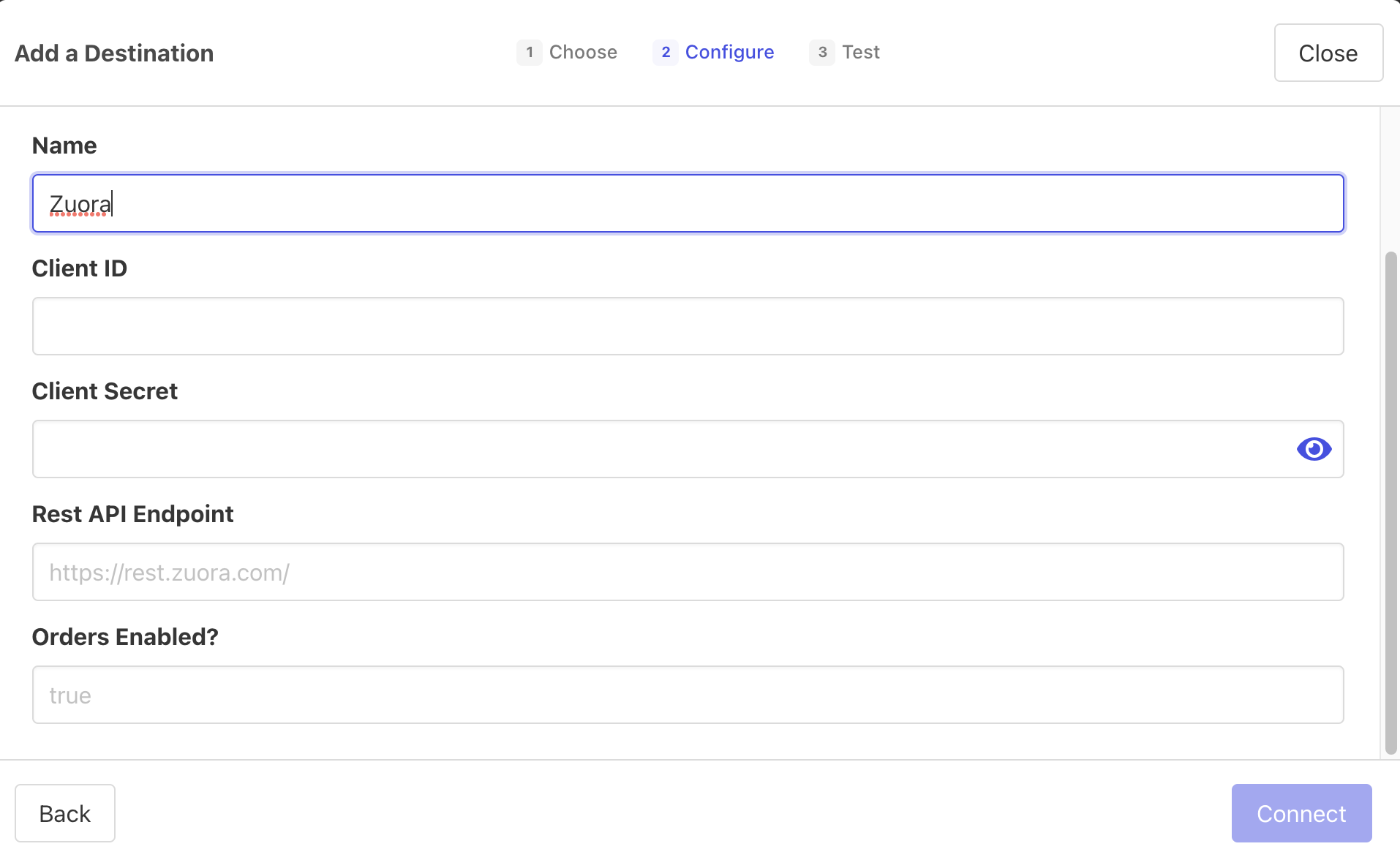
2. Add the Destination
Now that we have the credentials from Zuora, we can now set up Zuora as a Destination in Activations.
- In the Destinations tab of Activations, go to your Destinations and click the New Destination button to create a new Zuora connection.
- You can provide whatever name you like.
- Provide your credentials collected from Zuora in Step 1.
- Click Connect
3. Create your Model
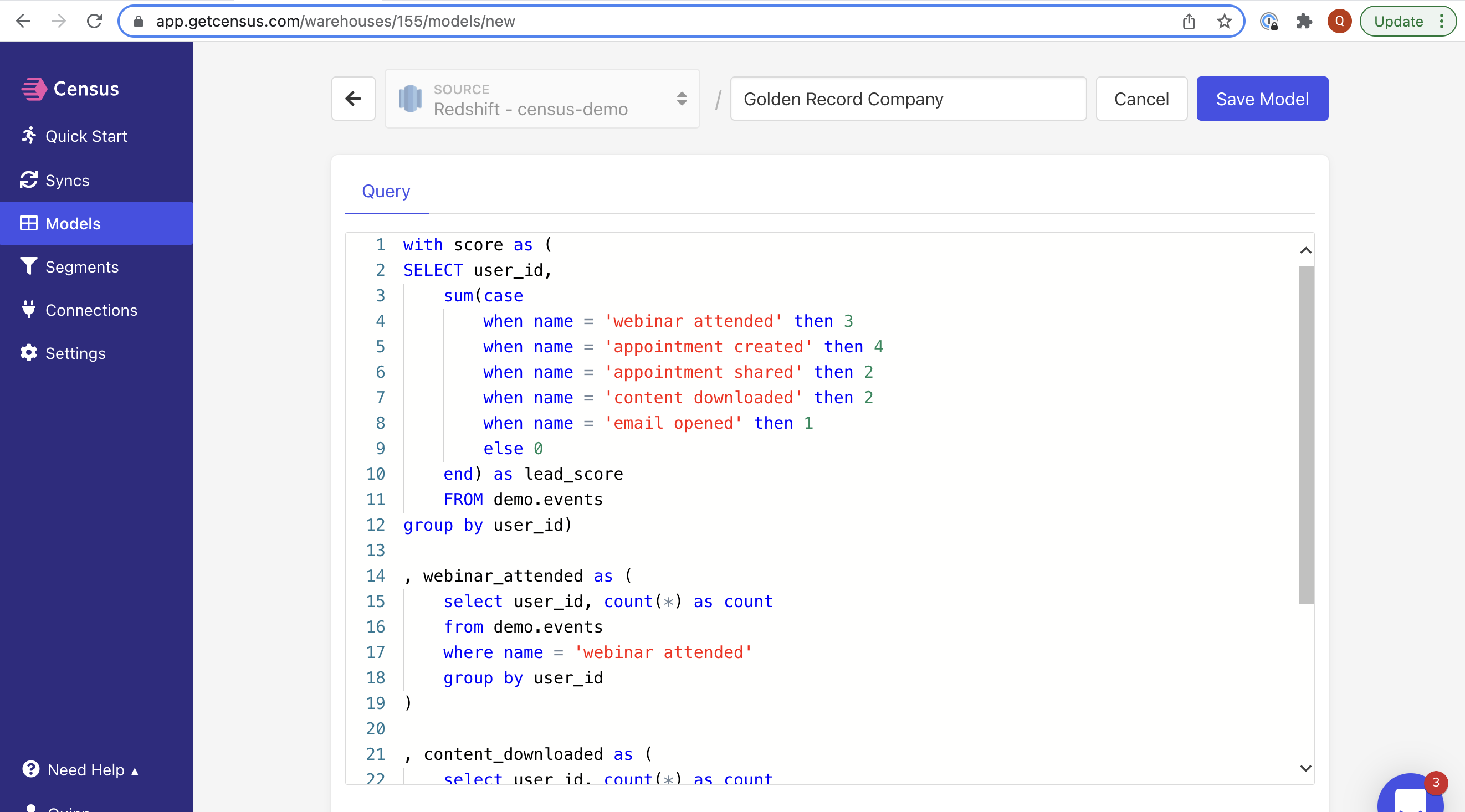
Navigate to the Model section of our Dashboard
Here you can write a SQL query to select the data you want to see in Zuora. You can also use tables or views already in your data warehouse or models from data transformation tools like dbt or Looker. Here are some ideas of data you could select
- The Lifetime Value of a customer
- The end date of a user's trial
- The date a user became active in your product
- The number of key activities a user did in your app in the last 7/30 days
Once you have created your model, click Save Model.
4. Create your first Sync
Head to the Sync page and click the Add Sync button
In the "What data do you want to sync?" section:
- For the Connection, select the data warehouse you've already connected (See Prerequisites).
- For the Source, select the model you created in Step 3.
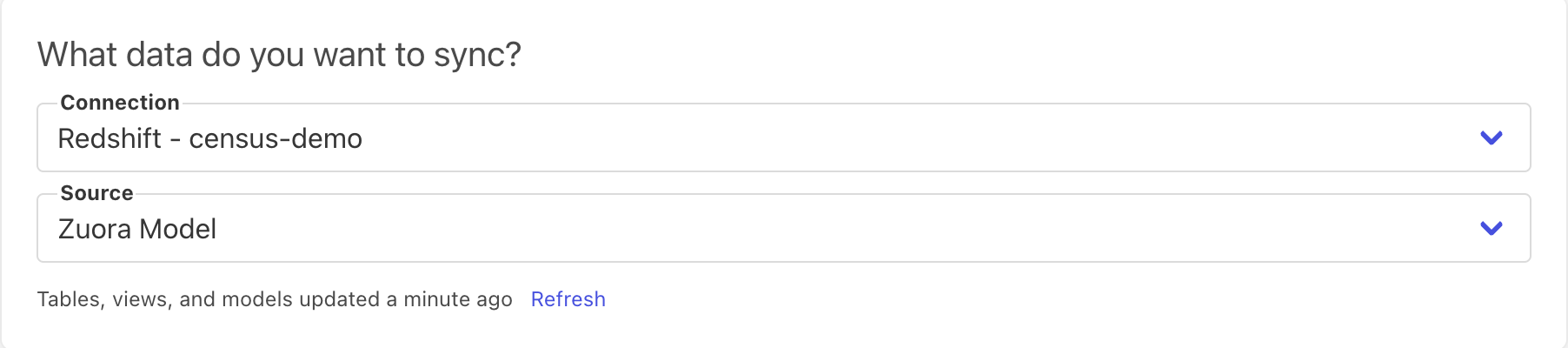
Choose your connection and source (your model from step 3)
Next up is the "Where do you want to sync data to?" section.
- Pick the Zuora connection you created in Step 3.
- For Object, select Account or Subscription.
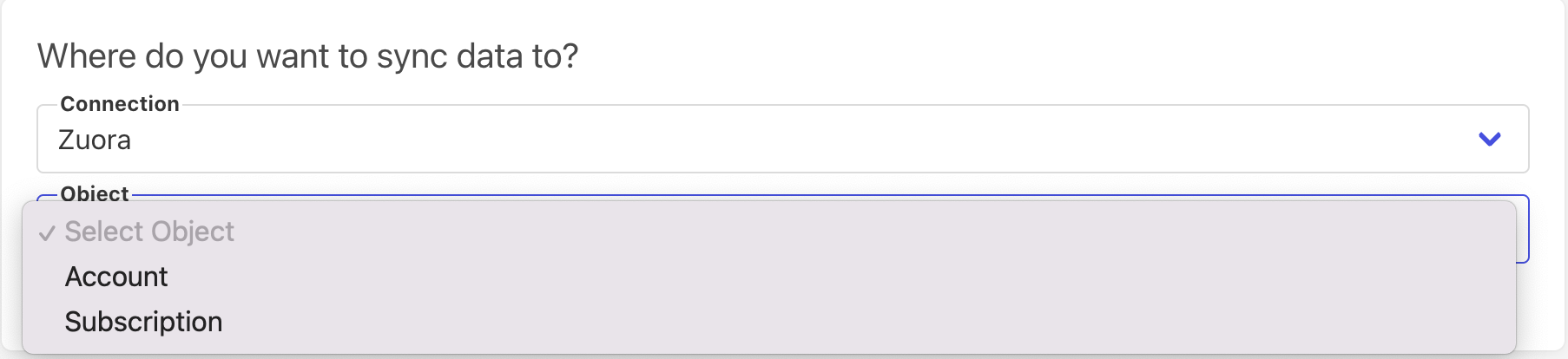
Select which object you want to sync to
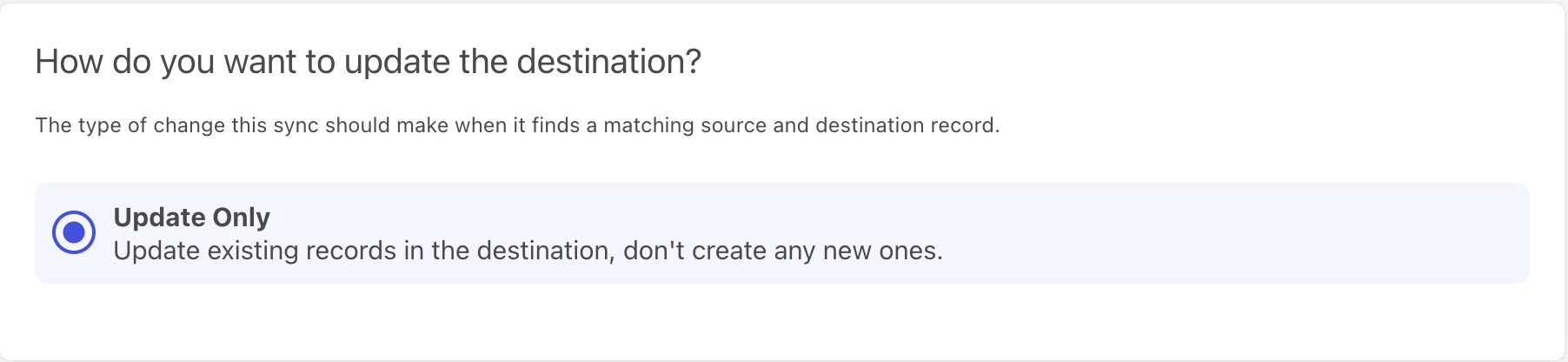
For the "How do you want to update the destination?" section.
- Select Update Only
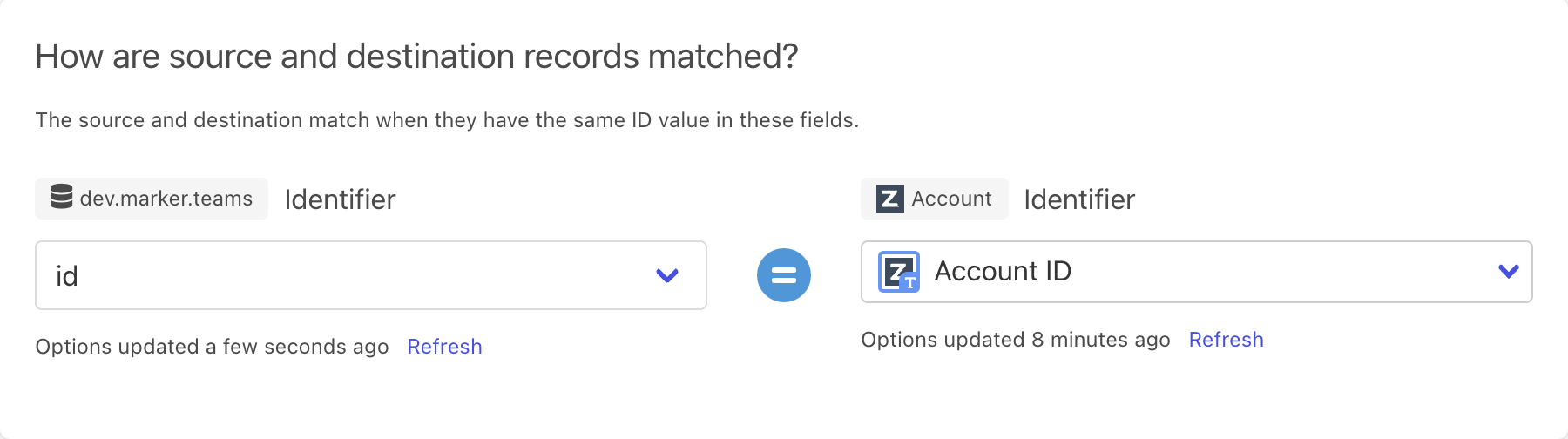
For the "How are source and destination records matched?" section.
- Pick the mapping key:
- For syncs to the Account object select either Account ID or Account Number
- For syncs to the Subscription object select either Subscription ID or Subscription Number
- Select the field from your model you want mapped to the identifier.
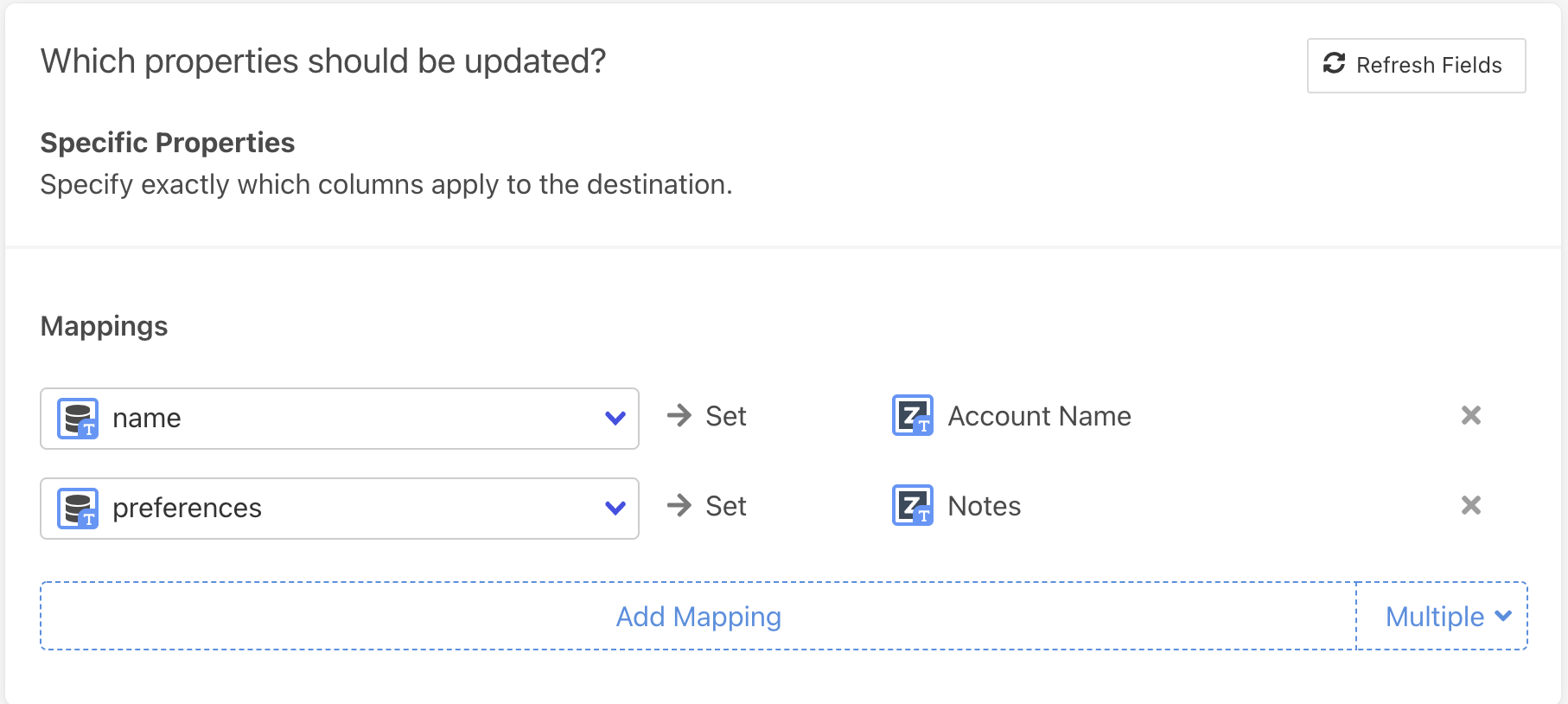
Finally, select the fields you want to update in the Mapper in the "Which Fields should be updated?" section. Here simply map the field from your Zuora instance to the column from your model.
Click the Next button to see the final preview, which will have a recap of what will happen when you start the sync.
️ Supported Objects
| Object Name | Supported? | Sync Keys |
|---|---|---|
| Account | ✅ | Account ID, Account Number |
| Subscription | ✅ | Subscription ID, Subscription Number |
Contact Support if you want Activations to support more Objects for this destination
Supported Sync Behaviors
Learn more about all of our sync behaviors in our Syncs documentation.
| Behaviors | Supported? | Objects |
|---|---|---|
| Update Only | ✅ | Account, Subscription |
Contact Support if you want Activations to support more Sync Behaviors for this destination