
Orbit
This page describes how to use Activations with Orbit.
Getting started
This guide shows you how to use Activations to connect your Orbit account to your data warehouse and create your first sync.
Prerequisites
Before you begin, you'll need the following:
- Fivetran account: If you don't have this already, start with a free trial.
- Orbit account
- Have the proper credentials to access to your data source. See our docs for each supported data source for further information:
Step 1: Connect Orbit
- Log into Activations and navigate to Destinations.
- Click New Destination.
- Select Orbit from the dropdown list.
- Orbit uses API tokens to authorize access to the API, so you will need to provide an API Key and Workspace Slug to Activations.
- You can find your API token on the Account Settings page, in the API Tokens section. Copy the API token and paste it into the API Key field in the Orbit setup in Activations.
- The workspace slug can be fetched from the URL. In the url provided below, census is the workspace slug. https://app.orbit.love/census. Copy the workspace slug and paste it into the Workspace Slug field in the Orbit setup in Activations.
Step 2: Connect your data warehouse
The steps for connecting your data warehouse will depend on your technology. See the following guides:
Step 3: Create your model
When defining models, you'll write SQL queries to select the data you want to see in Orbit. This can be as simple as selecting everything in a specific database table or as complex as creating new calculated values.
- From inside your Fivetran account, navigate to the Models page.
- Enter a name for your model. You'll use this to select the model later.
- Enter your SQL query. If you want to test the query, use the Preview button.
- Click Save Model.
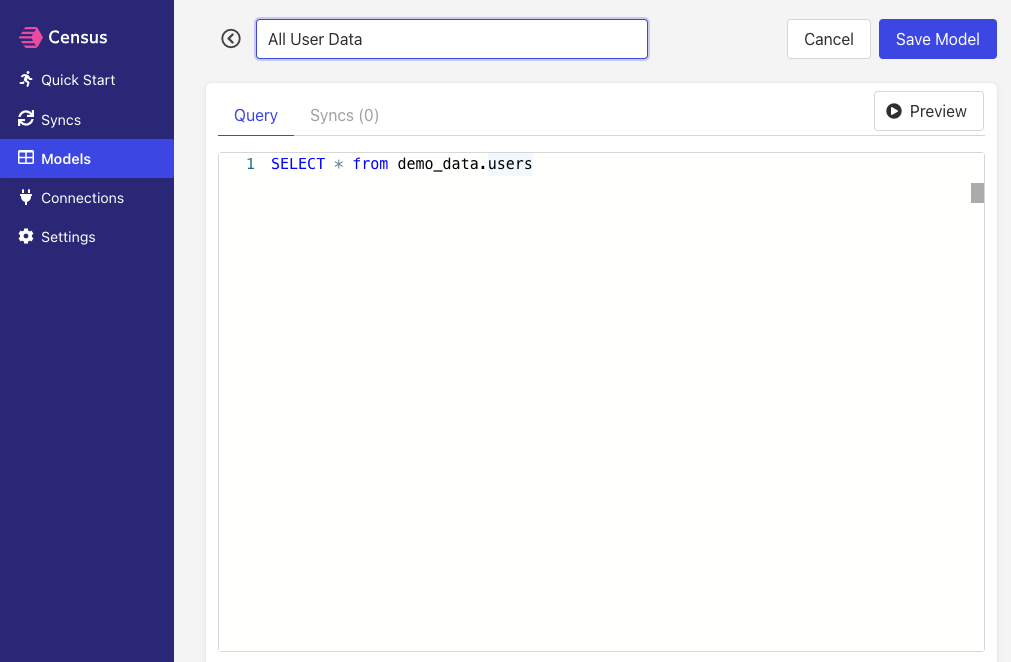
Basic SQL query for a new model
Step 4: Create your first sync
The sync will move data from your warehouse to Orbit. In this step, you'll define how that will work.
- From inside your Fivetran account, navigate to the Syncs page.
- Under What data do you want to sync?, choose your data warehouse as the Connection and your model as the Source.
- Under Where do you want to sync data to?, choose Orbit as the Connection and an Object in Orbit. (See Supported Objects.)
- Under How should changes to the source be synced?, choose Update or Create. (See Supported Sync Behaviors.)
- Under How are source and destination records matched?, select a mapping key. (See Supported Objects for details.)
- Under Which properties should be updated?, select the fields you want to update by mapping a field in Orbit to a column in your model.
- Click Next. This will open the Confirm Details page where you can see a recap of your setup.
- If you want to start a sync immediately, set the Run a sync now? checkbox.
- Click Create Sync.
When configuring your sync, the page should look something like this:
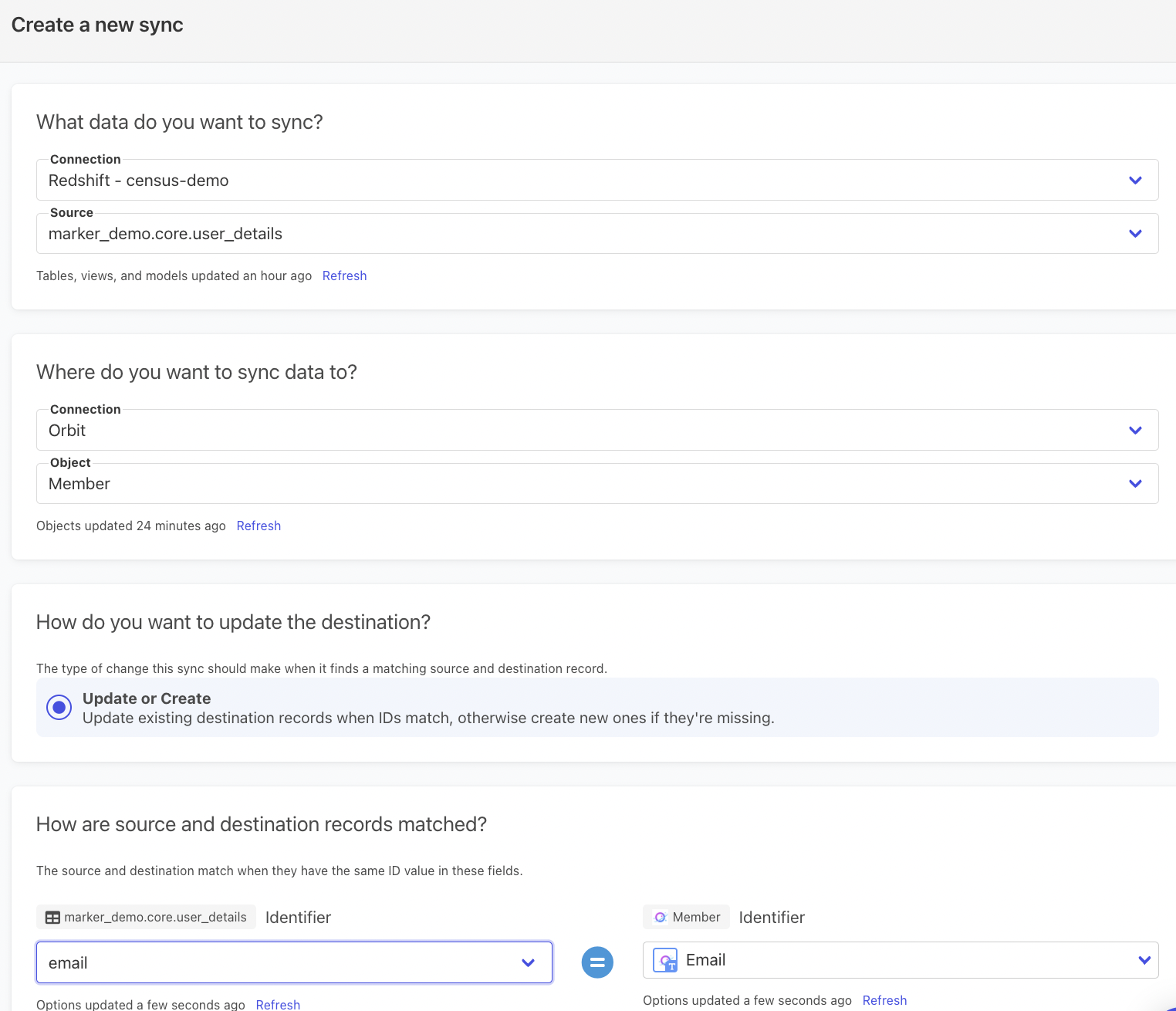
Sync setup for Orbit
Step 5: Confirm the synced data in Orbit
Once your sync is complete, it's time to check your data. Open Orbit and check that the records updated correctly.
If everything went well, that's it! You've started syncing data from your warehouse to Orbit! 🎉
And if anything went wrong, contact the Activations support team to get some help.
Sync Speed
Sync speeds can be affected by API rate limiting from the destination app. Orbit allows an API call rate of up to 120 calls per minute, per IP. (See Orbit API Documentation for details.)
In most cases, you won't run into any issue with sync speed based on rate limiting unless:
- You're running an initial sync action that will update many records in Orbit.
- You have another integration or service that's making API calls to Orbit and using the same API Token.
Supported Objects and Sync Behaviors
| Object Name | Supported? | Sync Keys | Behaviors |
|---|---|---|---|
| Member | ✅ | Name, Email, Github, Twitter | Update or Create |
| Content Activity | ✅ | N/A | Send |
| Custom Activity | ✅ | Activity Key | Send |
Learn more about all of our sync behaviors in our Syncs documentation.
Contact Support if you want Activations to support more Orbit objects and/or behaviors