
Gainsight
This page describes how to use Activations with Gainsight.
Gainsight is a customer success platform that helps businesses grow faster by reducing churn, increasing upsell, and driving customer advocacy. Activations can sync your customer data to Gainsight provide the full context of your customer data to your customer success team.
Getting started
This guide shows you how to use Activations to connect your Gainsight account to your data warehouse and create your first sync.
Within Gainsight, open the Sidebar and click on Administration > Integrations > Connectors 2.0
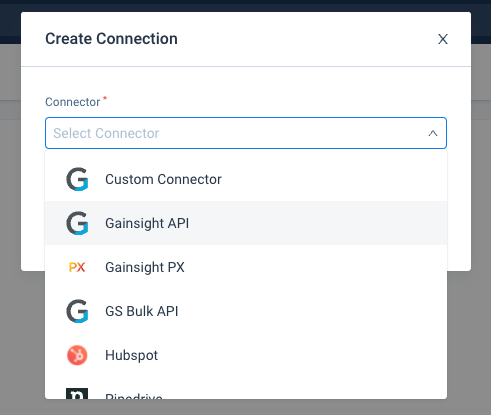
Click on the Create Connection button in the top right, then select the Gainsight API.
- Do not select the GS Bulk API, select the Gainsight API
- Gainsight only allows a single API key to be created per organization. You can reuse this key if you've already created one.
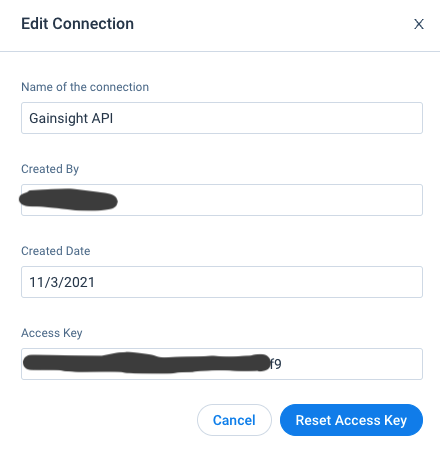
The Access Key is initially empty. Dismiss the dialog and then select Edit Connection from the three-dot menu on the new Gainsight API card.
Copy the Access Key.
Back within Activations, go to the Destinations page in Activations and click New Destination.
Select Gainsight from the menu.
Paste the Access Key into the Access Key field and the domain for your Gainsight account into the Domain field (exclude the
https://and any path after the domain). Hit save and you're done!
You should now be ready to sync your data to Gainsight.
Supported Objects and Behaviors
| Object Name | Supported? | Sync Keys | Behaviors |
|---|---|---|---|
| Person | ✅ | Update or Create | |
| Company | ✅ | Name | Update or Create, Update Only |
| Company Person | ✅ | UniqueId for Activations. Company Name and Person Email are required | Update or Create |
| Relationship Person | ✅ | UniqueId for Activations. Company Name, Person Email, and Relationship Name are required | Update or Create |
| Custom Object | ✅ | Available Update Keys that are not a lookup | Update or Create, Update Only |
Contact Support if you want Activations to support more objects for Gainsight.
Custom Objects Quirks
The Custom Object must be configured like below for Activations to be able to edit it. You can access this on your Administration > Customer Data > Data Management path on the lefthand sidebar.
