
Microsoft Teams
This page describes how to use Activations with Microsoft Teams.
Getting Started
In this guide, we will show you how to connect Microsoft Teams to Activations.
Prerequisites
- Have your Fivetran account ready. If you need one, create a Free Trial account now.
- Have your Teams account ready.
- Have the proper credentials to access to your data source. See our docs for each supported data source for further information.
Step 1. Connect Activations to Teams
In the Destinations page in Activations, Click the New Destination button in the top right, and select Microsoft Teams.
If you are not already logged in to Teams, you will be redirected to a page to log in to authorize your account to use Activations. Once you've authorized Activations, you'll be redirected back to the Destinations page in Activations where you'll see your Teams connection.
Step 2. Connect Activations to your data source
See our docs for each supported data source for further information.
Step 3. Create your first Activations model
Navigate to the Models page in Activations and click the Add Model button.
Here you can a write SQL query to select the data you want to send to Teams.
Once you have created your model, give it a useful name, and click Save Model.
Step 4. Create a Sync
Navigate to the Syncs page in Activations and click the New Sync button.
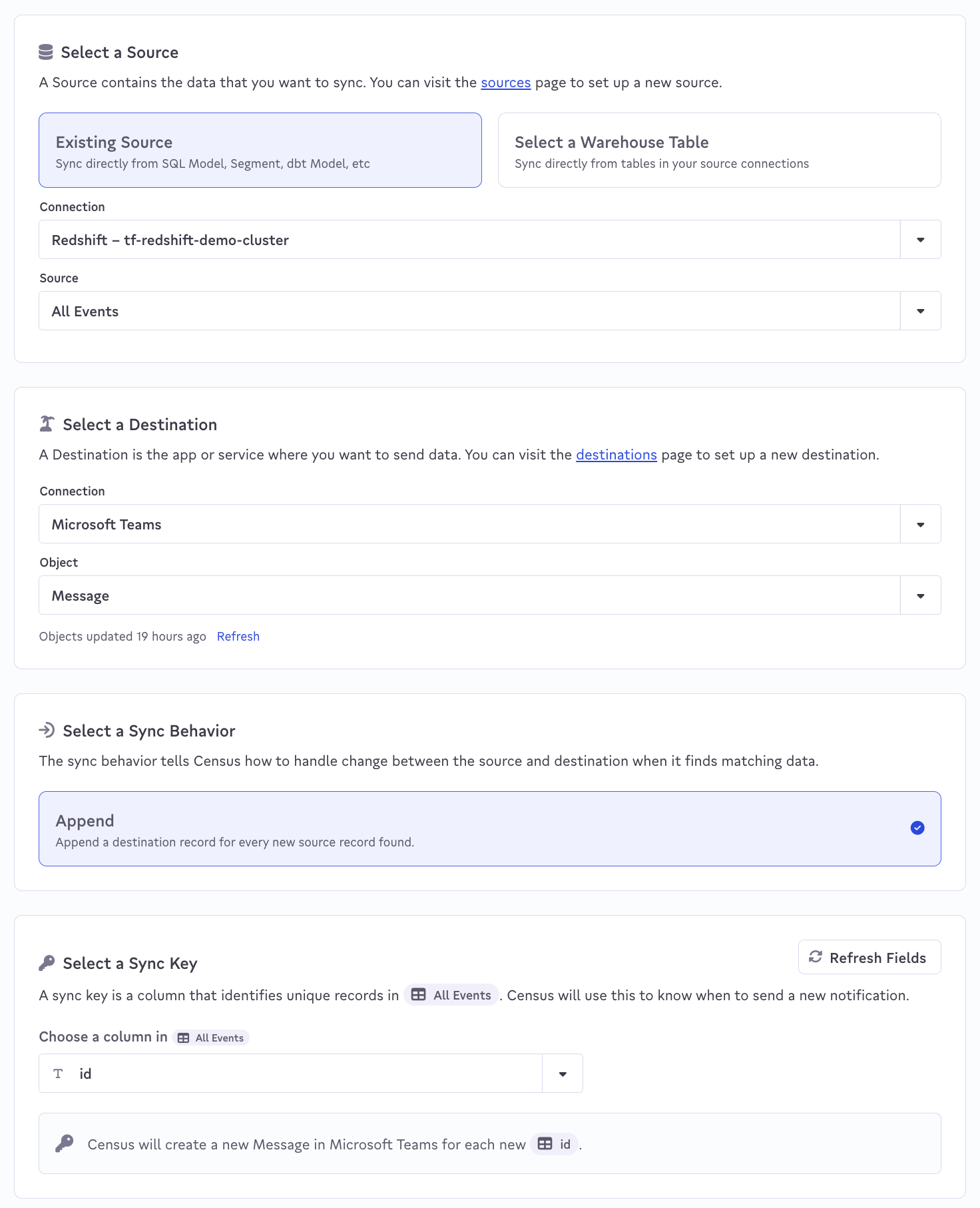
Setup your Source, Destination, and Sync Key
You'll need to start by specifying how to identify entries in your data warehouse that should trigger a Sync:
- For Source > Connection, select the data warehouse you connected in step 2.
- For Source > Source, select the model you created in Step 3.
- For Destination > Connection, select Microsoft Teams
- For Destination > Object, Message should be auto-selected
- Next, pick the column that uniquely identifies each record in your data source. Activations will use this to identify new records that need to be used to send messages to Microsoft.
Setup your Message
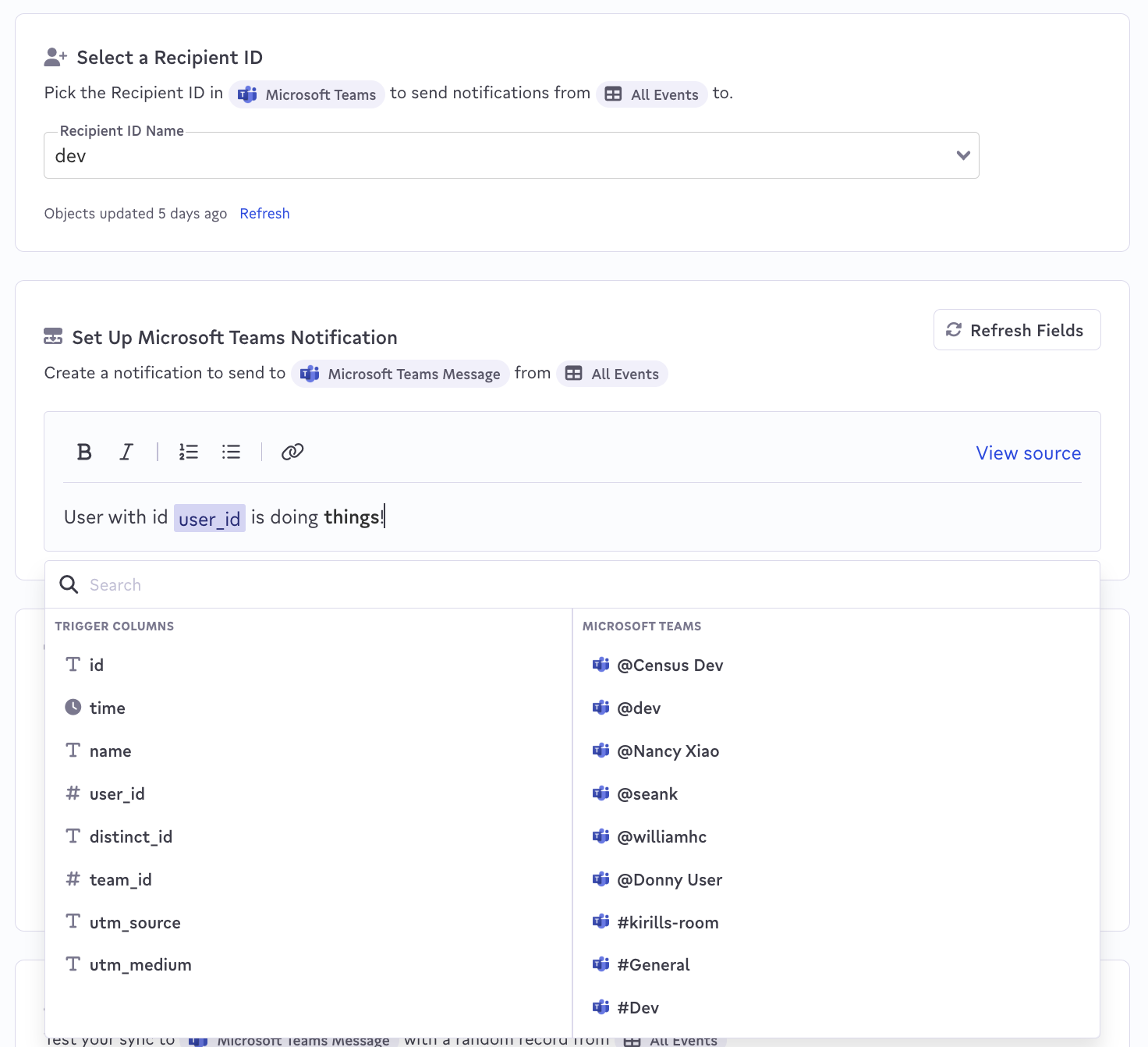
- Select the Teams channel you'd like to send messages to.
- Finally, use the text editor to customize the message that you wish to send.
- To embed values from the trigger columns or to mention users or channels from your Teams account, use the dropdown that will appear. If the list is long, try the search function.
Test your Teams message
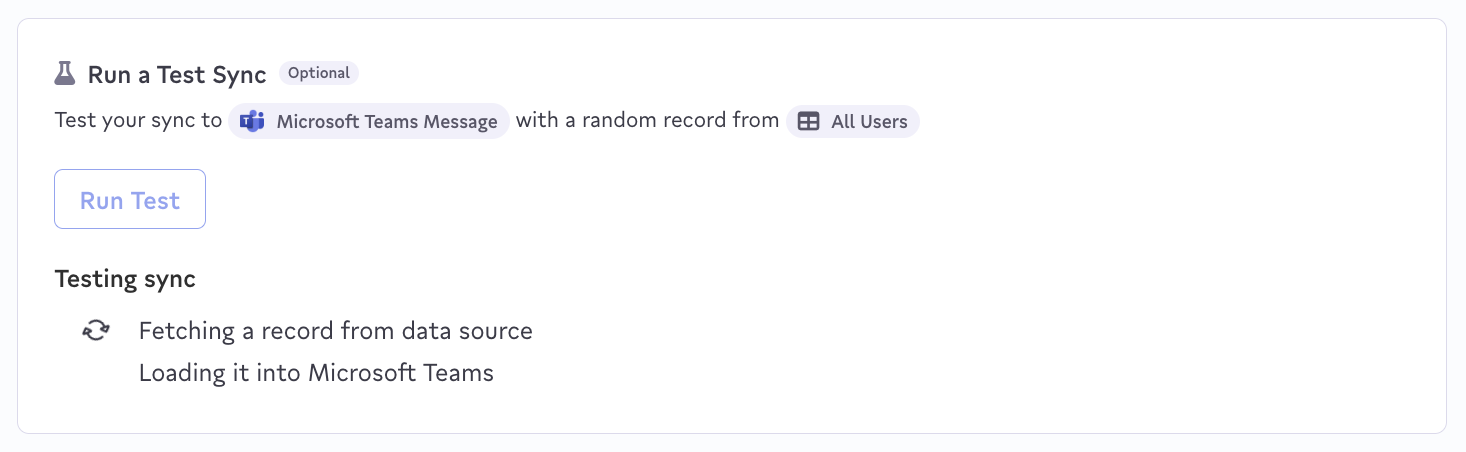
- Click the Run Test button to see a single random record sent to your destination. For testing, you may want to temporarily change the destination message yourself.
Finishing touches
- Click the Finish button and you'll be taken to your new sync. You can now Schedule the sync to run on a schedule or run it manually yourself.
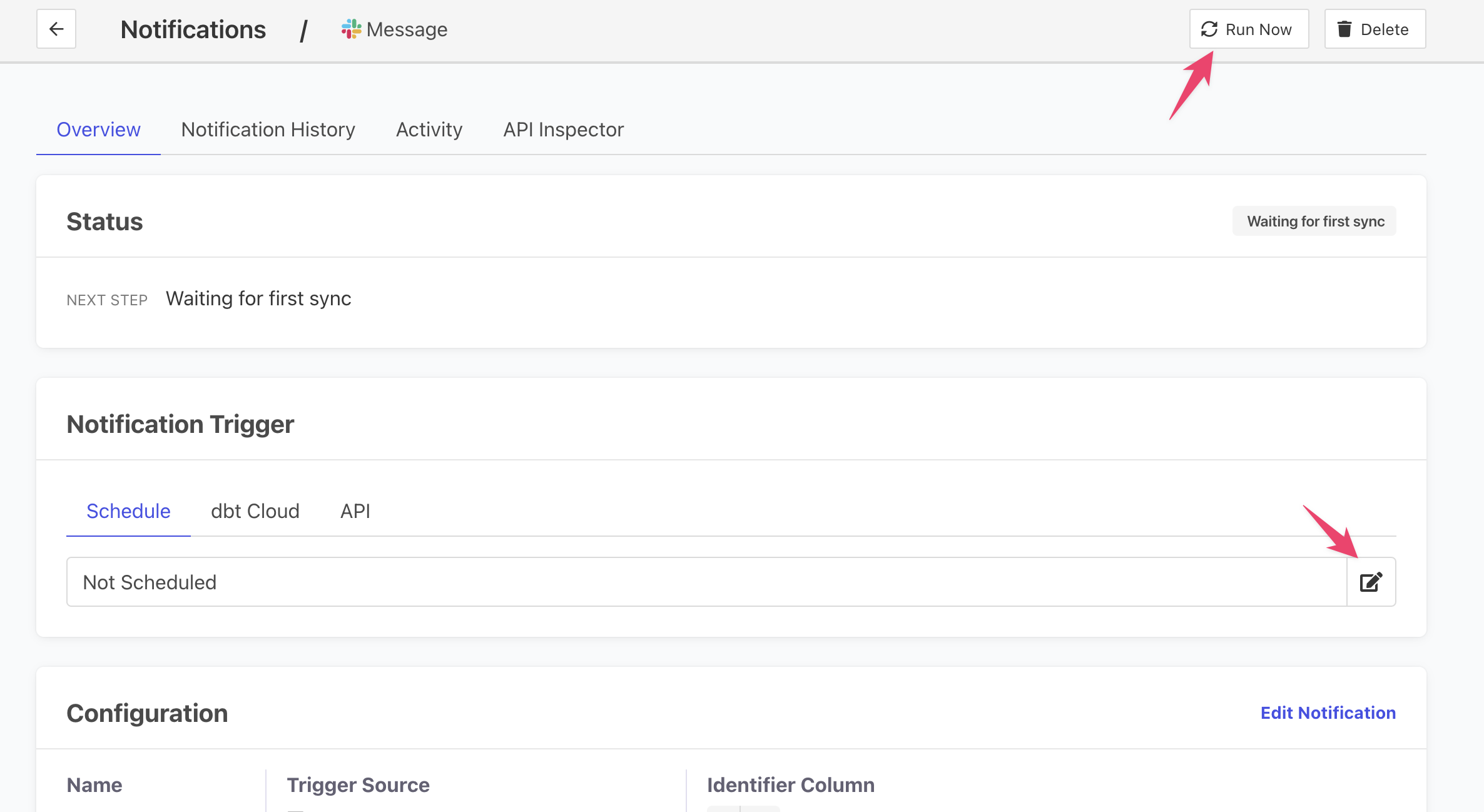
Configure your new sync to run on a set schedule or run it manually.
Reminder: Activations will send records to a Teams channel one at a time.
️ Supported Objects and Sync Behaviors
| Object Name | Supported? | Identifiers | Behaviors |
| Message | ✅ | Custom message template. | Send |
Activations can send data to all public channels and any private channels that Activations has been explicitly invited to (for example, /invite @census).
Activations will only write new records to a specific channel when new records appear in your data warehouse.
Learn more about all of our sync behaviors in our Syncs documentation.
Contact Support if you want Activations to support more Microsoft Teams objects and/or behaviors