Pinecone
This page describes how to use Activations with Pinecone.
The Activations Pinecone destination is in beta. Please reach out to support if you have requests or questions about this destination.
Getting Started
In this guide, we will show you how to connect to Activations and create your first sync.
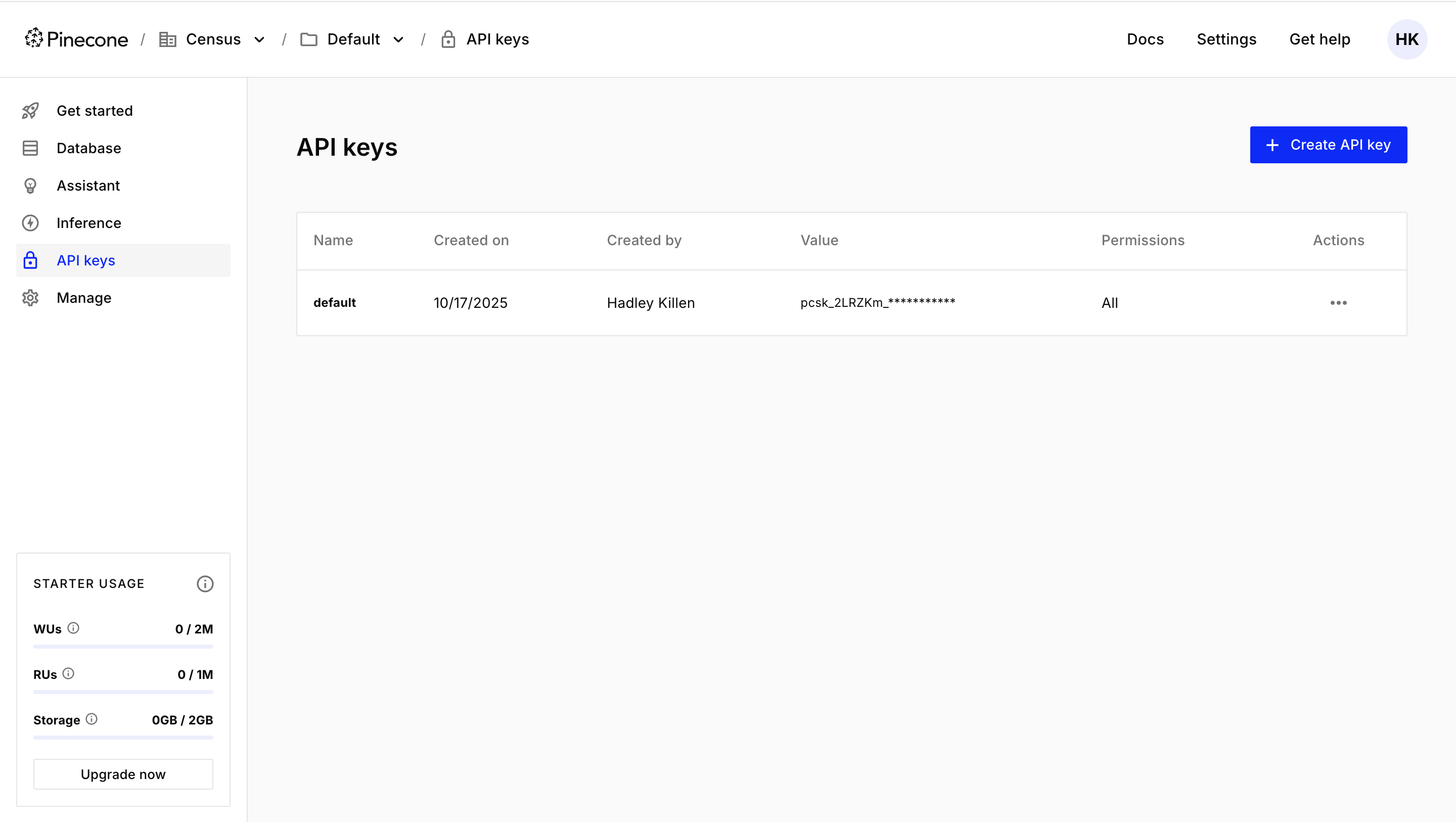
1. Collect your Pinecone Credentials
Activations needs the following information to create a Pinecone connection:
2. Connect Pinecone in Activations
- In Activations, navigate to Destinations
- Click the New Destination button
- Select Pinecone in the dropdown list
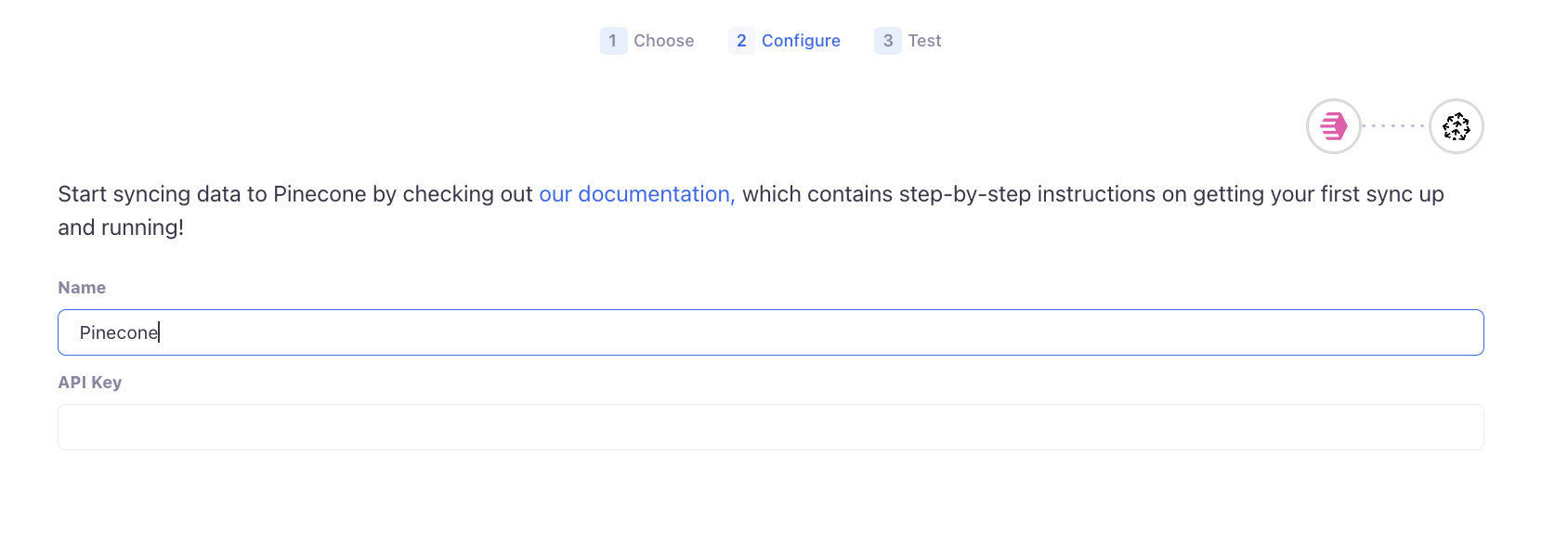
- Enter your credentials and click Connect
You're all set!
If you have any questions during setup, or have a use case that is not covered, please reach out to Support
Supported Objects and Behaviors
Pinecone stores data within Indexes. Your Indexes in Pinecone can be used as objects to sync to from Activations.
| Object Name | Supported? | Sync Keys | Behaviors |
|---|---|---|---|
| Index | ✅ | ID | Update or Create |
Syncing Vector Values
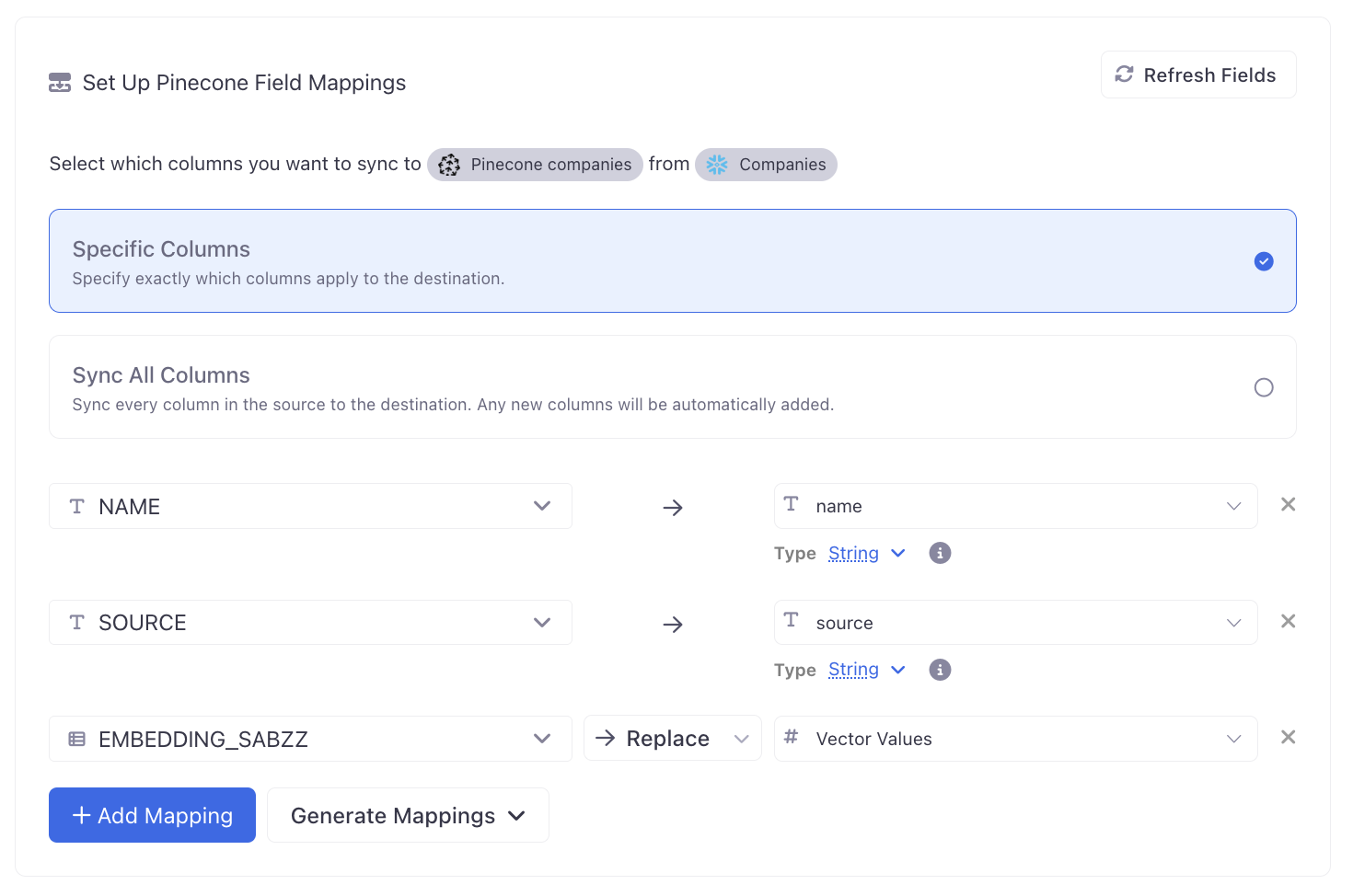
Pinecone supports generating vector values for your data, or bringing your own vectors via external embedding models. Activations supports enriching your dataset with vector embeddings via Embedding Columns. Use an embedding model to generate vector embeddings for your dataset, then sync your Embedding Column to the Pincone Index Vector Values field.