
Activation Syncs
What is an activation sync?
An activation sync defines how data flows from an activation source to an activation destination. Each activation sync is nested within an activation, which groups all the syncs between a single activation source and a single activation destination.
Unlike most integration tools, which are event-based, activation syncs keep your source and destination in sync, similar to how Dropbox and other cloud storage services work. This means you don't have to worry about dropped events or backfills. If you change your data in the source, Activations automatically syncs it to your destination.
Find activation syncs
To find an activation sync, go to the Activations list and open the activation for that source/destination pair. Each activation sync is contained within its activation.
As of October 15, 2026, folders and subfolders are now deprecated. You can't create new folders or subfolders, and you can't edit existing ones. All of your existing folders still appear as a filter option, so you can keep using them to find your activation syncs until they are retired on January 15, 2027.
Create a new activation
To sync data with Activations, you must first create an activation and then create an activation sync within it:
In the Fivetran dashboard, go to the Activations tab.
On the Activations tab, click + Add activation.
Follow the steps in the guided setup wizard to do the following:
i. Select source: Specify where your data is coming from (Basic Dataset, CSV Dataset, or direct warehouse access). ii. Select target: Specify where your data is going (CRM, marketing platform, etc.). iii. Configure target connection: Enter the required credentials to connect your source to the target/destination. iv. Test: Make sure your new activation is working correctly.
Once your tests succeed, click Create an activation sync.
Follow the instructions in the Create a new activation sync section to complete your setup.
Create a new activation sync
- If you haven't already, open the activation to which you want to add a new activation sync. You can either do this by creating a new activation or clicking Add activation sync next to the activation in the Activations list.
- On the New Activation Sync page, select an activation source and destination if these fields are not already populated.
- Select a sync behavior to determine how Activations should handle the data (update, create, mirror, etc.).
- Select a sync key to show us how to match records between source and destination.
- Set up field mappings to identify the fields you want to sync and how they map between systems.
- Once you've completed your configuration, click Run test. Once your test passes, you are taken to a summary page where you can review the details of your activation sync.
- (Optional) Label your sync with a distinctive name.
- Set up a trigger to define how you want your activation sync to run. Learn more about your scheduling options in the Schedule and API section.
- Click Create.
Sync behaviors
All activation syncs are incremental, which means they only sync records that are new or changed since the previous sync.
Sync behaviors tell Activations which types of change to apply to your data when an activation sync finds a matching or non-matching record in the source and destination. Activations supports the following sync behaviors:
| Update or Create (aka Upsert) | Update existing destination records when IDs match, otherwise create new ones if they're missing. |
| Update Only | Update existing objects in the destination, don't create any new ones. |
| Create Only | Create a new object if it doesn't exist in the destination. |
| Mirror | Keep the destination in sync with the source.
|
| Append Only | Treat the destination as an append only log of data suitable for Event data. Read more about sending event data. |
| Delete | Delete syncs take the list of provided IDs and delete them from the destination. |
Some of these sync behaviors are available only for certain destinations. For more information, see the documentation for each destination.
Sync keys
Sync keys tell Activations how to associate data in the source with data in the destination. The source and destination must each provide a single identifying field that's unique for each record. Activations uses these identifiers to look for matches. Whether or not it finds a match, Activations then uses your selected sync behavior to decide what to do.
For example, if Activations sees your source and destination both have records with the identifier ABCD1234, it knows that it should update that record with data from the source when you've configured the Update Only, Update or Create, or Mirror sync behavior.
Field mappings
After you define how data relates between your source and destination, tell Activations what properties to update. The field mapping step lets you specify how fields map from your source model to the destination object's fields. You can automatically add all matching fields. If names don't match, you can map fields manually. If you remove fields from your mapping, Activations stops updating those fields but doesn't delete the values.
Using templates to transform source data
Sometimes the data in your source systems isn't in the format that the destination expects. To transform records from the source before sending them to the destination, use a Templated Field.
Activations supports templated fields using the Liquid template language. As a basic example, this Liquid template lets you combine a customer's city and country into a single piece of text:
{{ record['city'] }}, {{ record['country'] }}
To give you an idea of the capabilities available, here are a few more examples:
Customer→ Sends just the word "Customer" to the destination fieldLast updated at {{ "now" | date: "%Y-%m-%d %H:%M" }}→ Prepends a timestamp with some initial text{{ record['first_name'] | rstrip }}→ Removes trailing whitespace from a customer's name
Learn more about the Liquid template system provided by Activations in our Liquid templates documentation.
Templated fields have a few limitations:
- Templated fields operate on one record at a time. If you need to bring multiple records together, take a look at Datasets, which allow you to use SQL to prepare your source data for syncing, or at the Activations Audience Hub, which includes a powerful point-and-click visual segment builder and calculated fields.
- Not all sources support templates.
Conditional field mappings
Where available, Activations supports two types of conditional field mappings:
- Don't Sync Null Values: By default, Activations syncs any
nullvalues from the source to the destination. On some connections, you can disable sendingnullvalues. When disabled, Activations ignores thenullvalue for that property but still syncs the rest of the record. Destinations may handlenullvalues differently. For example, Salesforce convertsnullvalues to empty strings, and Braze deletes the property completely.
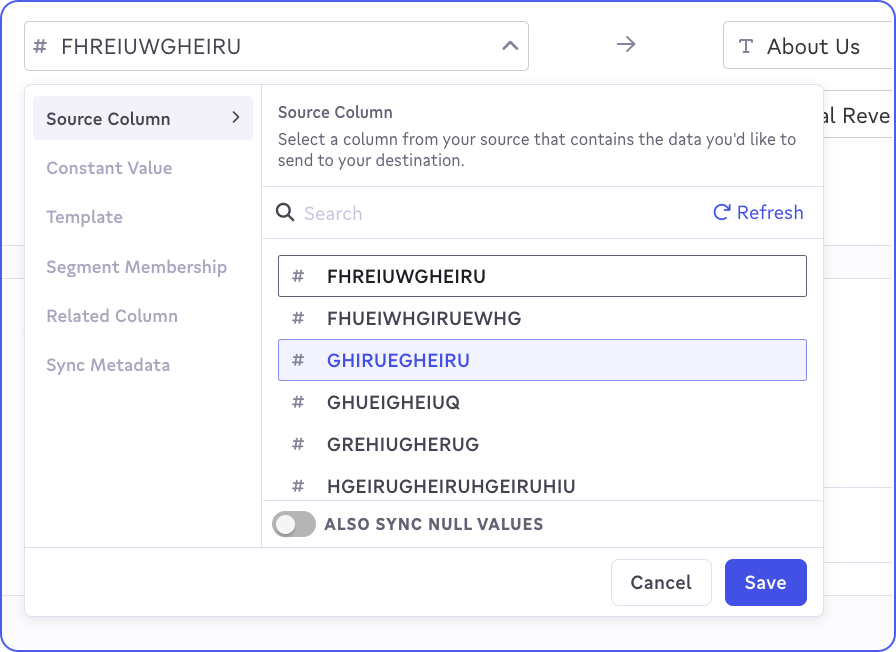
Also Sync Null Values in the source field editor
- Set If Empty: By default, Activations syncs any values from the source to the destination, even if the destination already has a value. On some connections, you can set a property to sync only if the destination property is empty. This is useful if you want to set a default value for a property without overwriting existing values.
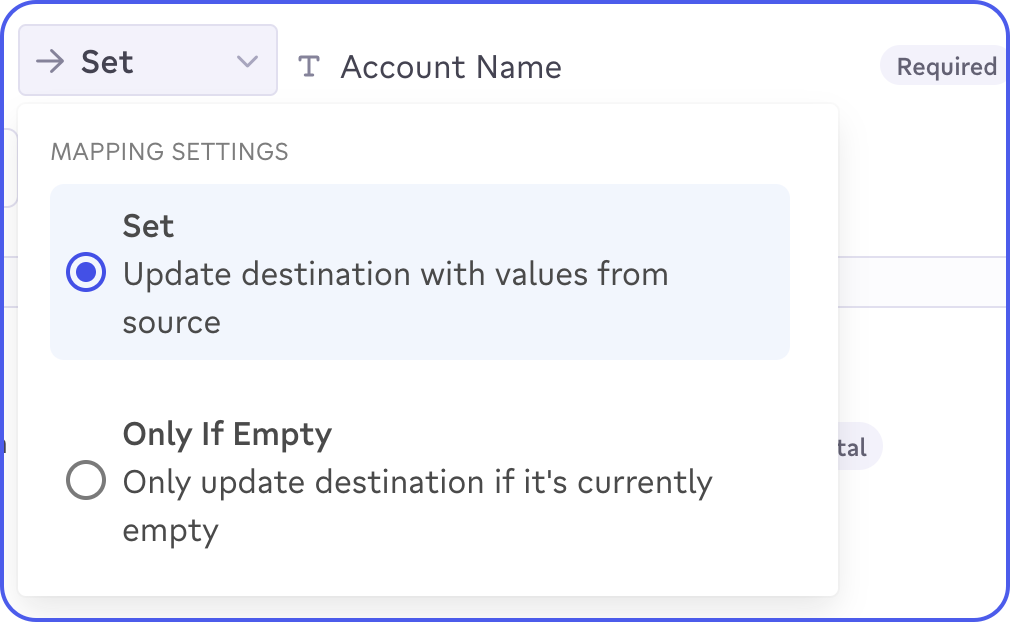
Set only if destination field is empty
Creating new fields on your destination object
For some destinations, such as Braze, Customer.io, or Iterable, you can create new fields directly from the Activations app. The next time an activation sync runs, Activations creates new properties or attributes for that object in the destination. This is useful if you want to automatically create new fields based on the columns in your source data. The callout at the end of this section lists all supported destinations.
Select Sync All Properties when you set up an activation sync.
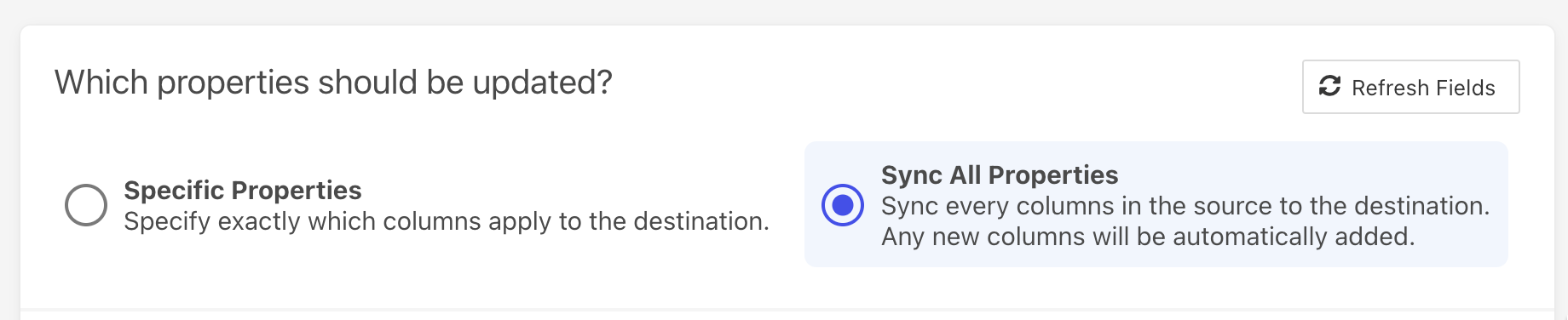
Select Sync All Properties
The following destinations support automatically adding new properties:
Braze, Custom API, Customer.io, Google Cloud Storage, Google Sheets, Iterable, Klaviyo, Mixpanel, S3, Salesforce Marketing Cloud, Segment, SFTP, Slack, Vitally, Webhook
Running activation syncs
After you create activation syncs, you can run them. This section describes how often activation syncs should run and what the sync history tells you about their health.
Schedules and API
You can run an activation sync manually, but most syncs run automatically. After you set up an activation sync, you can configure it to run automatically in three ways:
- Schedules including with Cron
- Programmatically through the API or an orchestration tool
- Automatically with dbt Cloud
Choose the trigger that fits your use case, and Activations keeps your data flowing on that schedule.
Sync history
To see why a sync failed, or which records were invalid in the source or rejected by the destination, open the Sync History tab.
Failed Syncs
Hover over the status label to see a detailed error.
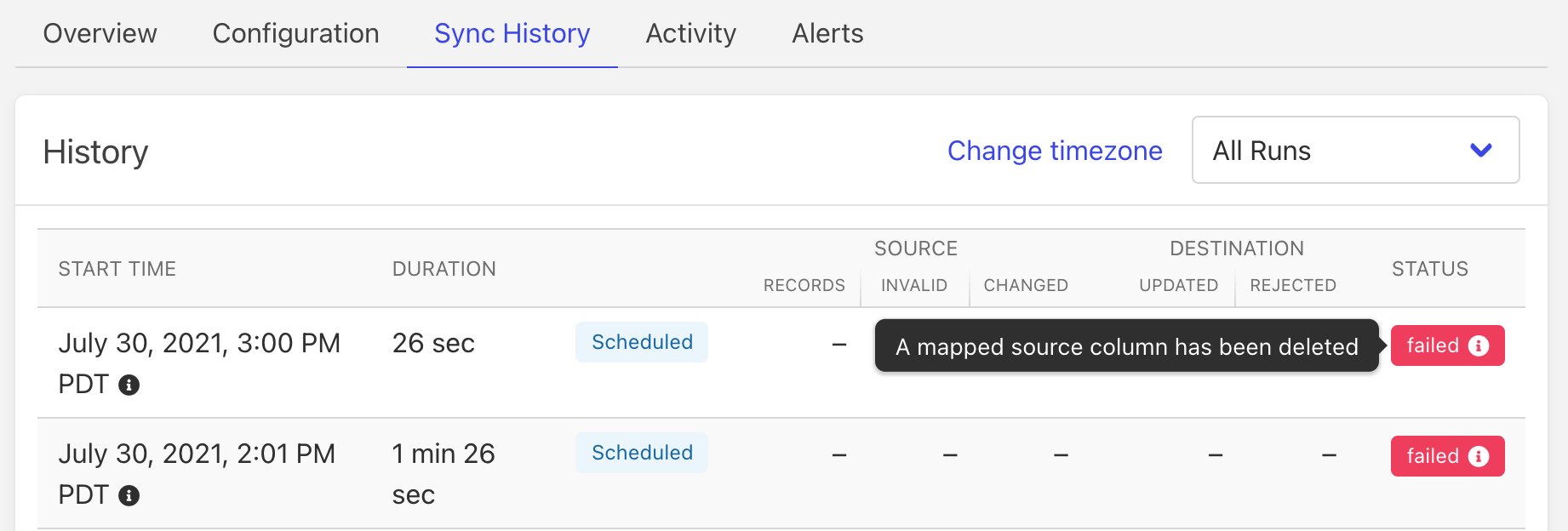
Invalid or rejected records
Click the number of invalid or rejected records to see a sample (up to 100), and the reason why they were invalid or rejected.
What is the difference between Invalid and Rejected records?
- Invalid records are flagged and filtered by Activations before syncing to your destination. Activations checks the source data for records with
NULLidentifiers and duplicates. - Rejected records are records that Activations sent to the destination but the destination didn't accept. The sample of rejected records shows the reasons the destination gave.
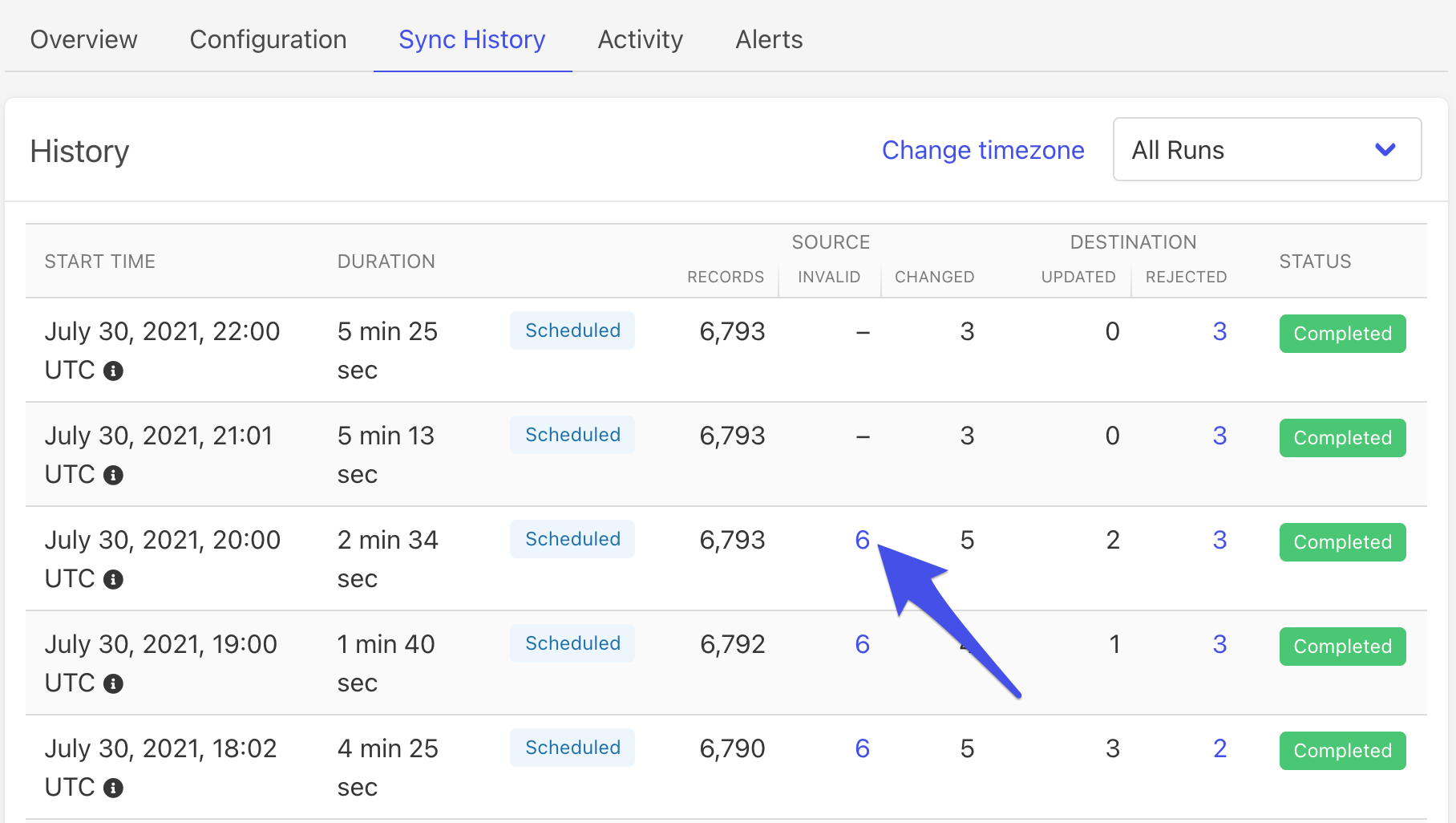
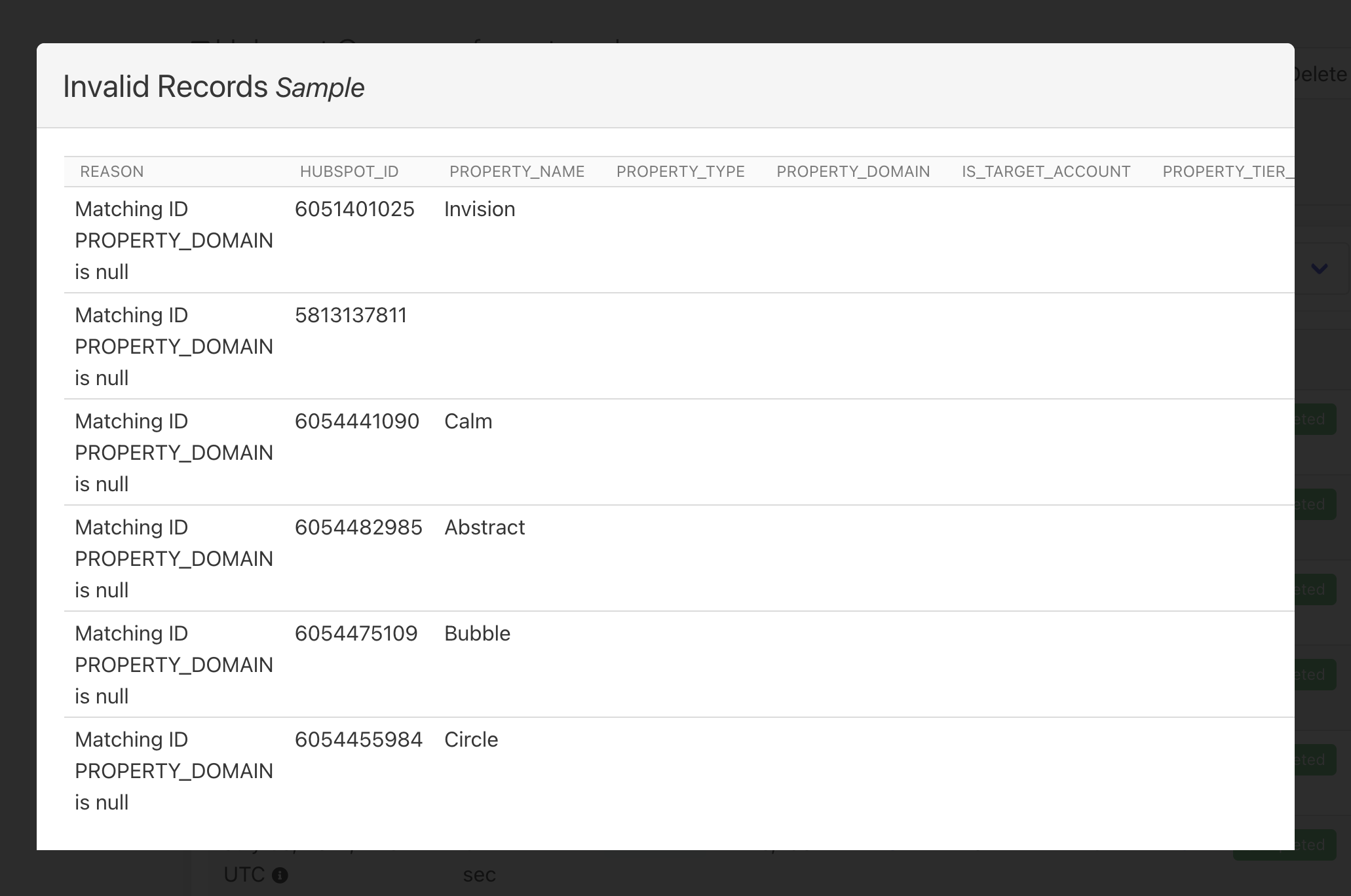
Output of invalid records diagnostic log
Activation sources and destinations
To create an activation sync, you need to connect both an activation source and an activation destination.
Data sources
Activations supports a variety of data sources for your syncs:
- Basic Datasets - Connect directly to your data warehouse tables, views, or custom SQL queries
- Direct Warehouse Access - Sync directly from warehouse tables without creating a dataset
For instructions on connecting your data source, see the Data Sources section in the navigation menu.
Data source permissions and read-only access
Activations provides a customizable Advanced Sync Engine on top of your data sources. To avoid storing your customer data outside your infrastructure, we create a scratch or bookkeeping schema in your data warehouse to cache sync states. This requires write permission to this schema, and only this schema. This schema isn't selectable as a source in the activation sync configuration UI.
If you don't have credentials with write access available, you can connect to your warehouse using the Basic Sync Engine, which stores this state outside the warehouse instead.
Either option may be right for you. Learn more in our Basic and Advanced Sync Engines documentation.
Datasets and segments
Datasets in Activations provide a flexible way to organize and prepare your data for syncing. With Basic Datasets, create datasets from your data warehouse using SQL or table selection.
You can also connect dataset integrations like dbt, Looker, or Sigma.
Datasets are optional in Activations—you can also sync data directly from a data source table or view—but datasets give you a simple way to create authoritative locations for the full set of all of your paying customers, invoices, or whatever other reusable data concept matters for your business. And once you've built your datasets, Activations makes it easy to quickly select and sync Segments as well.
Activation destinations
Activations helps you keep your data in sync across the business apps you use to engage with your customers, from advertising and marketing to sales and finance, using the same set of data.
The process of connecting a destination varies. Some destinations only need an OAuth confirmation flow or an API key. Others require more steps.
After you connect an activation destination, Activations can access the objects that the destination makes available. Typically these are contacts or companies, but many destinations support others, and some support custom-defined objects.
The connection steps, objects, and other details for each destination are covered in the documentation for that destination.
For the full list of destinations, see the Available Destinations page.
Need help?
For more information about specific activation sources or destinations, see their individual documentation pages. If you have any questions or need assistance, contact our support team.