
Google Sheets
This page describes how to use Activations with Google Sheets.
Google Sheets is a Google's cloud-based spreadsheet that allows you to create, edit, and collaborate with others in real-time. It's a great tool for storing and sharing data, and with Activations, you can sync data from your data warehouse directly into Google Sheets.
Getting Started
In this guide, we will show you how to connect Google Sheets to Activations.
1. Create a Google Sheets connection
Our Google Sheets destination behaves a little differently than other Activations destinations. Instead of going through an OAuth connection flow, we provide you a Google Identity address you use to share the correct Google Sheets docs. This lets you be very specific about which Google Sheets you give Activations access to.
- In Activations, navigate to Destinations
- Click the New Destination button
- Select Google Sheets in the menu
Your new Google Sheets connection will include a Google Identity email. This is the email address you'll use to grant Activations access to your target Google Sheet. Click the copy button ( ) to save it to your clipboard, will use it in a minute.
2. Share your target Google Sheet
Now head to the Google Sheet you'd like to sync to. If you don't have one in mind, you can create a new one. Either way, make sure your target Google Sheet has an empty tab inside it that Activations can sync to, as the contents of which ever tab you select will be replaced by Activations.
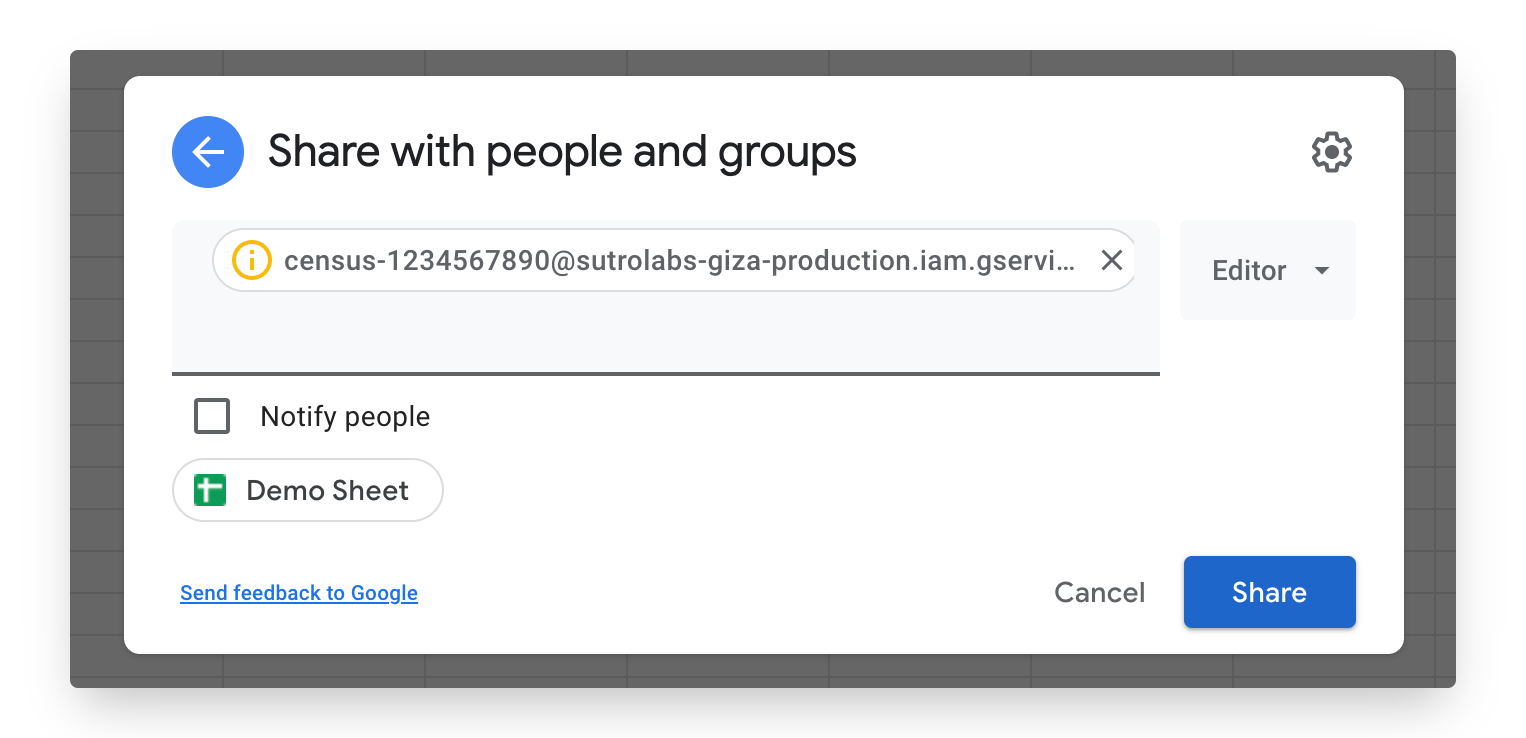
To give Activations access to your Google Sheet, press the Share button and then add paste the Google Identity email from Activations into the share dialog and confirm.
Sync Key
As of September 25, 2026, this is required for all Google Sheets syncs.
Mirror syncs to Google Sheets require a sync key: a source column that uniquely identifies each row. Activations uses it to track which rows are new or changed for Monthly Active Rows (MAR) billing.
Pick a source column to use as the key when creating or editing a sync. Activations stores this value internally — it won't appear as a column in your destination sheet.
Via the API or Terraform, set the key with a field mapping marked is_primary_identifier: true:
"mappings": [
  { "from": { "type": "column", "data": "id" }, "to": "_tracking_id", "is_primary_identifier": true }
]
Learn more about sync keys in our Syncs documentation.
Is It Possible to Enforce A Sort Order?
Unfortunately, no. Activations can not guarantee a preserved order from your model, even if your model has an ORDER BY statement. When we unload the records, we just use a normal SELECT, so the records can come back in any order.
We recommend treating the Google Sheet that is receiving data as the "raw data" and doing any necessary transformations, like ordering, in a separate sheet within the file.
The IMPORTRANGE function in Google Sheets can be a great solution for this use case.
My sync failed because it was too big?
Syncs to Google Sheets as a destination are limited to 10M updated cells to ensure the reliability of the syncs_._ A cell corresponds to a column-to-field mapping so if your source data for the sync has 100 rows and the sync uses 4 columns, that will end up being 400 cells that are updated.
If Activations determines a sync will update over 10M cells the sync will fail with the following error: Sheets prohibits updates of over 10M cells. Please try modifying your source data to limit the total cell count.
This is a runtime error and will not be caught at the time of Sync creation.
Supported Sync Behaviors
| Object Name | Supported? | Behaviors |
|---|---|---|
| Sheet Tabs | ✅ | Replace |
Learn more about all of our sync behaviors in our Syncs documentation.
Contact Support if you want Activations to support more Sync behaviors for Google Sheets.