
Mailchimp
This page describes how to use Activations with Mailchimp.
⠀Getting Started
In this guide, we will show you how to connect Mailchimp to Activations and create your first sync.
Prerequisites
- Have your Fivetran account ready. If you need one, create a Free Trial Fivetran account now.
- Have your Mailchimp account ready.
- Have the proper credentials to access to your data source. See our docs for each supported data source for further information:
1. Connect Activations to Mailchimp
In the Destinations page in Activations, Click the New Destination button under the Destinations section, and select Mailchimp.
You will be redirected to a page to log in to Mailchimp to authorize your account to Activations. Once you enter your credentials and click the Log In button, you'll see a page like the image below, confirming you want to authorize Activations.
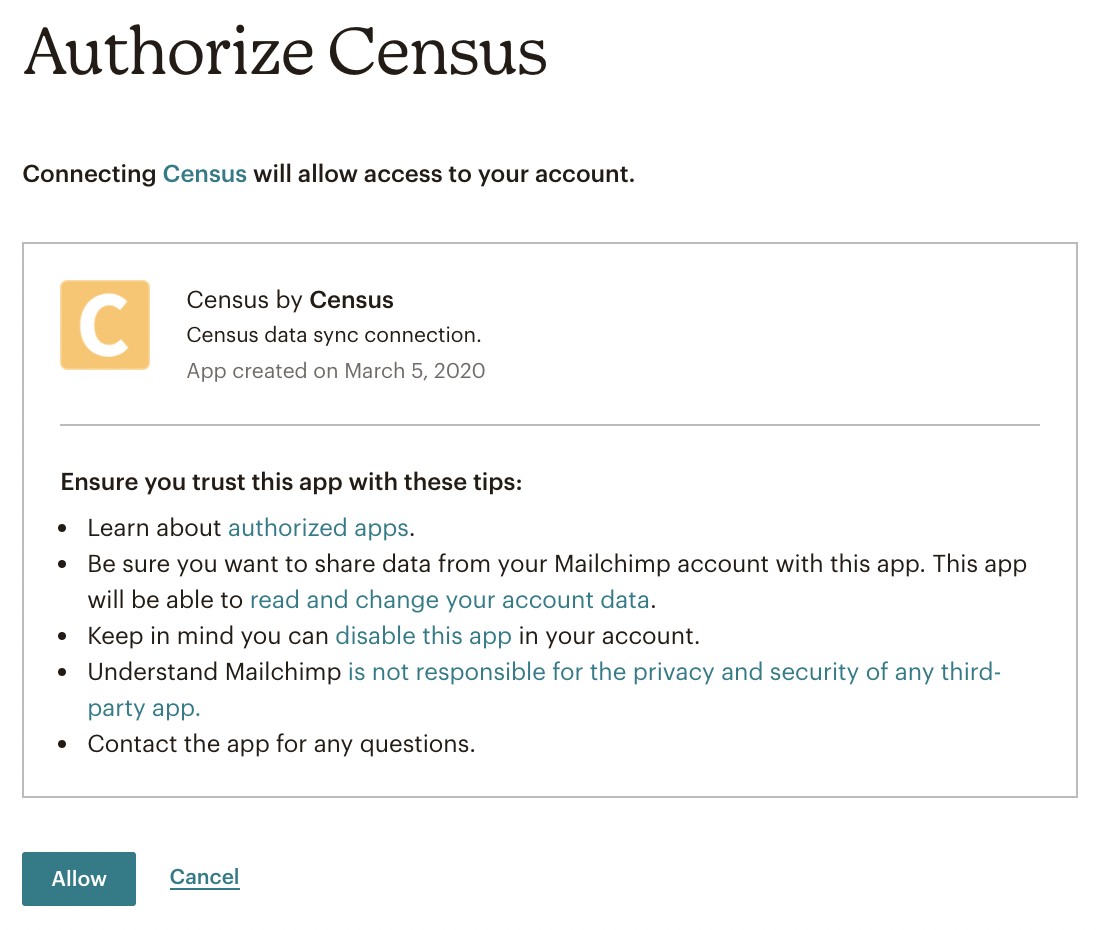
Once you've authorized Activations, you'll be redirected back to the Destinations page in Activations and you should see your Mailchimp connection there.
If you want to see your connections in Mailchimp in the future, simply navigate to the Profile page, and scroll down to the Connections and notifications section.
⠀Mailchimp Field Quirks
Please note that the mandatory status field only accepts the following values in lower case: "subscribed", "unsubscribed", "cleaned", or "pending".
With Mailchimp, the API endpoint needs a Status field value, so if you find yourself seeing this error:
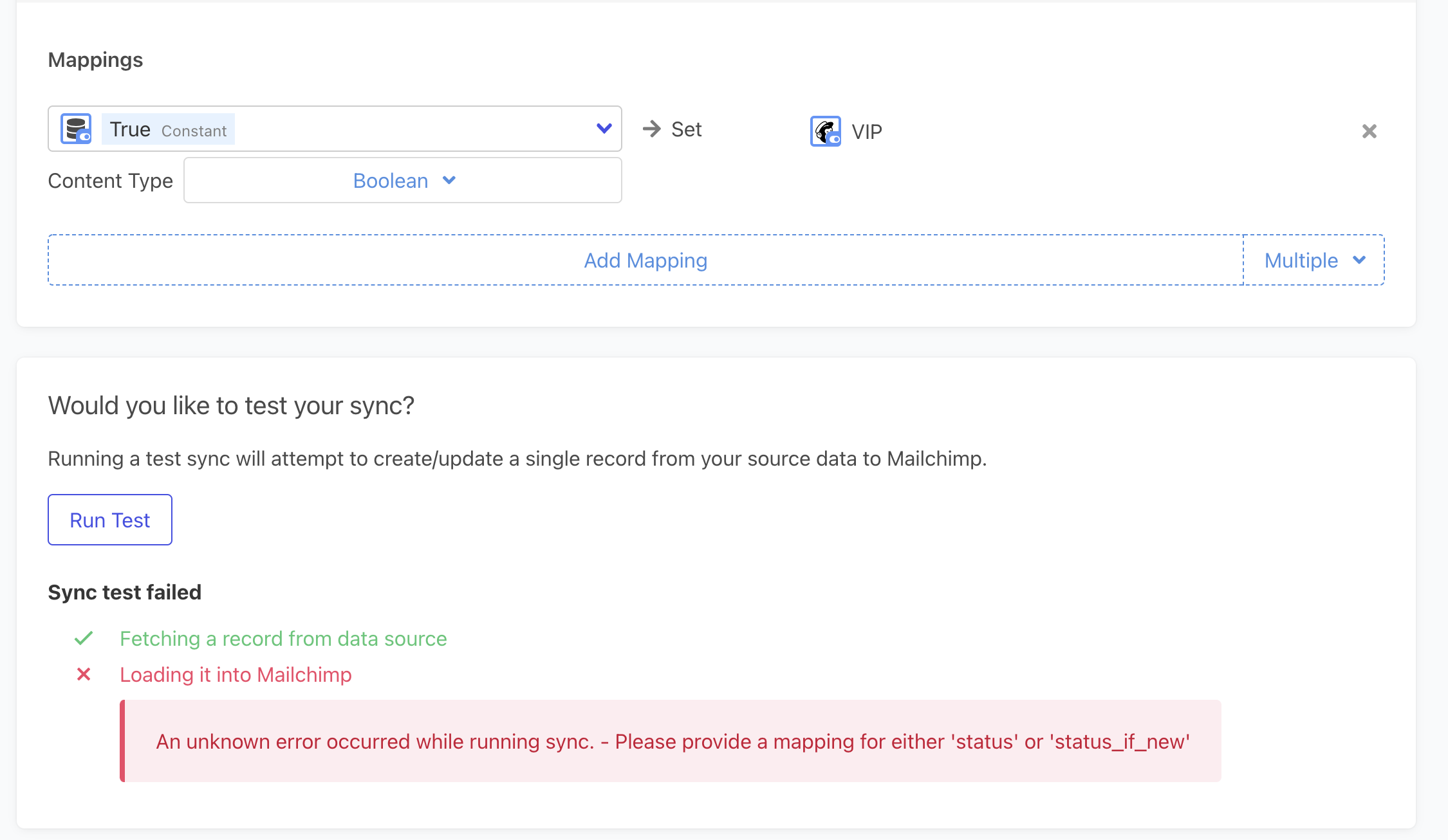
Oh no!
But you don't want to overwrite existing Statuses in Mailchimp, you just need to provide a mapping to the field labeled, "Status For New Subscriber".
Then your test sync, or completed syncs will be good to go, like this one:
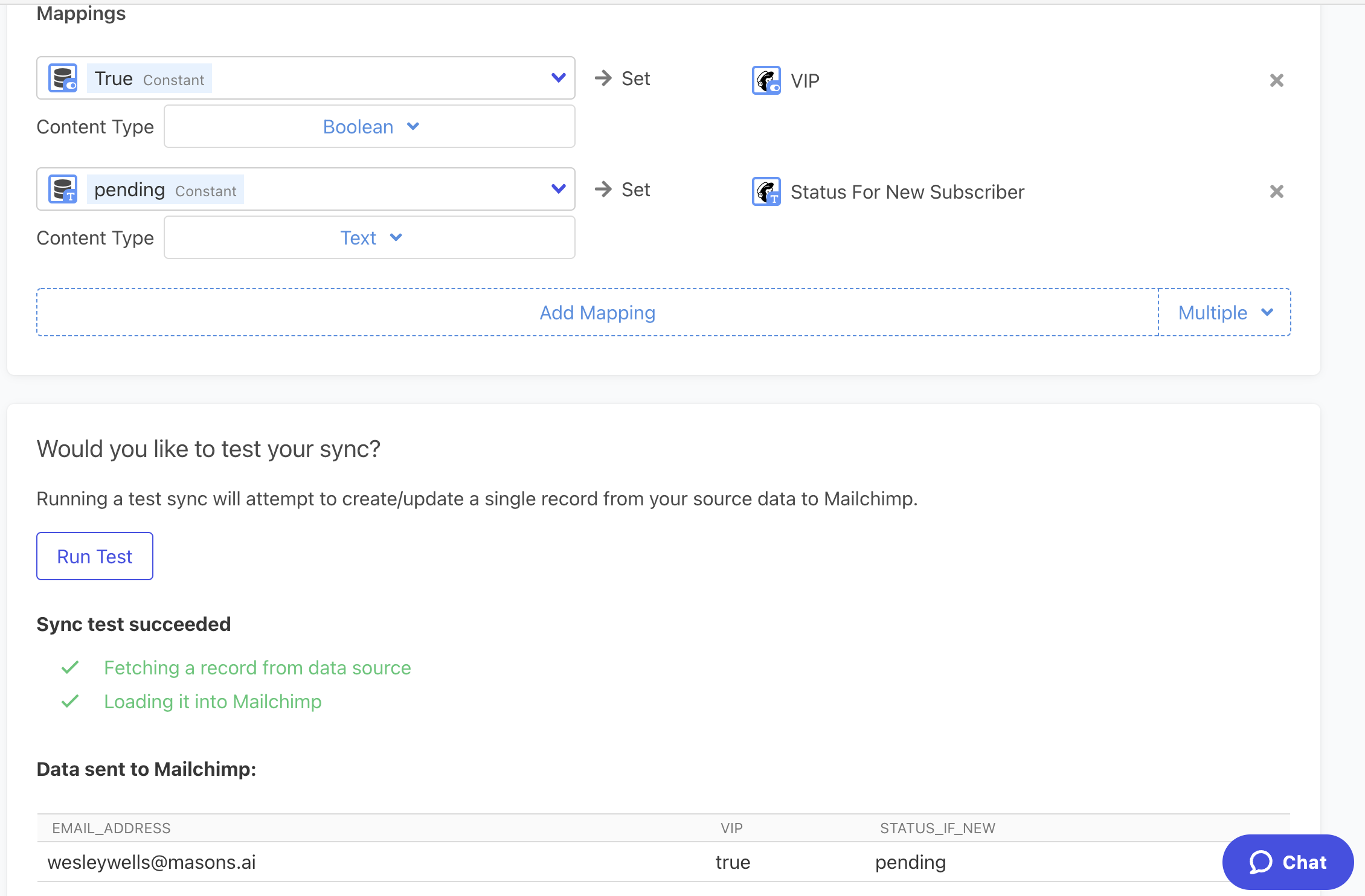
SUCCESS!
If you do want to update the Status field, you can include that instead. However, we highly recommend understanding your organization's implications of potentially re-subscribing a member that has previously unsubscribed.
For more details, take a look at Mailchimp's API documentation.
⠀Supported Objects and Sync Behaviors
| Object Name | Supported? | Identifiers | Behaviors |
|---|---|---|---|
| List/Audience Members | ✅ | Email Address, | Update or Create, Update Only |
Learn more about all of our sync behaviors in our Syncs documentation.
Contact Support if you want Activations to support more Mailchimp objects and/or behaviors
Prehashed Email Identifiers
To prehash your emails, first lowercase the email address and then apply an MD5 hash, both which can be done directly in SQL. For example, here's the SQL you'd use in Snowflake (syntax for other data warehouses vary slightly)
SELECT MD5(LOWER('Example@company.co'))
Status and Unsubscribing List Members
The Mailchimp status field supports one of four values: subscribed, unsubscribed, cleaned, or pending. To unsubscribe a member from a particular list, simply set the status field to unsubscribed.
Tags
Mailchimp tags field can be set by providing an array of string values as structured data. Read more about syncing Structured Data using Activations.