
PostgreSQL
This page describes how to configure PostgreSQL credentials for use by Activations and why those permissions are needed.
Required Permissions
These instructions are well-tested to connect Activations to PostgreSQL. If you're running into connection issues or missing tables or views, please confirm you've run all of these instructions.
Activations reads data from one or more tables (possibly across different schemata) in your database and publishes it to the corresponding objects in external systems such as Salesforce. To limit the load on your database as well as to other apps' APIs, Activations computes a “diff” to determine changes between each update. In order to compute these diffs, Activations creates and writes to a set of tables to a private bookkeeping schema (2 or 3 tables for each sync job configured).
We recommend you create a dedicated CENSUS user account with a strong, unique password. Activations uses this account to connect to your PostgreSQL database. In order for the Activations connection to work correctly, the CENSUS account must have these permissions:
- Skip this step if working in read-only mode. The ability to create the
CENSUSschema and full admin access to all tables within that schema (including creating tables, deleting tables, and reading and writing to all tables). - Read-only access to any tables and views in any schemata that you would like Activations to publish to your destinations.
- If you are using Activations to load service data into your warehouse, read-write access to the schema where Activations should load data (note that this is not included in the sample script below).
PostgreSQL permissions are complex and there are many ways to configure access for Activations. The script below has been tested with recent PostgreSQL versions and is known to work correctly:
-- Give the census user the ability to sign in with a password
CREATE USER CENSUS WITH PASSWORD '<strong, unique password>';

-- Create a private bookkeeping schema where Activations can store sync state
-- Skip this step if working in read-only mode
CREATE SCHEMA CENSUS;

-- Give the census user full access to the bookkeeping schema
-- Skip this step if working in read-only mode
GRANT ALL ON SCHEMA CENSUS TO CENSUS;

-- Ensure the census user has access to any objects that may have already existed in the bookkeeping schema
-- Skip this step if working in read-only mode
GRANT ALL PRIVILEGES ON ALL TABLES IN SCHEMA CENSUS TO CENSUS;

-- Let the census user see this schema
GRANT USAGE ON SCHEMA "<your schema>" TO CENSUS;

-- Let the census user read all existing tables in this schema
GRANT SELECT ON ALL TABLES IN SCHEMA "<your schema>" TO CENSUS;

-- Let the census user read any new tables added to this schema
ALTER DEFAULT PRIVILEGES IN SCHEMA "<your schema>" GRANT SELECT ON TABLES TO CENSUS;

-- Let the census user execute any existing functions in this schema
GRANT EXECUTE ON ALL FUNCTIONS IN SCHEMA "<your schema>" TO CENSUS;

-- Let the census user execute any new functions added to this schema
ALTER DEFAULT PRIVILEGES IN SCHEMA "<your schema>" GRANT EXECUTE ON FUNCTIONS TO CENSUS;
Notes
We strongly recommend against connecting Activations a production PostgreSQL database. Activations queries are often very analytical in nature and do not always play nicely with production environments. Unfortunately, PostgreSQL doesn't give you much ability to control performance impacts across users so to avoid issues, please use Activations with databases set up for analytic workloads only!
- If you have multiple schemata that you would like Activations to read from, repeat the steps for "<your schema>" for each of them
- In older versions of PostgreSQL, if there are views in your schema that reference tables in other schemata, you will also need to give Activations read access to those other schemata. In later versions of PostgreSQL this extra read access is not required.
- If you are using Activations models to execute stored procedures (this is rare and not recommended for most users) you may also need to give Activations access to those procedures
- If you are using an Azure database for PostgreSQL server the Username needs to be formatted as
username@hostname. For AWS the format isusername
Advanced Network Configuration
Activations can successfully connect to Postgres instances that are using advanced networking controls including region constraints, IP address allow lists, or SSH Tunneling. For more information, see our Network Access Controls documentation.
Allowed IP Addresses
With PostgreSQL, you'll need to add Activations' IP addresses in your firewall, and/or add rules to your pg_hba.conf file to only allow the Activations user to connect to your database.
You can find Activations' set of IP address for your region in Regions & IP Addresses.
Connecting via SSH tunnel
Activations optionally allows connecting to PostgreSQL warehouses that are only accessible on private/internal networks via SSH tunneling. To do so, you'll need to provide an SSH host server that is visible on the public internet and can connect to the private warehouse, and you'll also need to be able to perform some basic admin actions on that server.
- Create a new user account for Activations on the SSH host. (This account is separate from the database user account and can have a different username.)
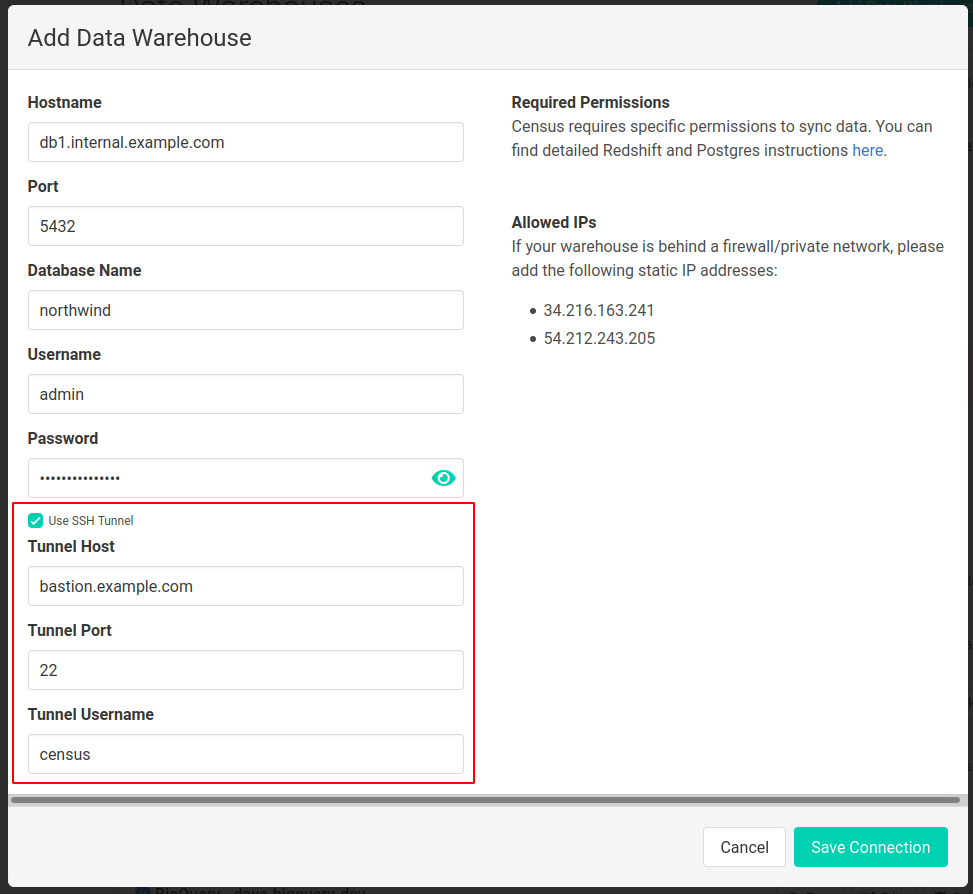
- On the Activations Sources page, create a new connection to a PostgreSQL warehouse, enter the warehouse connection details, and then check the 'Use SSH Tunnel' option as shown below. Fill in the host and port of the SSH host machine along with the name of the user created in the previous step.
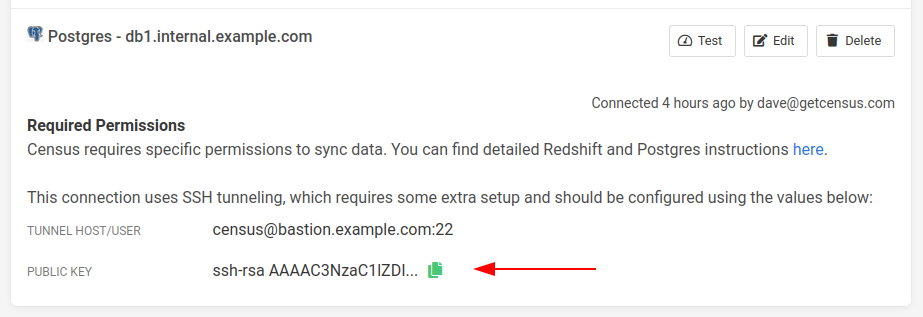
3. Once the connection is created, Activations will generate a keypair for SSH authentication which can be accessed from the Sources page.
To install the keypair, copy the public key in Activations to your clipboard and add it to the SSH authorized keys file on the SSH host for the user created in the first step. If, for example, this user is named census, the file should be located at/home/census/.ssh/authorized_keys. You may need to create this file if it doesn't exist.
Note that the keypair is unique for each Activations Warehouse connection. Even if you're reusing the same credentials, you'll need to add the new public keys.
4. If the SSH host restricts IP ranges that can connect to it, add the Activations IPs to the allowlist.
With these steps complete, you should be able to complete a connection test, indicating that your tunneled connection is ready to be used in syncs.