
Network Access Controls
Fivetran never stores your customer data, but during a sync, data will flow temporarily through Fivetran servers. An Activations sync goes through the following steps to sync data from your source to your destination:
- Identify changes in your activation source
- Unload changes to cloud storage
- Prepare data and loading into your activation destination
- Report skipped records and feedback to your activation source
Fivetran will perform steps 2 and 3 using infrastructure in the region you've specified. For customers in need of finer-grained security, you may also provide your own blob storage where Fivetran will unload the changed records (the "diffs") for each sync. The diagram below showcases which steps in the Activations sync process occur in the region of your choice.
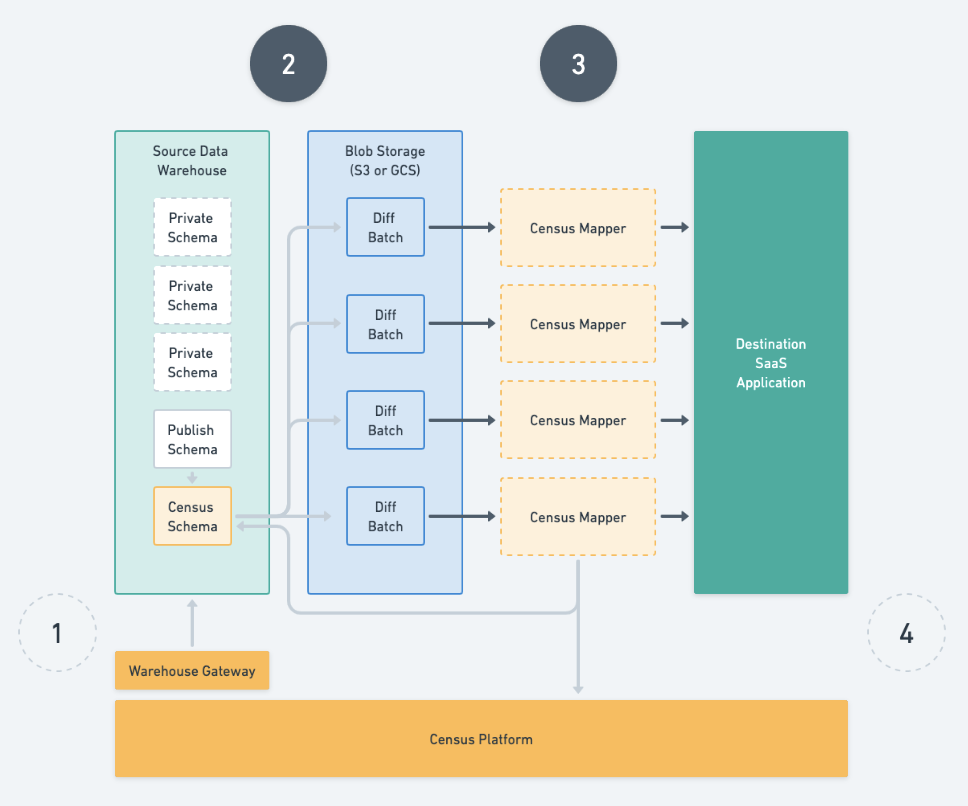
If your organization has strict data residency requirements, we recommend verifying that your source and destination both store and process data in your desired region. Fivetran will interact with the source and destination using region-specific resources but cannot guarantee that your sources and destinations also operate in the same region.
Secure Communication
All connections from the Fivetran Activations Service to your database are protected by TLS encryption - Fivetran will refuse to connect to a warehouse that does not support TLS.
Legacy Regions and IP Addresses
Organization and workspace region settings have been deprecated.
Activations now uses Fivetran clouds and regions by default for new accounts and sources. See Clouds and Regions for more information.
Some legacy Census customers are still configured in a legacy AWS Census region. This was previously configured on a per-organization and per-workspace basis. This setting is still visible in some accounts but is overridden when set directly on an activation source.
Legacy Region IP Addresses
Activations is migrating from our legacy IP addresses to the upcoming IP addresses listed in the following chart. If you currently use a legacy IP address, you must also grant access to the upcoming IP addresses in order to avoid disruption during migration.
| Region | Legacy IP Addresses (CIDR) | Upcoming IP Addresses (CIDR) | Upcoming IP Addresses (Range) |
|---|---|---|---|
| 🇺🇸 N. Virginia (us-east-1) | 3.220.140.5754.81.195.173 | 3.239.194.48/29 | 3.239.194.48 - 3.239.194.55 |
| 🇪🇺 Frankfurt (eu-central-1) | 3.73.223.17518.195.84.643.74.27.151 | 3.67.81.32/29 | 3.67.81.32 - 3.67.81.39 |
| 🇦🇺 Sydney (ap-southeast-2) | 52.64.222.17252.62.68.139 | 3.26.88.224/29 | 3.26.88.224 - 3.26.88.231 |
All other regions use Fivetran's Standard IP addresses.
Some destinations, such as Oracle Eloqua, use IP allowlisting for both their authentication APIs and standard APIs. In that case, if you're in Europe, you'll need to allowlist both EU/AUS and US IPs.
View Organization and Workspace Region Settings
To view your organization's current region, navigate to the Settings > General page in your Fivetran account. Your region is listed under "Organization region".
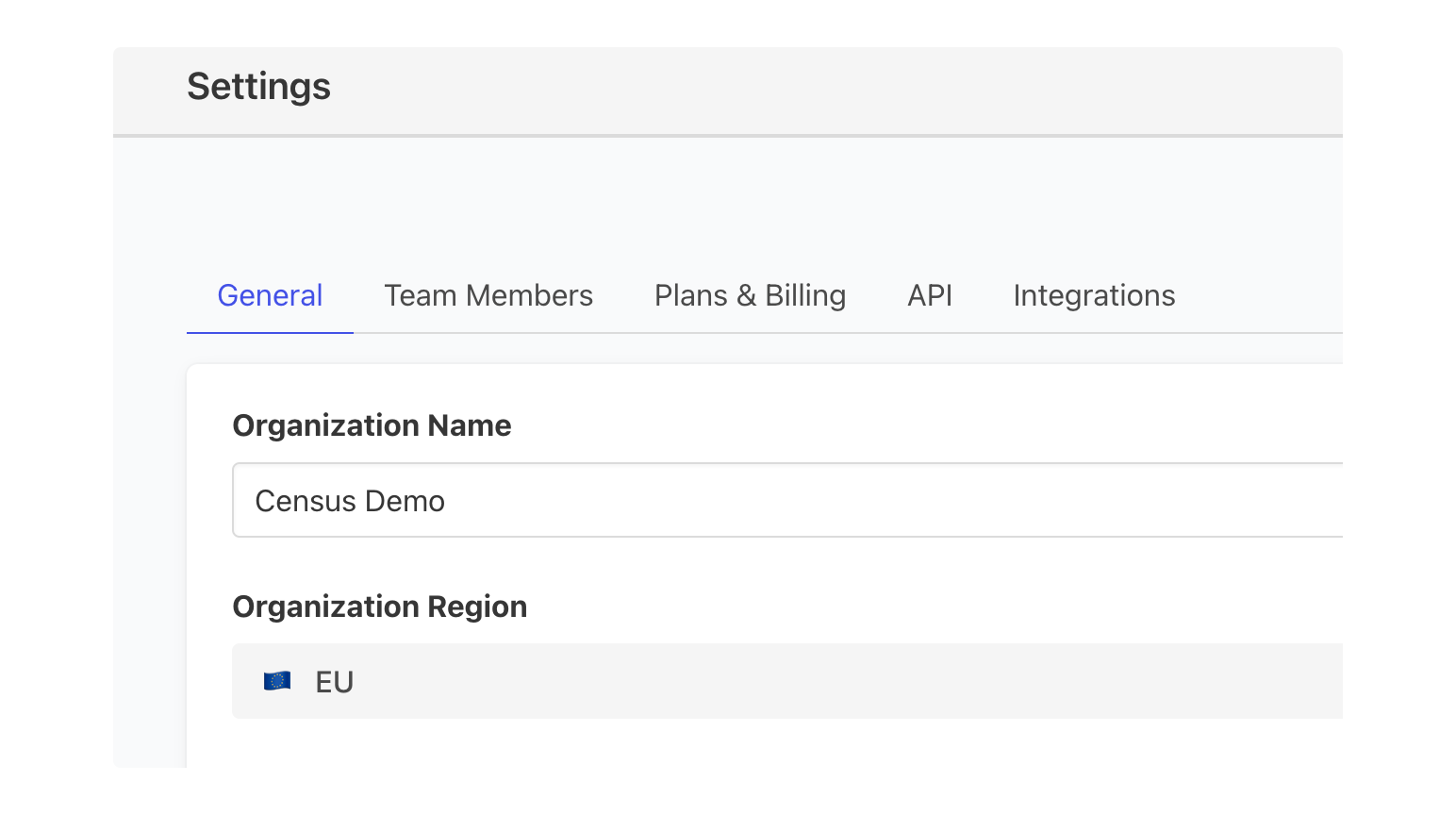
This organization's syncs run in the EU.
You can find the workspace region on the Settings > General page.
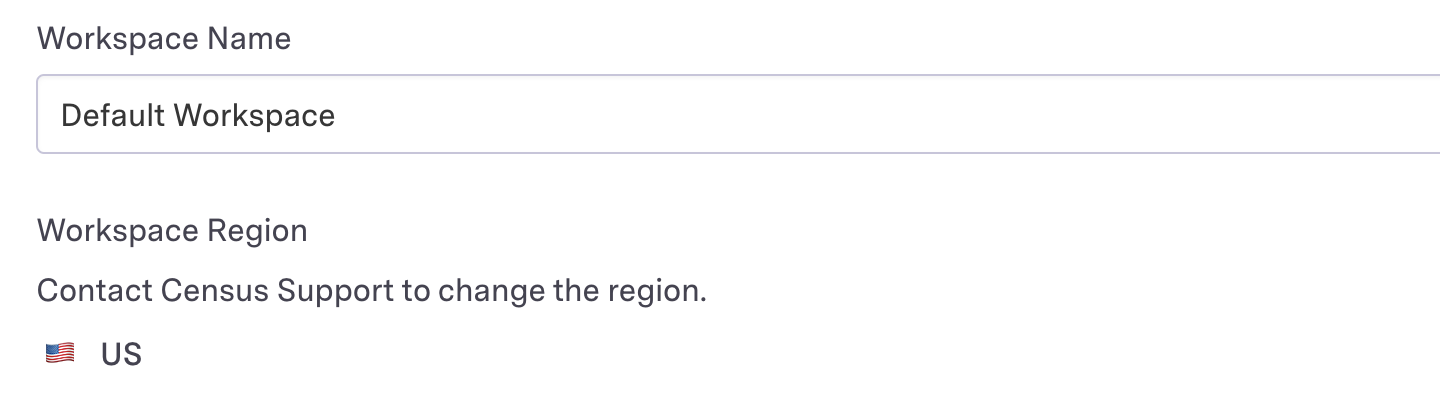
The workspace's syncs run in the US
Connecting via SSH tunnel
Activations supports connecting to data warehouse source and destinations that are only accessible on private/internal networks via SSH tunneling. To do so, you'll need to provide an SSH host server that is visible on the public internet and can connect to the private warehouse, and you'll also need to be able to perform some basic admin actions on that server.
Create a new user account for Activations on the SSH host. This account is separate from the database user account and can have a different username.
When configuring a warehouse connection, enter the warehouse connection details, and then check the 'Use SSH Tunnel' option as shown below. Fill in the host and port of the SSH host machine along with the name of the user created in the previous step.
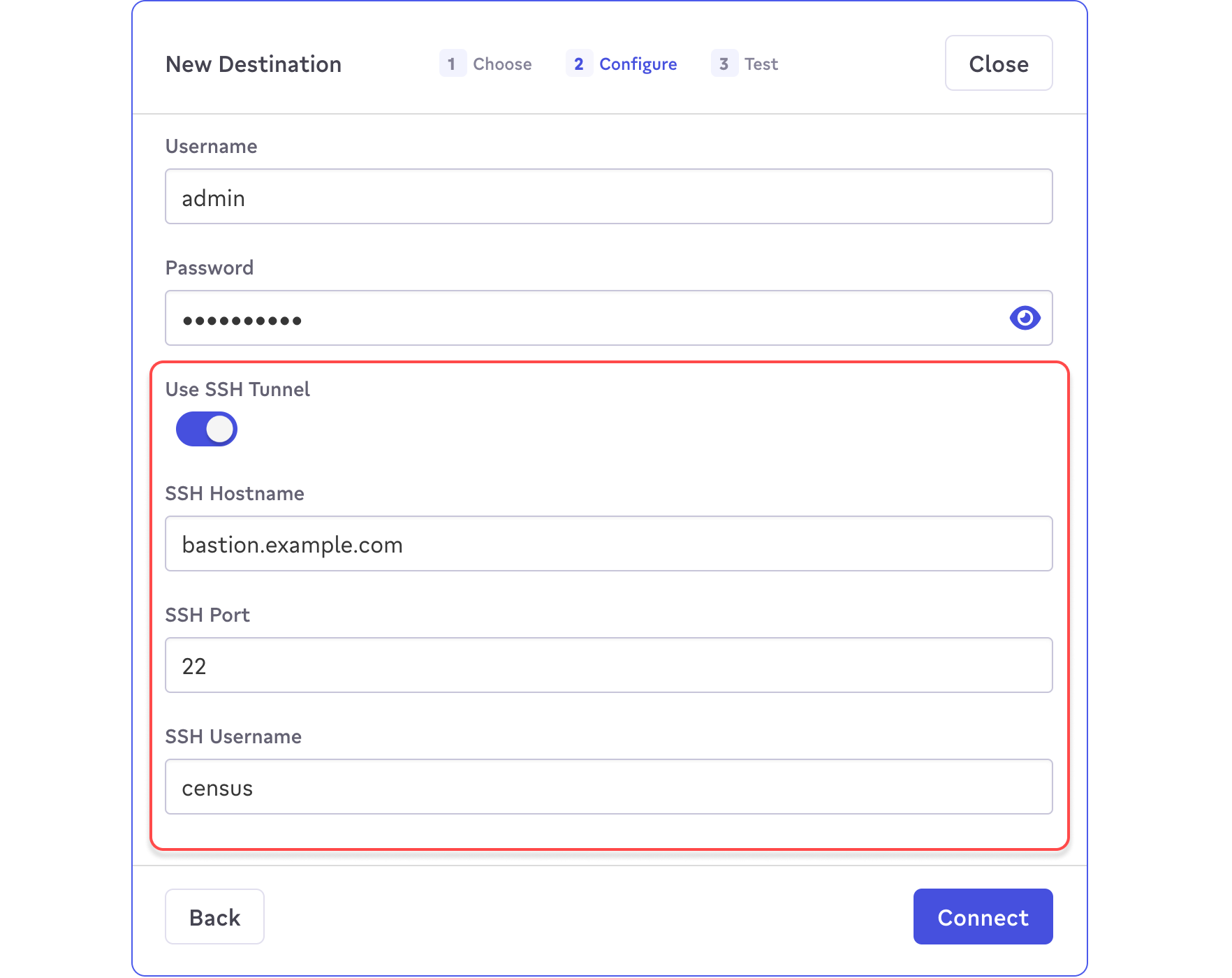
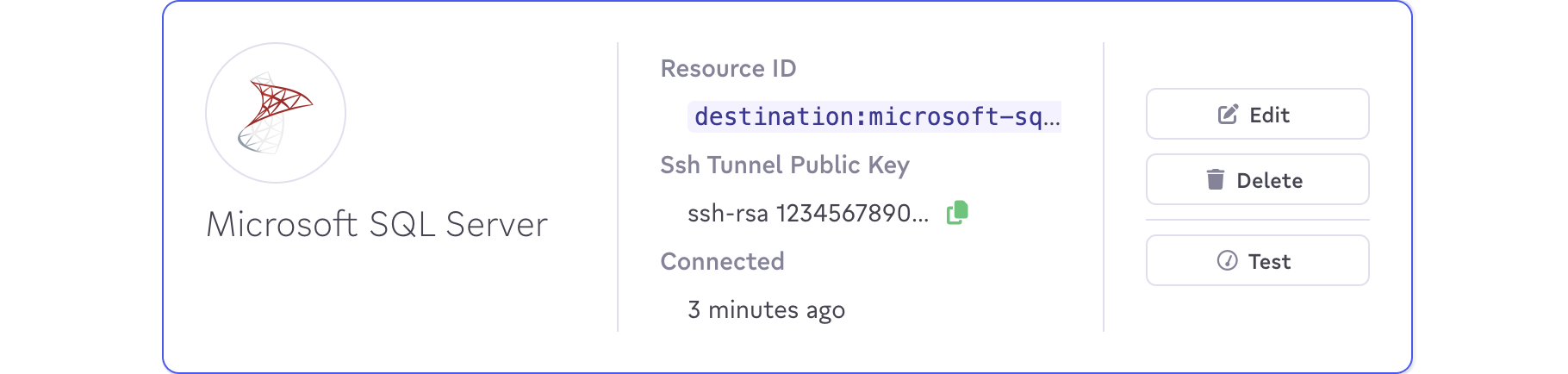
Once the connection is created, Fivetran will generate a key-pair for SSH authentication which is visible on the connect card.
To install the key-pair, copy the public key in Activations to your clipboard and add it to the SSH authorized keys file on the SSH host for the user created in the first step. If, for example, this user is named
census, the file should be located at/home/census/.ssh/authorized_keys. You may need to create this file if it doesn't exist.Note that the key-pair is unique for each Activations Warehouse connection. Even if you're reusing the same credentials, you'll need to add the new public keys.
If the SSH host restricts IP ranges that can connect to it, add the above Activations IPs to the allowlist.
With these steps complete, you should be able to complete a connection test, indicating that your tunneled connection is ready to be used in syncs.