
Intercom
This page describes how to use Activations with Intercom.
Getting Started
In this guide, we will show you how to connect Intercom to Activations and create your first sync.
Prerequisites
- Have your Fivetran account ready. If you need one, create a Free Trial account now.
- Have your Intercom account ready.
- Have the proper credentials to access to your data source. See our docs for each supported data source for further information:
1. Connect Intercom
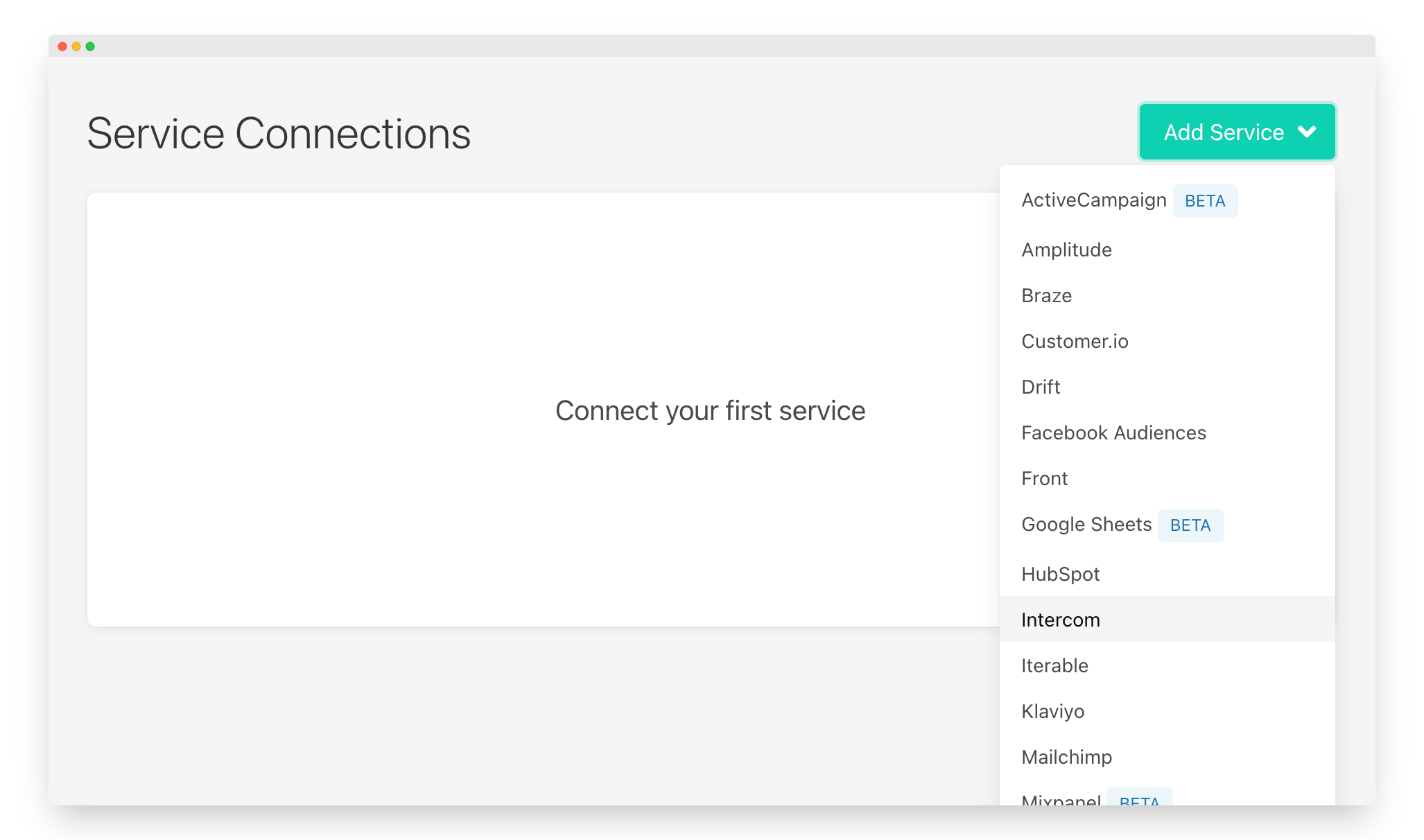
- Once you are in Activations, navigate to Destinations
- Click the New Destination button
- Select Intercom in the dropdown list
You will be directed to a screen describing the permissions Activations needs. Note that if your account has access to multiple Intercom workspaces, you'll also have the option to select the specific workspace. As well you can specify the data host region of your Intercom instance.
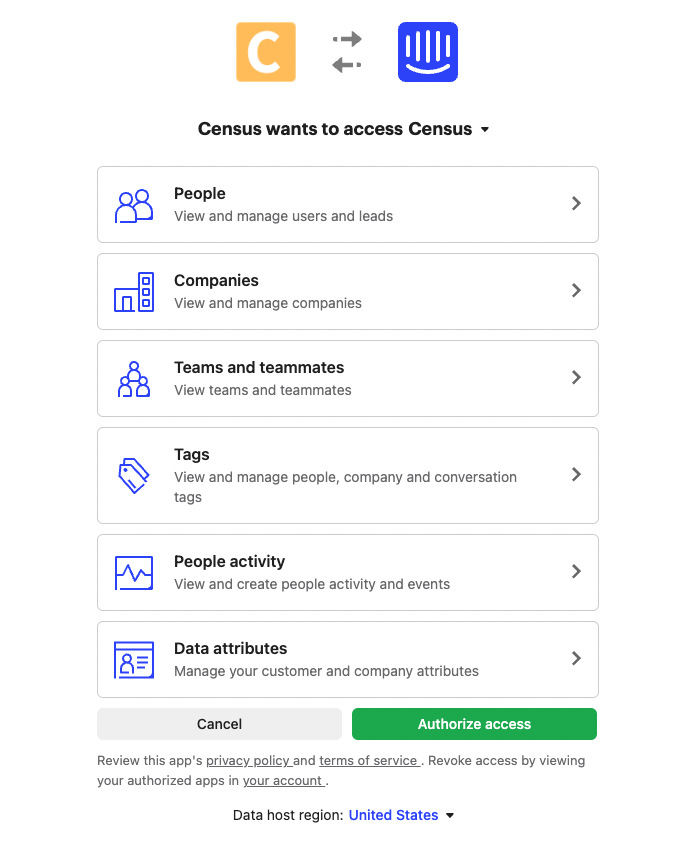
View the permissions needed, select the correct Intercom workspace, and specify the data host region
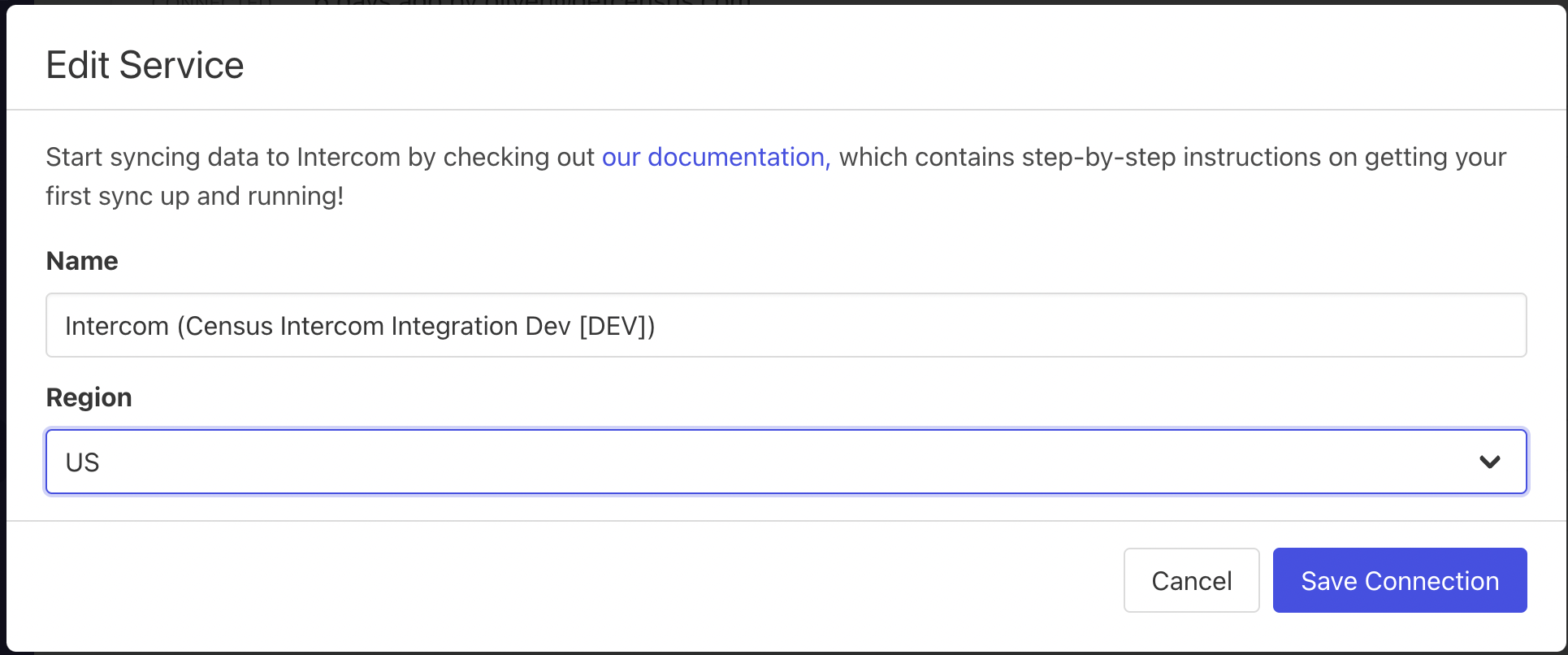
Once the connection is created, make sure that the region Activations uses is the same as your Data host region in Intercom. To do this select edit on your connection and then manually select your region from the dropdown.
2. Connect your Data Warehouse
Please follow one of our short guides depending on your data warehouse technology
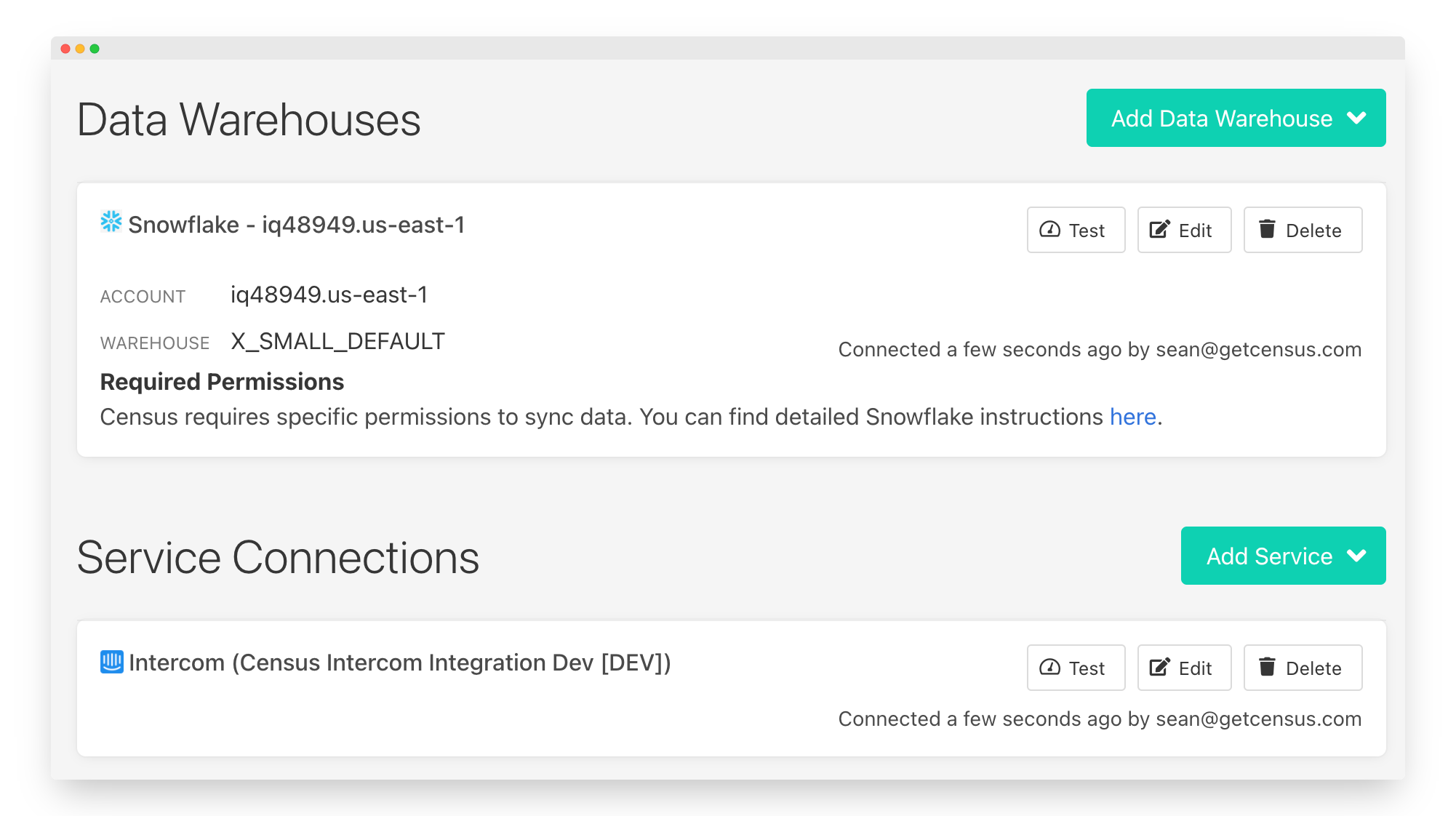
After setting up your warehouse, your Activations Destinations page should look like this
3. Create your first Model
Now navigate to the Model section of our Dashboard
Here you will have to write SQL queries to select the data you want to see in Intercom. Here are some ideas of data you should select
- The Lifetime Value of a customer and add it to a contact or companies
- The end of their trial
- The date they became active in your product
- The number of key activities a user did in your app in the last 7/30 days
Once you have created your model, click save.
4. Create your first Sync
Now head to the Sync page and click the Add Sync button
In the " What data do you want to sync?" section
- For the Connection, select the data warehouse you connected in step 2
- For the Source, select the model you created in Step 3
Next up is the "Where do you want to sync data to?" section
- Pick Intercom as the Connection
- For Object, pick the one you want to sync data to.
For the " How should changes to the source be synced?" section
- Select your preferred behavior. Update only is a great place to start!
- Pick the right mapping key, it could be Email for Contacts, Company ID for Companies but we recommend you use your own database id if possible
Finally, select the fields you want to update in the Mapper in the "Which Fields should be updated?" section
- Here simply map the field from your Intercom instance to the column from your model.
The end result should look something like this
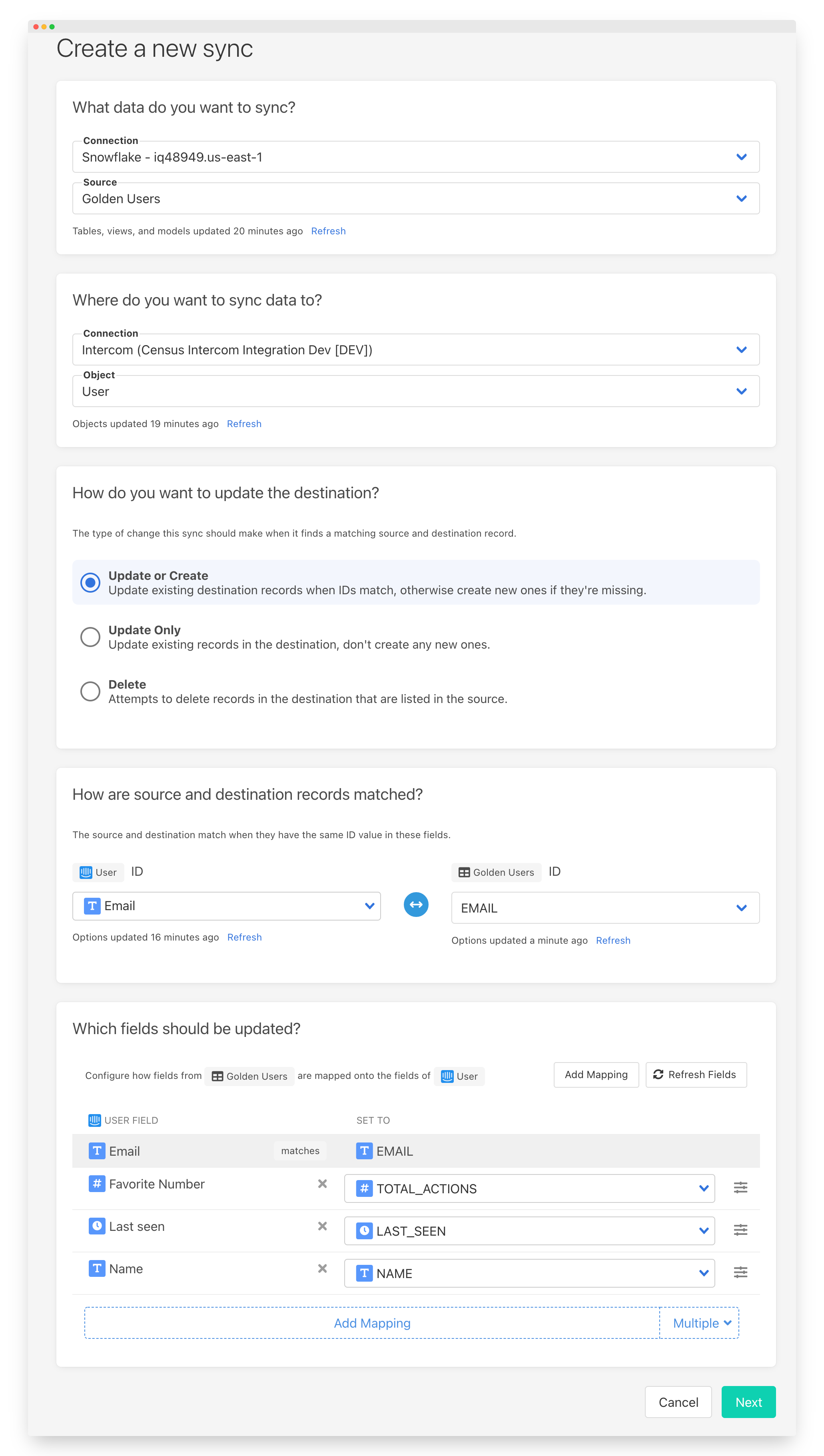
Click the Next button to see the final preview which will have a recap of what will happen when you start the sync
5. Confirm the data is in Intercom
Now go back to your Intercom and go view a record type (Contact or Company) that should have been updated. If everything went well, you should see your data in Intercom
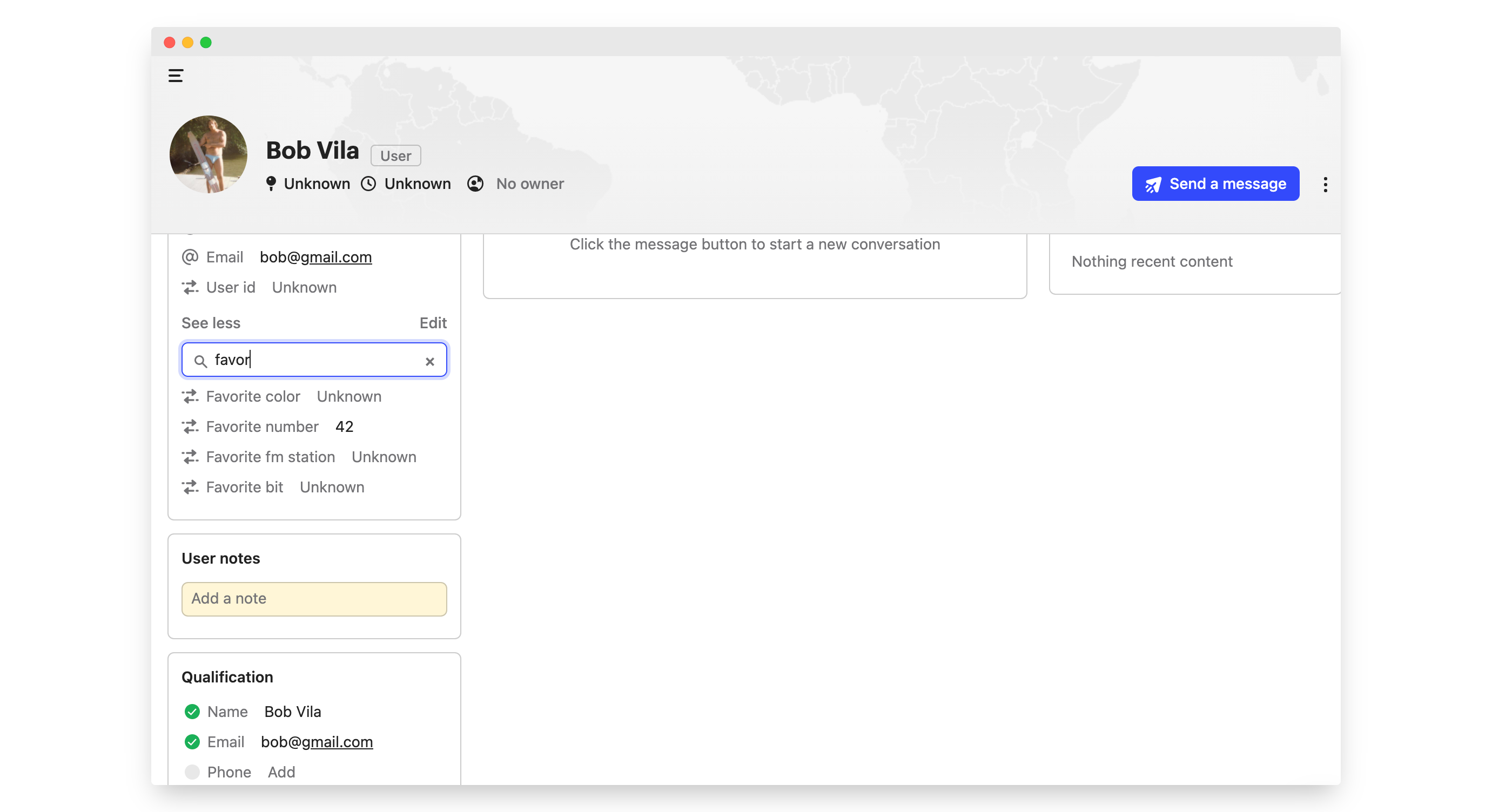
That's it! In 5 steps, you've connected Intercom and started syncing customer & product data from your warehouse 🎉
Supported Objects and Sync Behaviors
Activations currently supports syncing to the following Intercom objects.
| Object Name | Supported? | Identifiers | Behaviors |
|---|---|---|---|
| Company | ✅ | Company ID | Update or Create, Delete |
| Contact (Lead or User) | ✅ | Email, Intercom ID, External ID | Update or Create, Update Only, Delete |
| Lead | ✅ | Email, Intercom ID, External ID | Update or Create, Update Only, Delete |
| User | ✅ | Email, Intercom ID, External ID | Update or Create, Update Only, Delete |
| Event | ✅ | Event ID | Send |
If you're finding Companies missing in Intercom after a sync, make sure the company also has users associated with them. By default, Intercom hides companies with no associated users.
Learn more about all of our sync behaviors in our Syncs documentation.
Contact Support if you want Activations to support more Intercom objects and/or behaviors
Deleting Objects
When deleting objects in Intercom, Activations' default mode is to archive those objects (except in the case of Companies, which don't allow archiving). Intercom will permanently delete those objects 30 days after they've been archived. In some instances, you may opt to have Activations permanently delete objects. This could lead to irreversible data loss and is not recommended unless you are confident you don't need those records.
Contact Support if you want Activations to support more Sync behaviors for Intercom.