


Connect Links
This guide will walk you through securely collecting customer credentials via Connect Links.
These features are only available for Activations in Powered by Fivetran customers. If you don't see these options, please reach out to Customer Support.
Connect Links allow your customers to seamlessly authenticate their services, making them available as sources & destinations in your Activations workspace.
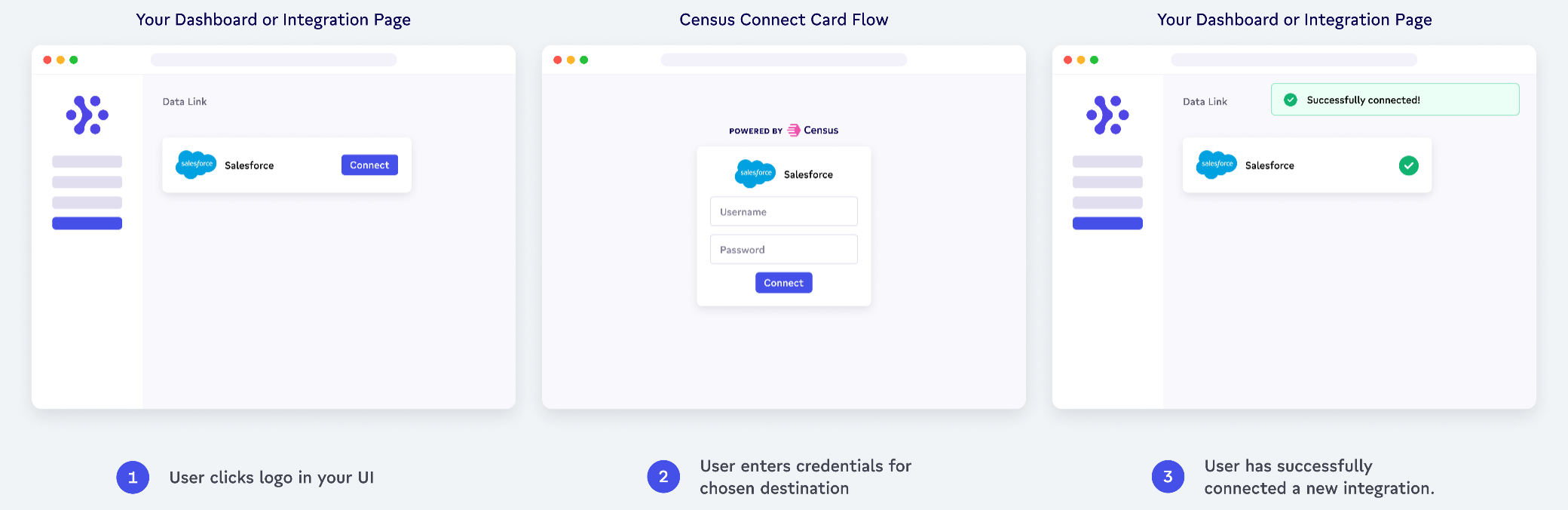
Collecting credentials is easy.
- Generate a connect link for your customer.
- Your customer enters their credentials.
- The connection appears in your Activations workspace.
By default, Connect Links will expire after 24 hours. If you'd like them to last longer for your account, you can update this setting in your organization settings. You can also customize where users will be redirected after authorizing a new connection, as well as the logo that is used.
We will use destination connect links in this guide. Source connect links are also available.
You can create a Connect Link through both the Activations UI and the API.
Generating Connect Links via the UI is not commonly used as a long term approach for true Activations in Powered by Fivetran customers, but it can be useful when starting out to get a feel for what your end-users will experience.
Generate Connect Link URL
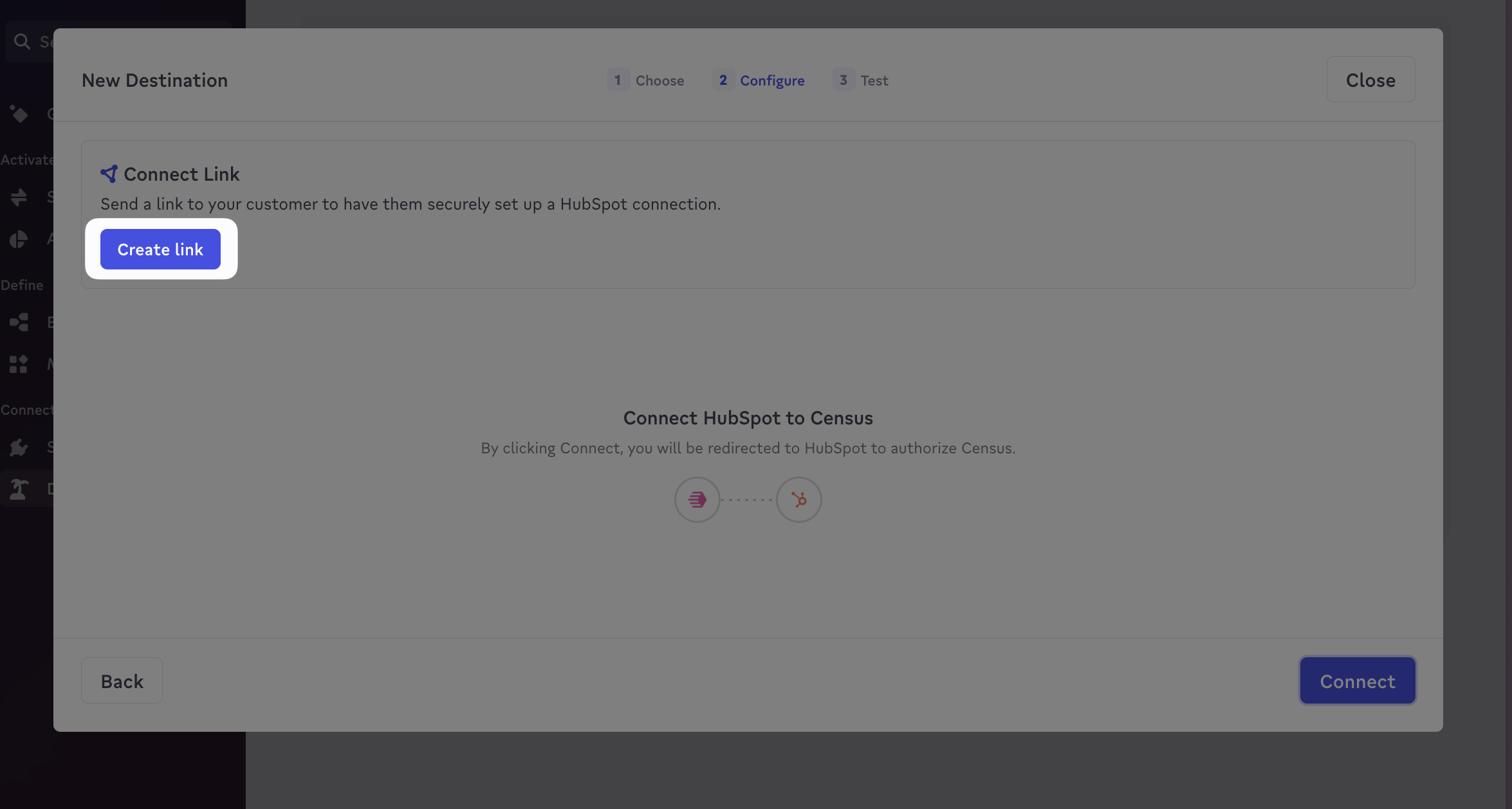
From the destinations page in the Activations UI, select "Add a Destination", search for the destination type your customer is hoping to connect, and select "Next". Generate the Connect Link URL with the "Create link" button.
Navigate to the Connect Link URL
You can now copy the Connect Link URL and either send it to your customer via Slack or in an email. Or, if you'd like to embed the connection flow directly in your app, check out our connect links guide.
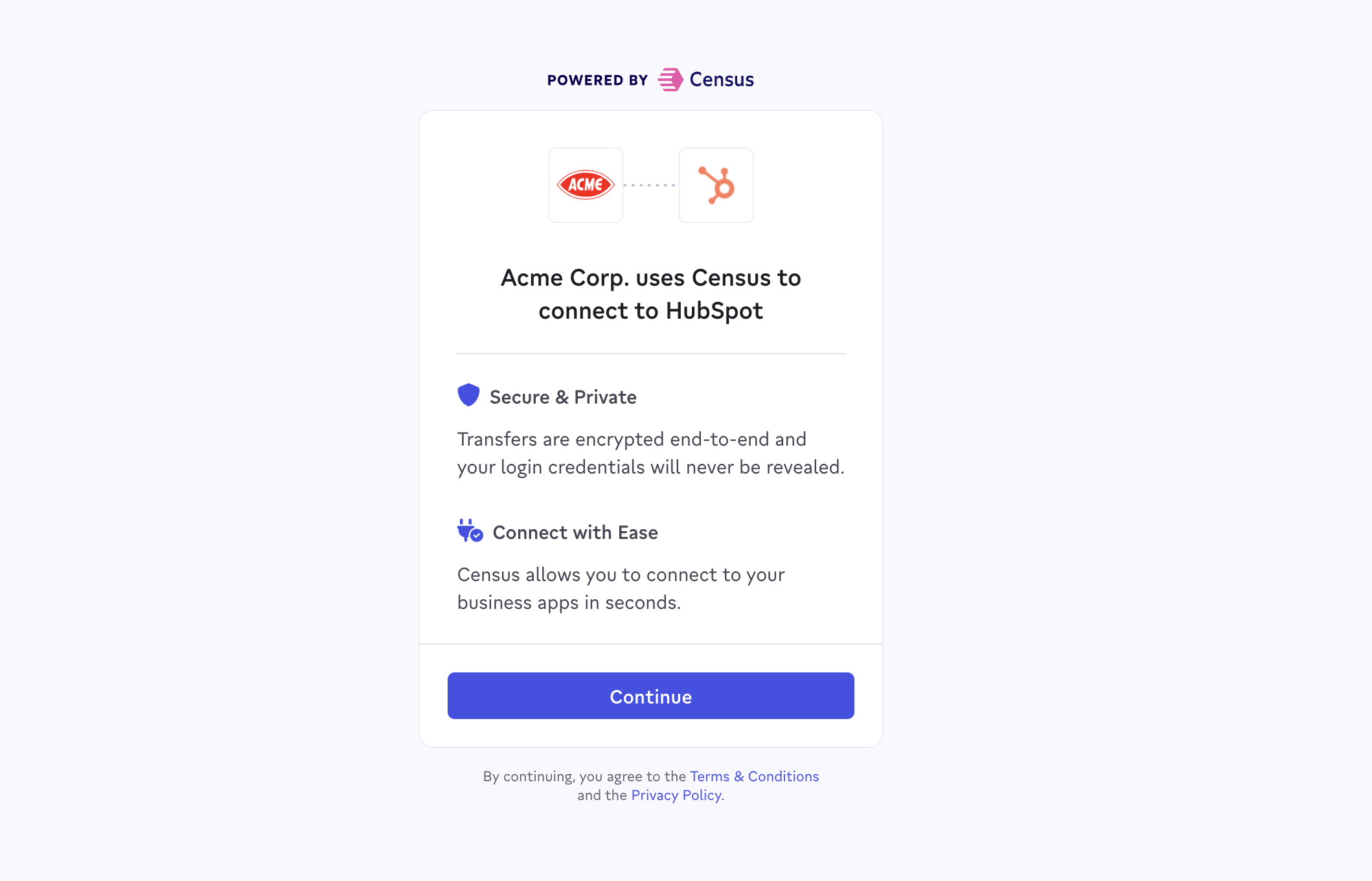
Complete Authorization of Destination
Your customer (or you) should then go through the Connect Link authorization flow with the destination. The Connect Link UI will handle
- Gathering all the required credentials for the destination.
- Performing a series of automated tests against the destination.
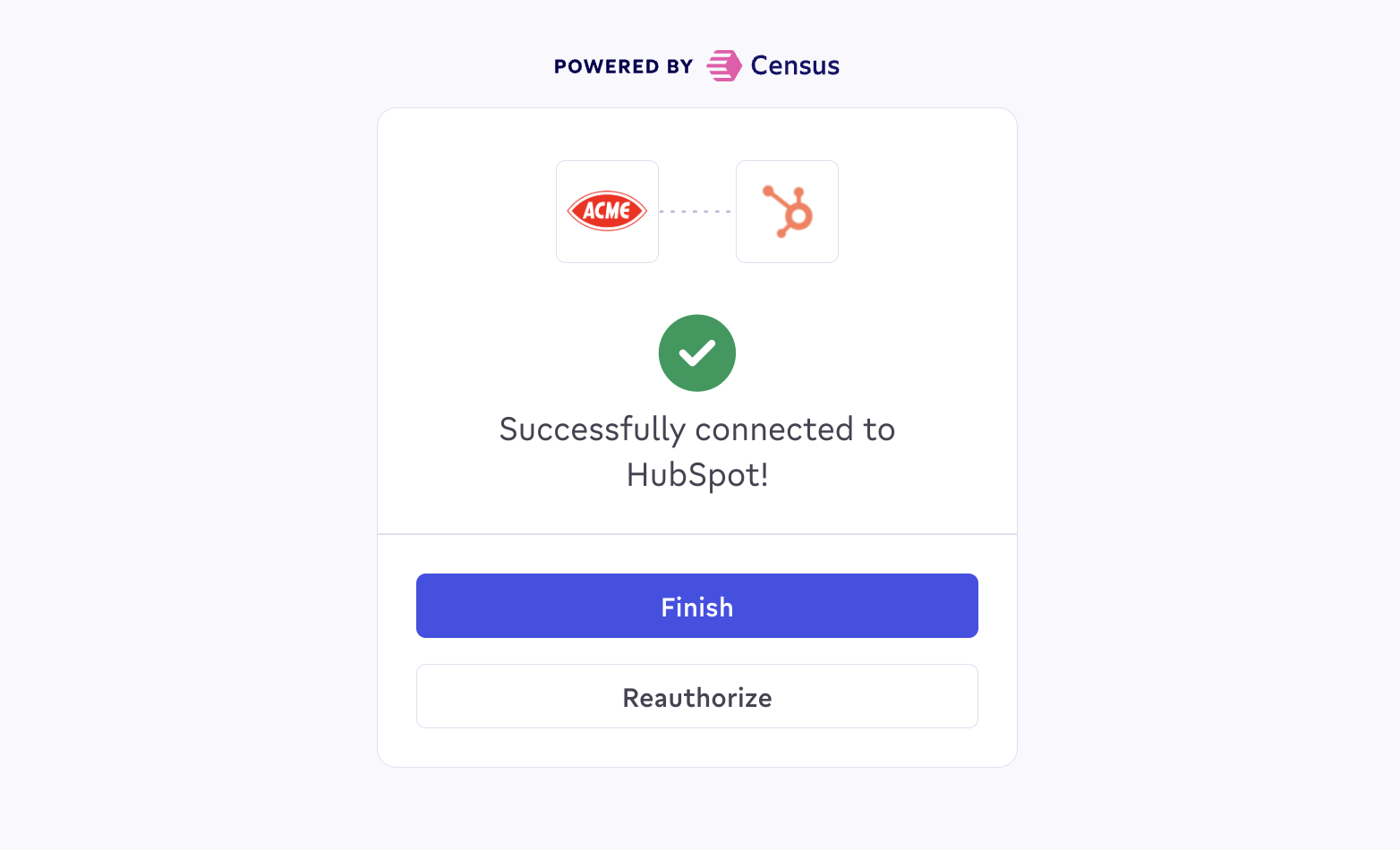
Once complete, the new destination connection will be available for use on the destinations page or via the destination APIs.
You can generate Connect Links via the destination connect link API, or the source connect link API for sources. We recommend generating them just-in-time when users request to authorize the new destination from your application. Here is a simple example for HubSpot:
  curl --request POST \
    --url "https://app.getcensus.com/api/v1/destination_connect_links" \
    --header 'Authorization: <authorization>' \
    --header 'Content-Type: application/json' \
    --data '{
       "type": "hubspot",
       "redirect_uri": "https://your-redirect-url.com"
     }'