
Migrate from Snowflake Native Tables to Apache Iceberg™ Tables
You can migrate a connection that loads data into a Snowflake destination that uses Native tables so that it instead stores data as Iceberg tables in a Managed Data Lake destination. You continue to query the tables from Snowflake through an associated Snowflake destination that uses Iceberg tables.
Fivetran does not charge you for the migration. Your existing billing does not change as a result of the migration.
When you migrate a connection:
- We copy the connection's existing data from Snowflake Native tables to Iceberg tables in your Managed Data Lake destination.
- The table names in Snowflake remain the same. However, you may need to update downstream SQL for columns whose data types change.
- We preserve the connection's sync cursor, so you don't need to perform a historical re-sync.
- We validate the migrated tables by comparing their row counts with those of the original tables.
In the Fivetran dashboard, a Snowflake destination that uses Iceberg tables is called a Snowflake Iceberg table destination.
You can migrate a connection from the Fivetran dashboard or by using the Fivetran REST API.
Architecture
After migration, Fivetran writes the connection's data as Iceberg tables to your Managed Data Lake destination. The Managed Data Lake destination stores the underlying data in a cloud storage bucket that you own.
The associated Snowflake destination does not store another copy of the table data. Instead, Fivetran sends Snowflake the metadata it needs to query the Iceberg tables. For more information, see our Snowflake documentation.
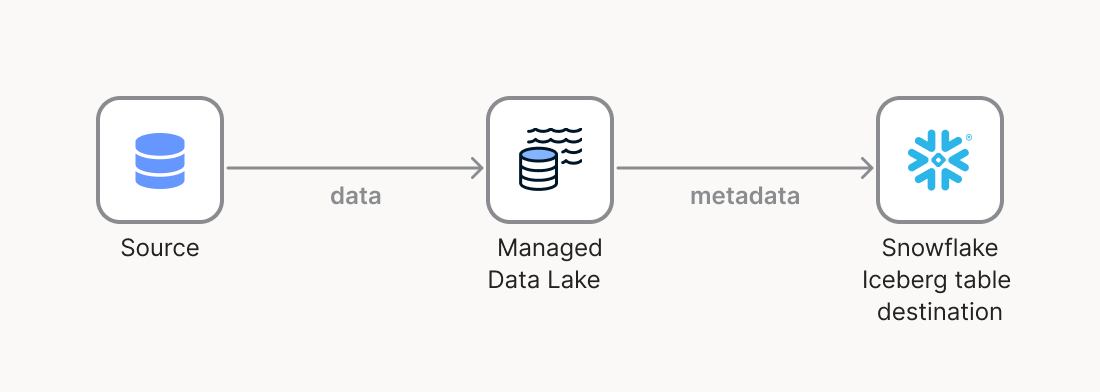
All Snowflake destinations associated with the same Managed Data Lake destination receive the same metadata updates. After the migration, the connection belongs to the associated Managed Data Lake destination rather than directly to the Snowflake destination.
Prerequisites
To migrate a connection, you need the following:
A Snowflake destination that uses Native tables and contains the connection you want to migrate.
A Managed Data Lake destination. If you don't have one, you can create it during the migration. For more information, see our Managed Data Lake setup guide.
A Snowflake destination that:
- Uses Iceberg tables
- Is associated with your Managed Data Lake destination
- Has the same Host and Database values as the Snowflake destination that uses Native tables
If you don't have a suitable Snowflake destination, you can create one during the migration.
If you need to create either destination during the migration, permission to create destinations in your Fivetran account. If you don't have this permission, ask an Account Administrator to create the destinations for you.
Limitations
The migration uses the CONTINUE_WITH_DATA behavior of the Move a Connection REST API endpoint and is subject to its requirements.
The following limitations apply:
- The connection must not use the Source naming convention.
- The connection must not have dbt transformations.
- Quickstart transformations are supported if each Quickstart project references only the connection you are migrating. Fivetran re-points the Quickstart transformations to the new destination group during the migration.
- The connection must not have any incomplete schema migrations.
- You can migrate only one connection at a time.
- The connection's tables in the Snowflake destination that use Native tables must not have Snowflake masking policies that apply to the Fivetran role.
Before you start the migration, check the connection's tables for Snowflake masking policies and make sure they do not apply to the Fivetran role.
Fivetran cannot reliably detect all masking policies. If a masking policy applies to the Fivetran role, we may copy the masked values to the Iceberg tables instead of the original values.
Iceberg tables in a Managed Data Lake destination do not support partitioning or Snowflake Time Travel. After migration, these features are no longer available for the connection's tables.
For the complete list of requirements and limitations, see the CONTINUE_WITH_DATA requirements.
Data type changes
During the migration, Fivetran converts Snowflake Native table data types to the closest matching Iceberg data types. These changes apply whether you migrate the connection from the Fivetran dashboard or by using the REST API.
The following table shows the data types that change:
| Fivetran data type | Before migration (Snowflake Native tables) | After migration (Iceberg tables) |
|---|---|---|
| INSTANT | TIMESTAMP_TZ(9) | TIMESTAMPTZ(6) |
| LOCALDATETIME | TIMESTAMP_NTZ(9) | TIMESTAMP(6) |
| JSON, JSONB, XML | VARIANT | STRING |
| FLOAT | FLOAT | DOUBLE |
- Timestamp columns change from nanosecond precision (9) to microsecond precision (6) because Iceberg V2 supports microsecond precision.
- Columns converted from
VARIANTtoSTRINGrequire SQL changes in Snowflake to access the data.
Review downstream queries, views, and models that depend on columns whose data types change.
Migration instructions for Fivetran dashboard
Start migration
In your Fivetran dashboard, go to Connections and select the connection you want to migrate.
In the connection details page, do one of the following:
- Click Convert to Iceberg Tables next to the destination name.
- Click Start migration.
The Migrate connection page opens.
Select Snowflake Iceberg table destination
The Select a Snowflake Iceberg table destination step lists only Snowflake destinations that use Iceberg tables and have the same Host and Database values as the connection's current destination.
If you already have a suitable destination, click Select next to it and go to the Review data type changes and start migration step.
If you don't have a suitable destination, the page displays You don't have a Snowflake Iceberg table destination for
<database name>yet and guides you through the following steps.
Create Managed Data Lake
In the Choose a data lake drop-down menu, select an existing Managed Data Lake destination.
If you don't have one, click Create Managed Data Lake. The Managed Data Lake setup opens in a new tab. For setup instructions, see our Managed Data Lake setup guide.
After you complete the Managed Data Lake setup, return to the Migrate connection page and click Refresh.
Select the new destination in the Choose a data lake drop-down menu.
The Snowflake destination that you create in the next step is associated with this Managed Data Lake destination. You can't change the associated Managed Data Lake destination after you save the Snowflake destination.
Create Snowflake Iceberg table destination
Click Create Snowflake destination.
Enter a name for the destination, and then click Add.
Complete the Snowflake setup form. Fivetran preselects Iceberg Table as the table type and the Managed Data Lake destination you selected in the previous step.
Enter the credentials required by your Snowflake authentication method. The Host and Database values must match those of the Snowflake destination that uses Native tables. For setup instructions, see our Snowflake setup guide.
Click Save & Test.
Review the connection test results.
The Validate Snowflake and MDLS region compatibility test displays a warning if your Snowflake account and Managed Data Lake destination are in different regions. Cross-region usage may incur additional costs. The warning does not block the setup.
Click Continue.
Fivetran returns you to the Migrate connection page and selects the new destination.
Review data type changes and start migration
On the Review data type changes step, review the columns whose data types will change during the migration. For more information, see Data type changes.
Click Start migration.
In the Confirm migration dialog, enter
MIGRATE, and then click Start migration.
When the migration starts:
- The connection enters the Migration in Progress state.
- Fivetran pauses the connection. If a sync is running, we stop it before the migration starts.
- Downstream transformations and models do not receive new data until the migration completes.
- You can't edit the connection, destination, or schema until the migration completes.
Monitor migration
The Migration in progress page displays the migration start time and the number of tables migrated.
You can close the page while the migration is in progress. We email you when the migration completes. You can also monitor the migration from the connection page.
Review validation results
When the migration succeeds, the Migration succeeded page displays the following information:
- Validation: The number of migrated tables and the row count comparison result. Fivetran compares the row counts of the original and migrated tables.
- Updated connection: The new destination, table type (Iceberg tables), and connection status.
Click Back to <connection name>.
Resume connection
Fivetran does not resume the connection automatically after the migration. Resume the connection to continue syncing data to the Iceberg tables.
Migration failures
If the migration fails, the Migration failed page displays the error message, migration start and end times, and the current destination and table type of the connection. If the migration fails before Fivetran finishes copying the data, we remove any Iceberg tables created during the migration and restore the original table names in the Snowflake destination that uses Native tables. The connection remains associated with its original destination.
Review the error message to determine why the migration failed, and then click Close to return to the first step of the migration.
If the error indicates that the connection depends on its current destination group, complete the action specified in the error message. Then, click Retry with force move.
If the destination of the connection is not what you expect after a failed migration, contact Fivetran Support.
After migration
After the migration:
- The connection page displays the associated Managed Data Lake destination and the number of linked Snowflake destinations.
- The connection's Status page lists the Connection Paused and Connection Moved actions.
- We retain the original tables in the Snowflake destination that uses Native tables and rename them to
<table_name>_MOVED_<id>, where<id>is a short identifier derived from the migration job. Tables that you excluded from the sync retain their original names. You can compare the row counts of the renamed Native tables with those of the migrated Iceberg tables. - If you manage the connection with Terraform, use the connection's new
group_idwhen you reconcile your Terraform configuration. Thegroup_idis the group of the associated Managed Data Lake destination, not the group of the Snowflake destination. For more information, see our REST API tutorial.
Migration instructions for Fivetran REST API
You can also migrate a connection by using the Move a Connection REST API endpoint with the CONTINUE_WITH_DATA sync behavior.
For step-by-step instructions, see How to Migrate a Connection from Snowflake Native Tables to Iceberg Tables Using Fivetran REST API.
--
Legal notices
Apache Iceberg is a trademark of the Apache Software Foundation.