
dbt Cloud Orchestration Setup Guide
Follow our setup guide to set up third-party orchestration with dbt Cloud.
You need this integration if you want Fivetran to handle the extraction and load phases of the ELT pipeline, and dbt Cloud to handle the transformation phase.
Prerequisites
To connect dbt Cloud to Fivetran, you need a dbt Cloud account with:
- API access
- at least one dbt Cloud transformation project
You must be on the Team or Enterprise plan to access the dbt Cloud API.
Setup Instructions
Find API server region
Find the service provider and the API server region of your account in the dbt documentation. Match your dbt Cloud API server URL against the access URLs listed there:
For example, if your API server URL is
https://cloud.getdbt.com, then your service provider isAWSand your API server region isUS region. If your API server URL ishttps://ACCOUNT_PREFIX.eu2.dbt.com, then your service provider isAzureand your API server region isEurope region (eu2).Make a note of the service provider and the region. You will need them to configure Fivetran.
If your access URL contains an account prefix, make a note of the prefix too. The regions outside the AWS
US region,Europe region, andAU regionserve every account on its own host, so we can't fill the URL in for you.
Create service token
Log in to your dbt Cloud account.
In the bottom left corner, click on the account email button.
Click Your profile.
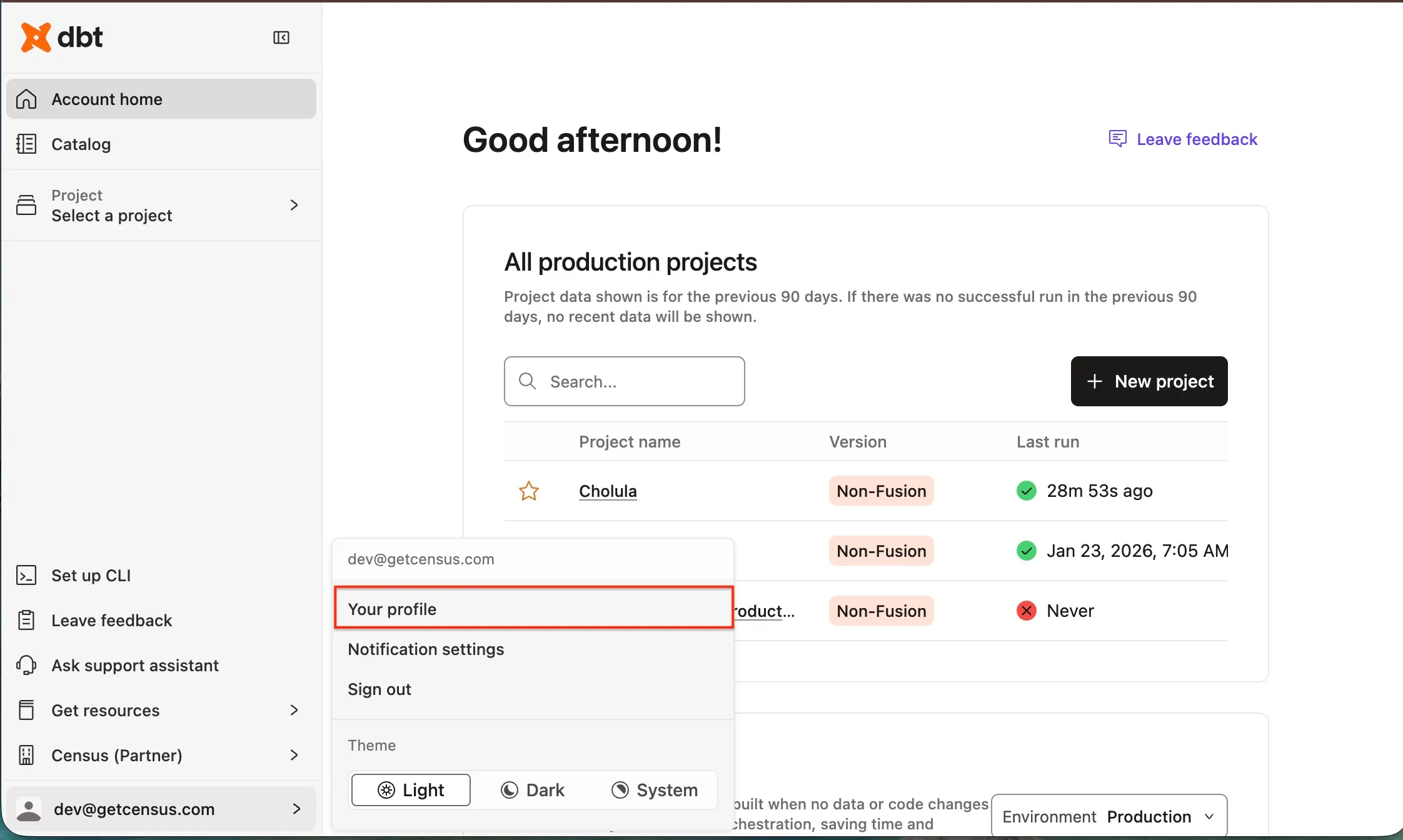
Click Service tokens.
Click + Create service token.
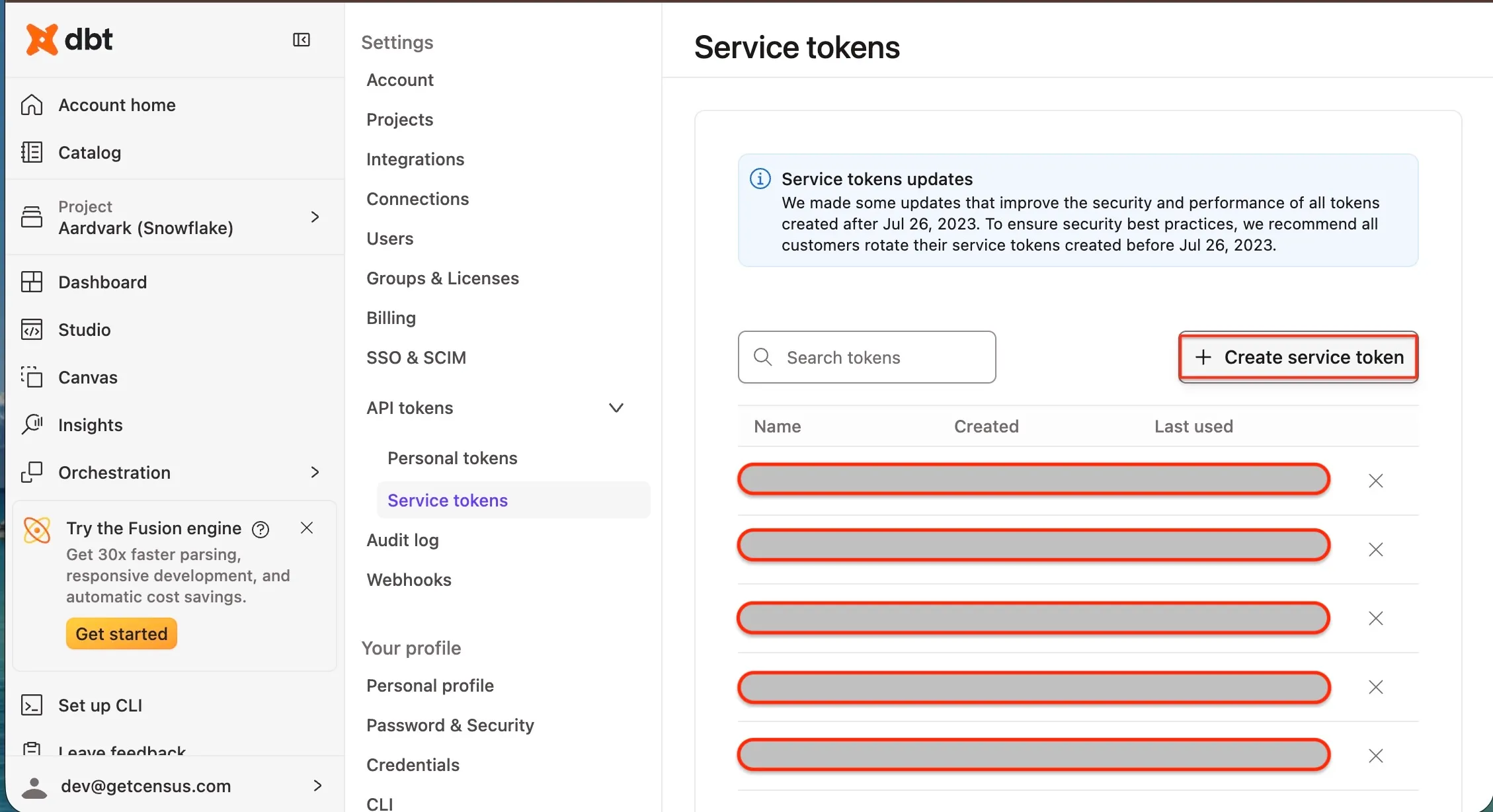
Enter the Token Name.
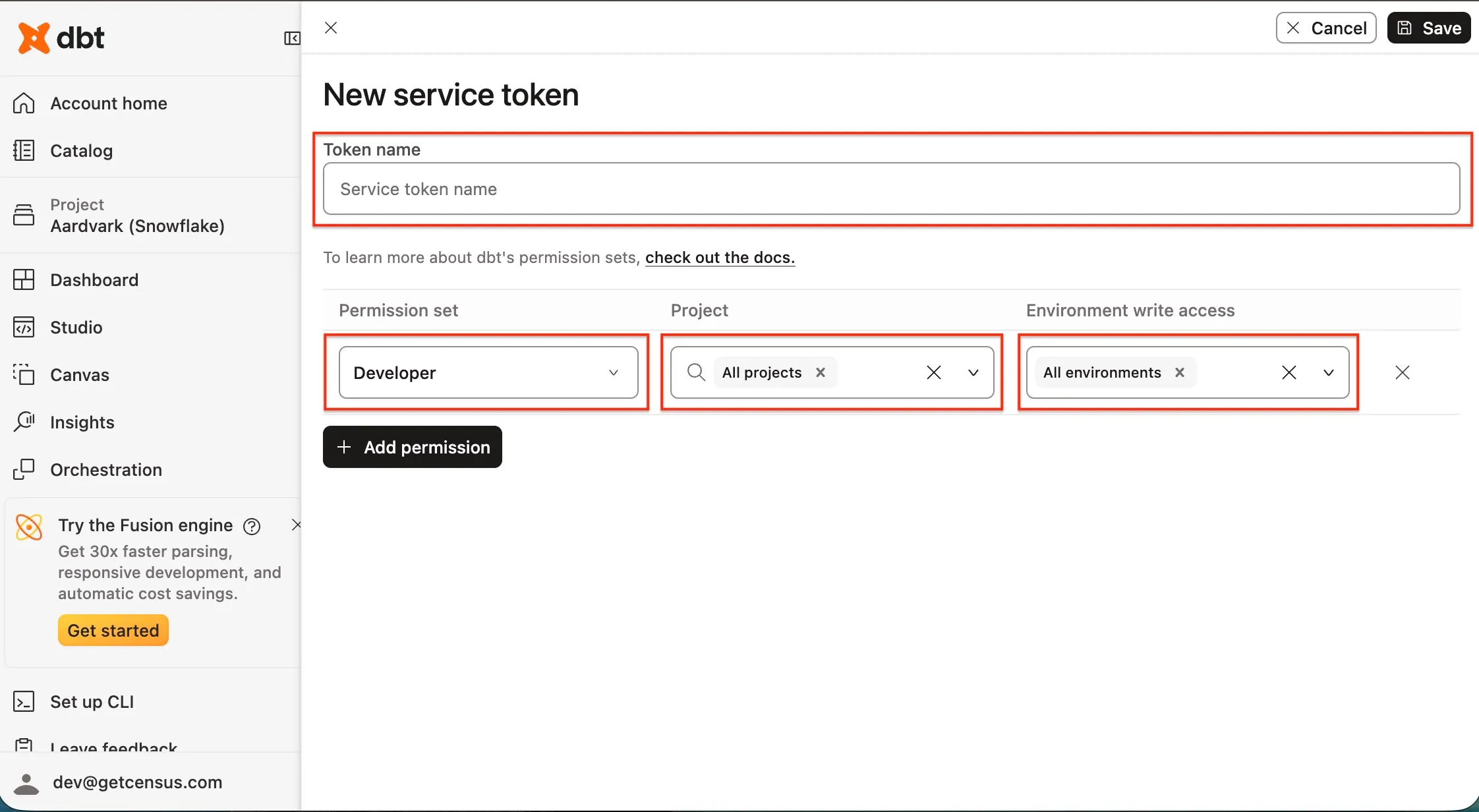
From the Permission set drop-down menu, select the permission set for your service account token, depending on your plan:
- If you are on the Team plan, select Member access.
- If you are on the Enterprise plan, select Developer access.
From the Project drop-down menu, select All projects.
From the Environment write access drop-down menu, select All environments.
Click Save.
Make a note of the service token. You will need it to configure Fivetran.
For more details about service account tokens, read the dbt Cloud documentation.
Finish Fivetran configuration
Open the transformation setup form.
From the Service Provider drop-down menu, select the service provider you found.
From the Region drop-down menu, select the region you found. The drop-down menu lists only the regions of the selected service provider.
If the selected region serves every account on its own host, the Access URL and Discovery API URL fields appear pre-filled with
ACCOUNT_PREFIXin place of the account prefix. ReplaceACCOUNT_PREFIXin both URLs with the account prefix you found.If you are using Virtual Private dbt or Single Tenant deployment, you can change Access URL and Discovery API URL. Set the Change Access and Discovery API URL toggle to ON and enter the Access URL and Discovery API URL.
Click Authenticate.
After successful authentication, the Account drop-down appears in the setup form. From the list, select your dbt Cloud.
After Fivetran receives the account projects, the Project drop-down appears in the setup form. From the list, select the project you want to use for the integration.
Click Save & Test. We take it from here and set up the orchestration with dbt Cloud.