
Creating Snowflake and Fivetran Accounts, and Snowflake Destination for PBF
If you want to explore our Quickstart Guide for the Powered By Fivetran (PBF) feature but don't have a Fivetran account or an account on any of the platforms we support as destinations, you can perform the following steps:
For both of the steps above, we assume that you have an existing Fivetran account and are using a new Fivetran account exclusively for the Quickstart Guide. To ensure that this new account does not interfere with the logged-in state of your existing account, we recommend that you do either of the following:
- Proceed through this guide in an incognito browser session
- Log out from your existing Fivetran account before proceeding through this guide
Create Snowflake trial account
In your browser, go to https://signup.snowflake.com.
Enter your First Name, Last Name, Email, and Company in the Snowflake trial account signup form.
Make sure to specify a valid email address since Snowflake sends the account verification email to this address. This email may not be associated with an existing Snowflake account. Use a personal email or follow directions in Google's documentation to leverage your existing Gmail email address.
Select your Role from the drop-down menu.
Select the Country from the drop-down menu.
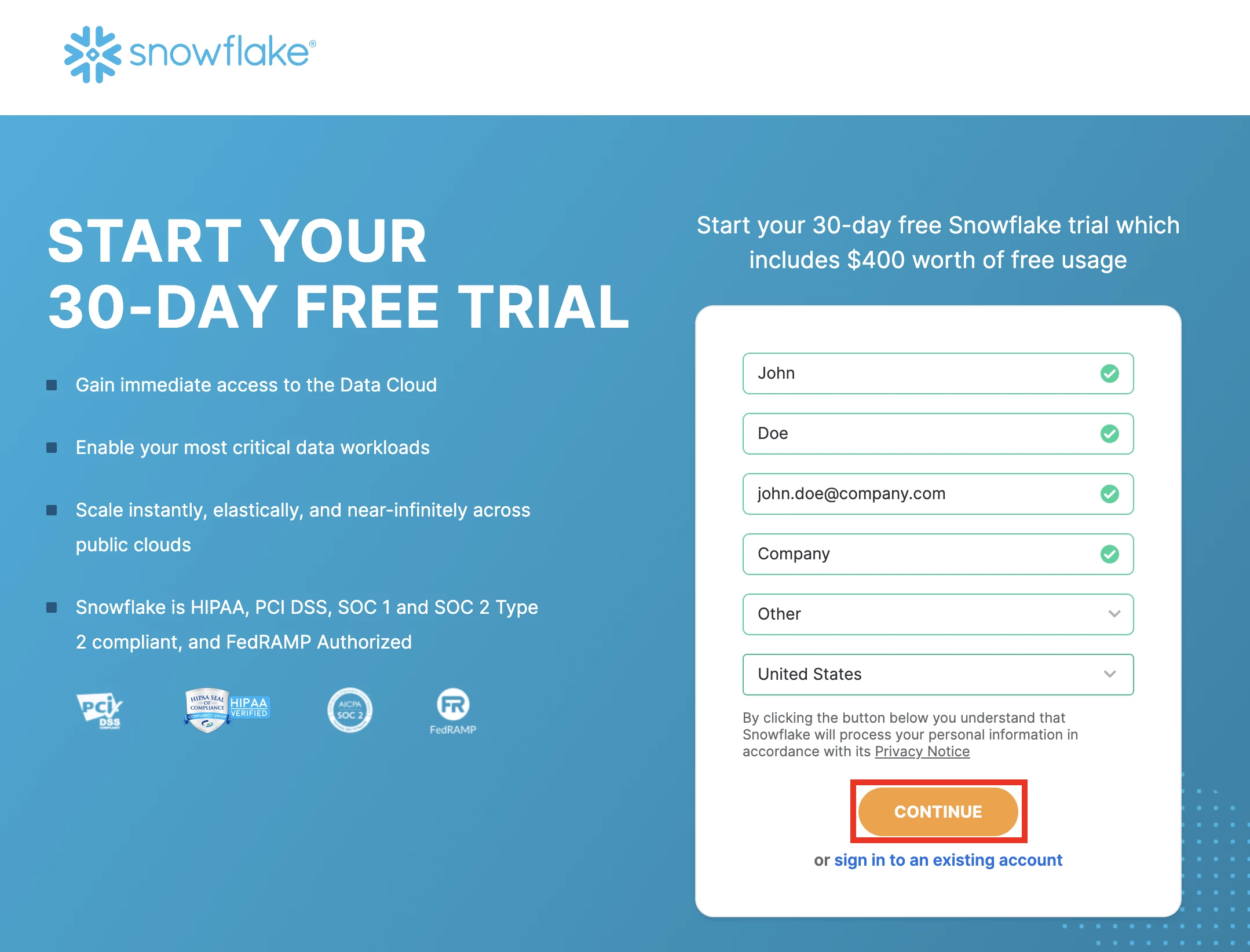
Click Continue.
Choose your preferred Snowflake edition.
Choose your preferred cloud provider.
Choose the data processing region.
If you don't know what Snowflake edition, cloud provider, or data processing to choose, you can choose Standard and build on GCP. For this tutorial, the choices you make in steps 5 - 7 don't make a difference.
Select the user agreement checkbox.
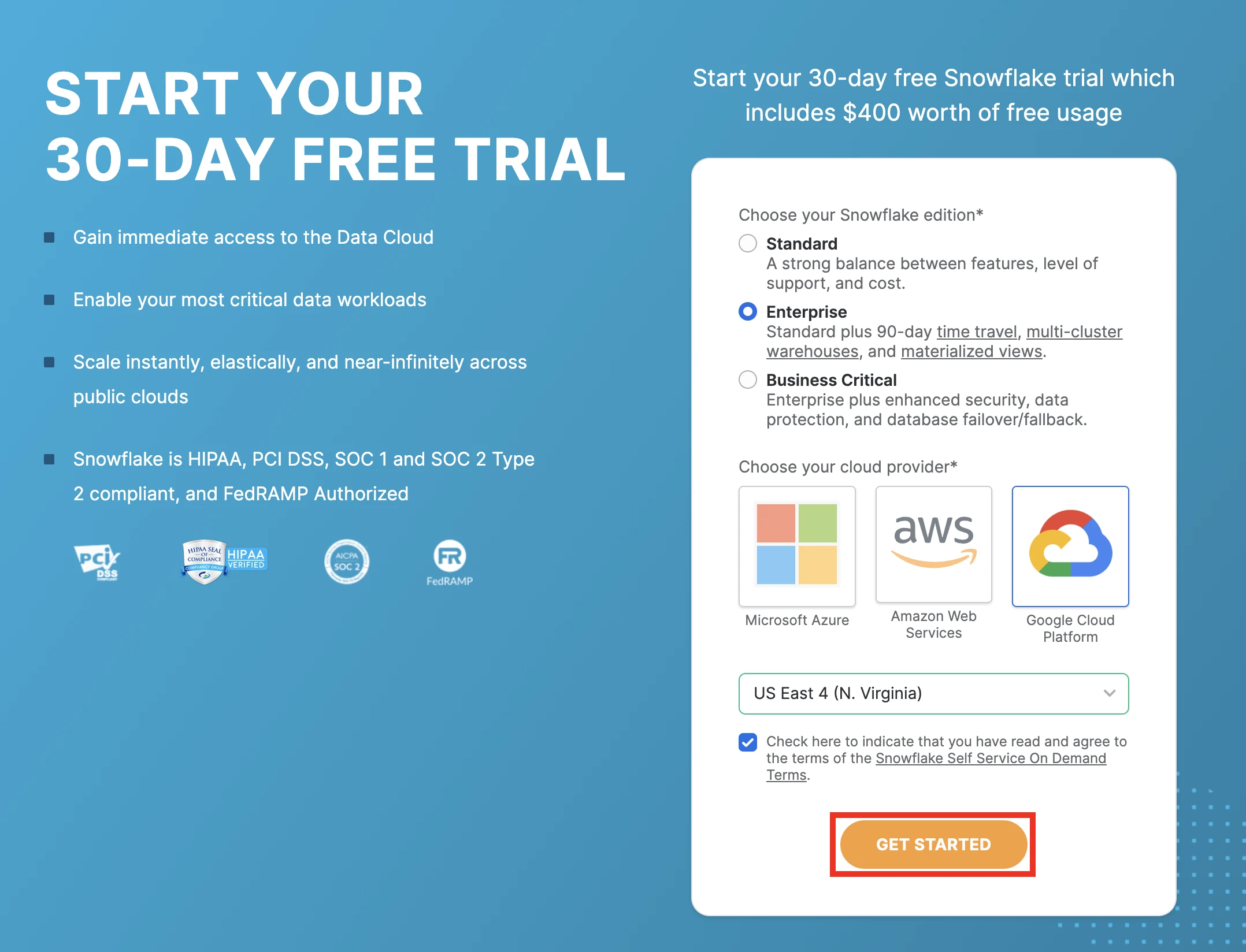
Click Get Started.
To answer Snowflake's questions, select the relevant checkboxes and click Continue, then click Submit.
You can also Skip the questions.
In the email box you specified during the trial signup, find the account activation email.
Click Click to activate in the account activation email.
The verification email may take a couple of minutes to appear in your inbox. You may want to check the spam folder in your inbox as well.
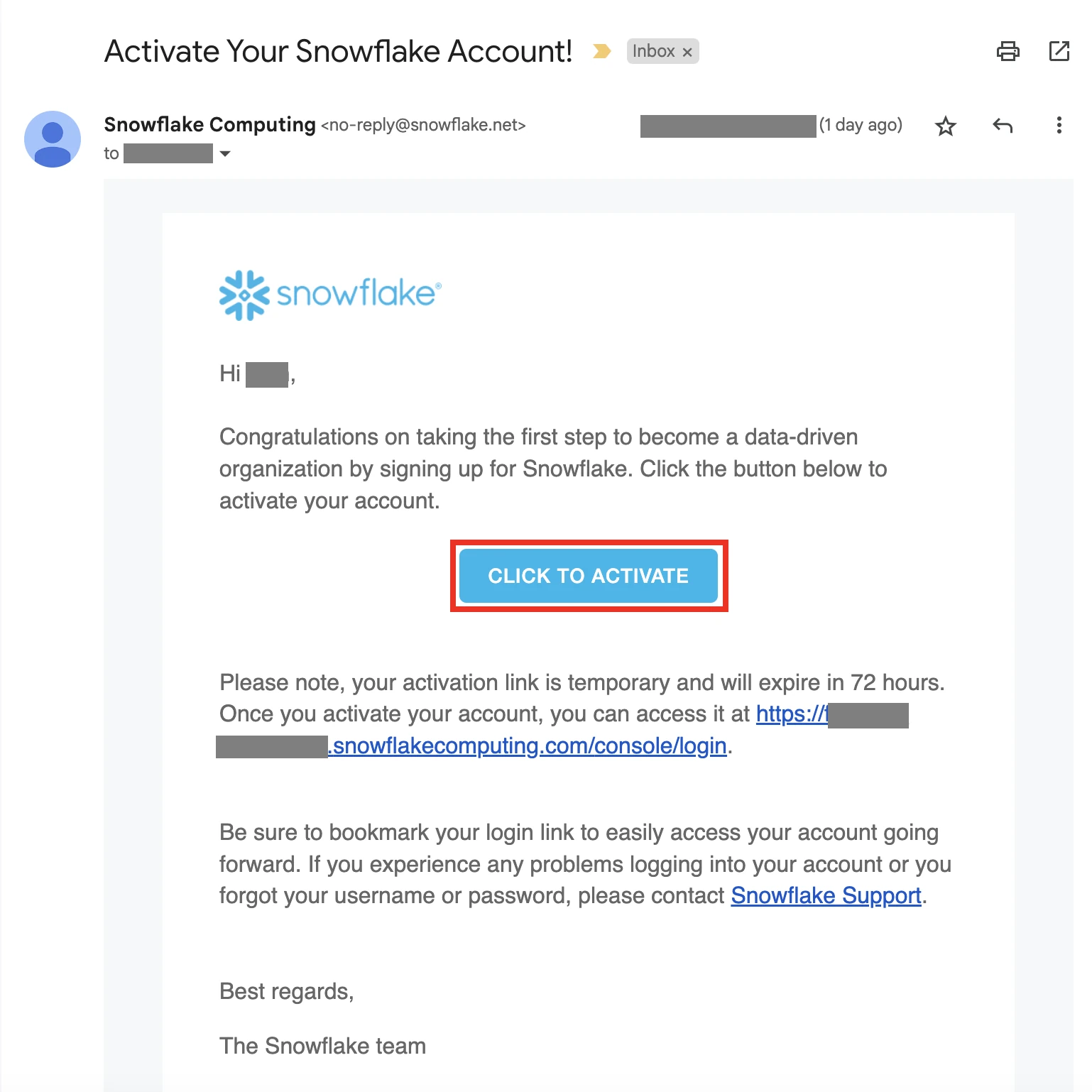
In the account activation form, enter your new Username and Password.
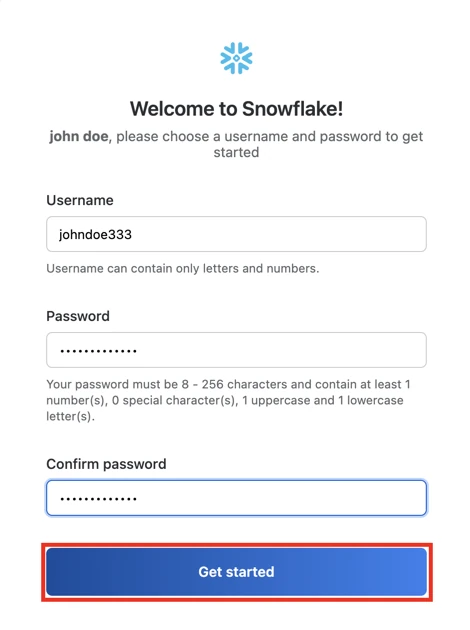
Confirm Password and click Get Started. You are logged in to your Snowflake trial account.
Create Fivetran partner account and Snowflake destination
You need the ACCOUNTADMIN role to complete these steps. Check your current role in the bottom left corner of your Snowflake app.
- Go to Admin > Marketplace > Snowflake Marketplace.
- Click Discover and select Integrated SaaS Applications.
- Select Fivetran Platform from the list.
- Click Start free trial.
- Copy the details in the Connect to Fivetran to start your trial dialog. You may need this information later.
- Leave the Optional Grant option at its default setting, and click Connect to Fivetran.
- Click Activate in the Your partner account has been created dialog.
- On the Fivetran trial account signup page, enter and confirm a new password, and, optionally, enter your phone number.
After you log in to your Fivetran dashboard, you should see SnowflakePC in your Destinations list.
- Go to either the Installing Postman step or Importing Fivetran REST API Postman collection step.